
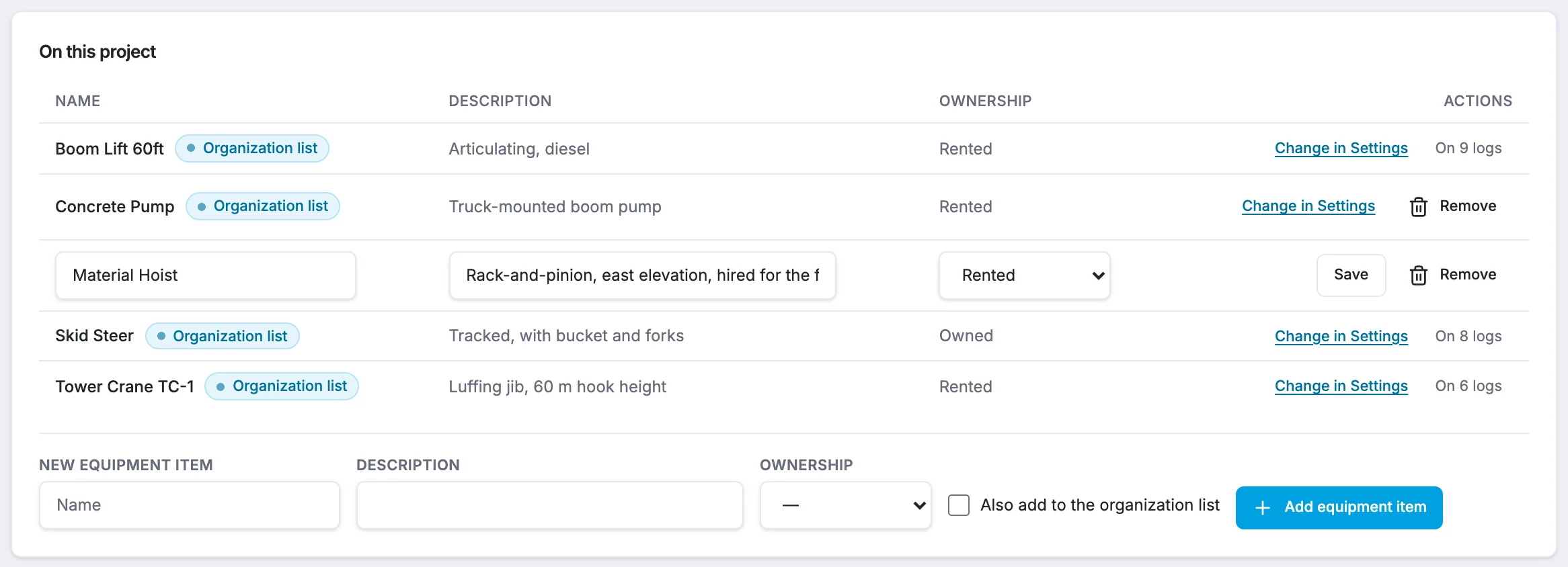
Open Equipment in the project sidebar. Every item on the project is listed under On this project. To change or remove one, click the pencil in its row, under Actions. The row opens, with Cancel to close it again. Only one row is open at a time.
Change a one-off item
Items typed in for this project, without an Organization list badge, can be edited here.
- Click the pencil in the item's row.
- Change the name, description or ownership.
- Click Save.
The row closes and a note says Saved "…". The page stays where you were.
Change an item from the organization list
Items with an Organization list badge are kept the same on every project, so they can't be edited here. Click the pencil in the row, then Change in Settings to open Settings → Equipment, where a change reaches every project that carries the item. That link appears only if you can open Settings. See Your organization's equipment list.
Remove an item from the project
You can remove an item that hasn't been used on a daily report.
- Click the pencil in the item's row.
- Click Remove in the open row.
- Read the confirmation and click Remove.
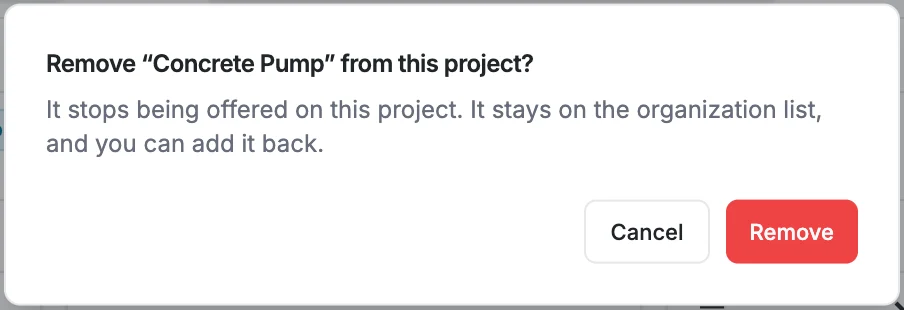
The item stops being offered on this project. A note says Removed "…" from this project. An item from the organization list stays on that list, and you can add it back at any time.
An item that has been logged on a daily report can't be removed: instead of Remove, its open row says how many logs it's on, for example On 9 logs. It stays on the project so those logs keep the name of what was on site.