
Careful
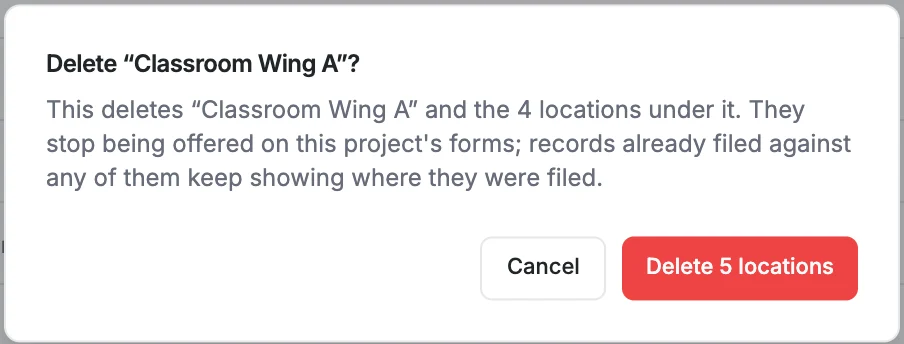
Deleting a location deletes every location under it. Deleting Classroom Wing A also deletes Room 101, Room 102 and every other location inside it, at any depth. Locations don't go to a recycle bin, and you can't undo a delete from this page. If you only want to keep some of them, move those out first. See Move or reorder locations.
- Open Locations in the project sidebar.
- Point at the location and click Delete, or right-click it and choose Delete….
- Read the confirmation. When there are locations under it, it tells you how many will go, and the button says so too: Delete 5 locations. For a single location the button is Delete location.
- Click the button to delete, or Cancel to keep everything.
The page says Deleted "…" and the 4 locations under it.
What happens to records
Deleted locations stop being offered on this project's forms. Records already filed against one of them, such as a punch item or a photo, keep showing where they were filed. When you open one of those records to edit it, its Location field shows the old name marked (deleted), until you pick another.