
If the project's drawings are already in Drawings, StruXure can read the locations off them instead of you typing them in. Nothing is added until you choose.
What it reads
- Sheet titles for levels and areas. Only plan sheets count: "Level 2 Floor Plan" gives Level 2, "Area B – First Floor Plan" gives Area B with Level 1 inside it, and "Roof Plan" gives Roof. Elevations, sections and details name no place, so they're skipped.
- Room tags on architectural plans: the room name stacked over its number. Each room is suggested inside the level its sheet is for, named number first, such as 214 – Classroom.
- Room schedules: a room number column beside a room name column. Where a schedule and a tag disagree about a name, the schedule wins.
It reads the current revision of each drawing.
Run it
Open Locations in the project sidebar.
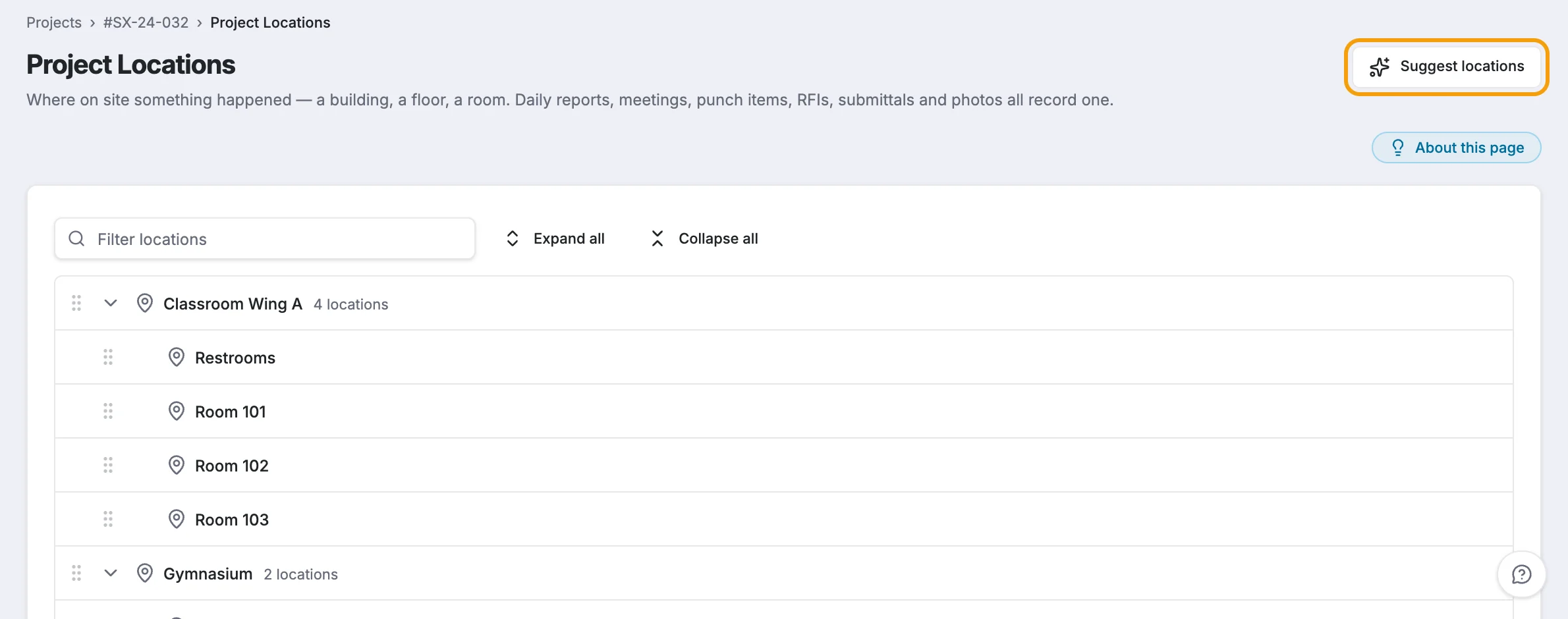
Click Suggest locations at the top right.
The Suggest locations page shows its progress, such as Reading plan sheets — 3 of 12, and updates by itself. You can leave and come back; the results wait for you.
If the project has no drawings yet, the page says This project has no drawings to read yet. Upload a plan set in Drawings first.
Choose what to add
When it's finished, the page lists what it found as a tree, with every new location ticked.
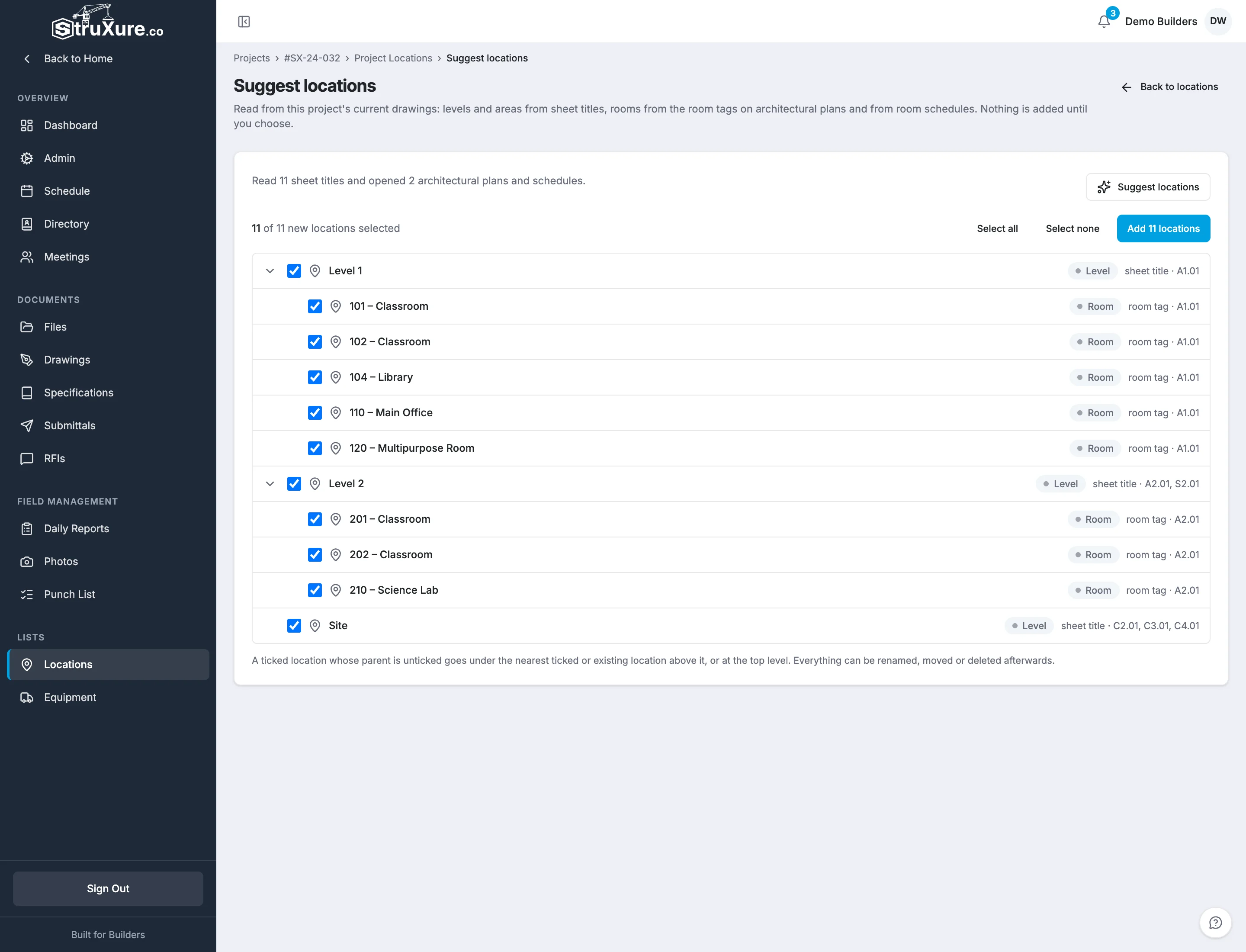
- Untick anything you don't want. Unticking a row unticks everything under it, and ticking does the same. Select all and Select none change the whole list.
- Check the right-hand side of each row: Level, Area or Room, how it was found (sheet title, room tag or room schedule) and the sheet numbers.
- Click Add 11 locations (the button counts what's ticked).
You're taken back to the tree, which says Added 11 suggested locations.
Good to know:
- Locations the project already has are shown with a tick mark and Already on the project, so the tree reads whole. They aren't added again.
- A ticked location whose parent you unticked goes under the nearest ticked or existing location above it, or at the top level.
- Everything added can be renamed, moved or deleted afterwards, like any other location.
- The summary at the top says how many sheets were read. A plan that is a scanned image has no text to read, and the summary names those sheets: rooms on them won't be in the list.
Run it again
Click Suggest locations on the review page to read the drawings afresh, for example after a new revision. A new run replaces the previous one.
If the page says Every location these drawings suggest is already on the project., there's nothing new to add. If it says The drawings could not be read., click Suggest locations to try again.