
Photos is each project's library of site photographs: progress shots, conditions as found, work before it gets covered up. Open it from Photos under Field Management in the project sidebar.
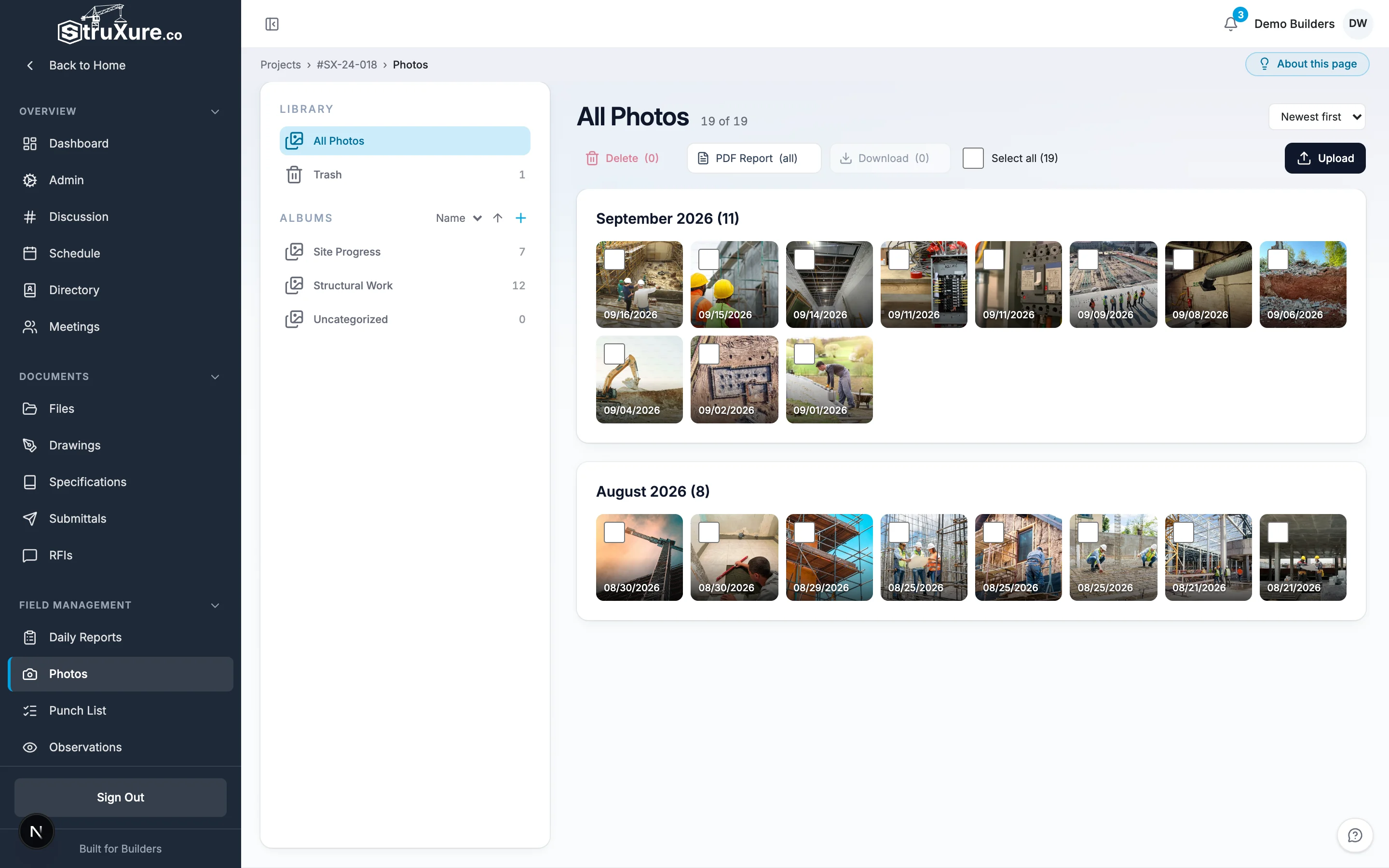
The two panes
- Library on the left lists the smart albums, which fill themselves: All Photos (every photo on the project), Starred (the photos you've starred), Unfiled (photos that aren't in an album) and Trash (photos that have been deleted and can still be restored). The number beside Starred, Unfiled or Trash is how many photos are in it.
- Albums below it lists the project's albums, with the number of photos in each. Click one to see only its photos.
- The right side shows the view you picked. The heading says which view it is and how many photos it holds out of the project's total, for example 7 of 19.
Photos are grouped into month cards, such as September 2026 (10), by the date each photo was taken. If the camera didn't record a date, the upload date is used, as it was in the project's time zone. Each tile shows that date, so a photo falls on the same day whoever looks at it. Use the Newest first / Oldest first list at the top right to change the order; StruXure remembers your choice in this browser.
The library pane appears on wider screens. On a narrow window or a tablet in portrait, use the Edit menu to move photos between albums instead of dragging.
Albums
A photo is in one album at most. Photos in no album, for example ones uploaded without picking an album, show in Unfiled. You can add as many albums as you like, for example one per area, trade or week. See Organize photos into albums.
What you can do
| Task | Where |
|---|---|
| Upload photos, with an album, caption, date and location | Upload, or drag photos onto the page. See Upload photos. |
| Look at a photo full screen and see its details | Double-click its tile. See View a photo and its details. |
| Change a caption or album | In the photo viewer. See Edit a caption or album. |
| Star photos to find them again | The star on a photo. See Star photos. |
| Move several photos to another album | Edit (n), or drag them onto an album. See Move photos to another album. |
| Make a PDF of photos | PDF Report. See Make a PDF photo report. |
| Download originals | Download (n). See Download photos. |
| Delete and restore | Delete (n) and Trash. See Delete photos and restore them. |
Photos are kept as you took them
StruXure stores every photo exactly as it was uploaded. It doesn't resize, recompress or rotate the original, so a download gives you back the same file. The viewer shows each file's SHA-256 fingerprint, which lets anyone confirm a copy is identical to what was uploaded.
Photos on daily reports
A photo can also be attached to one daily report, so the day's record shows what the site looked like. That's done from the daily report. See Photos on daily reports.