
Use the Edit menu
- Tick the box in the corner of each photo you want to move. To pick every photo in the view, tick Select all.
- Click Edit (n) in the toolbar, where n is how many you ticked. To take them out of every album instead, choose No album (Unfiled) in the next step.
- Under Set Photo Album, choose the album.
- Click Set album.
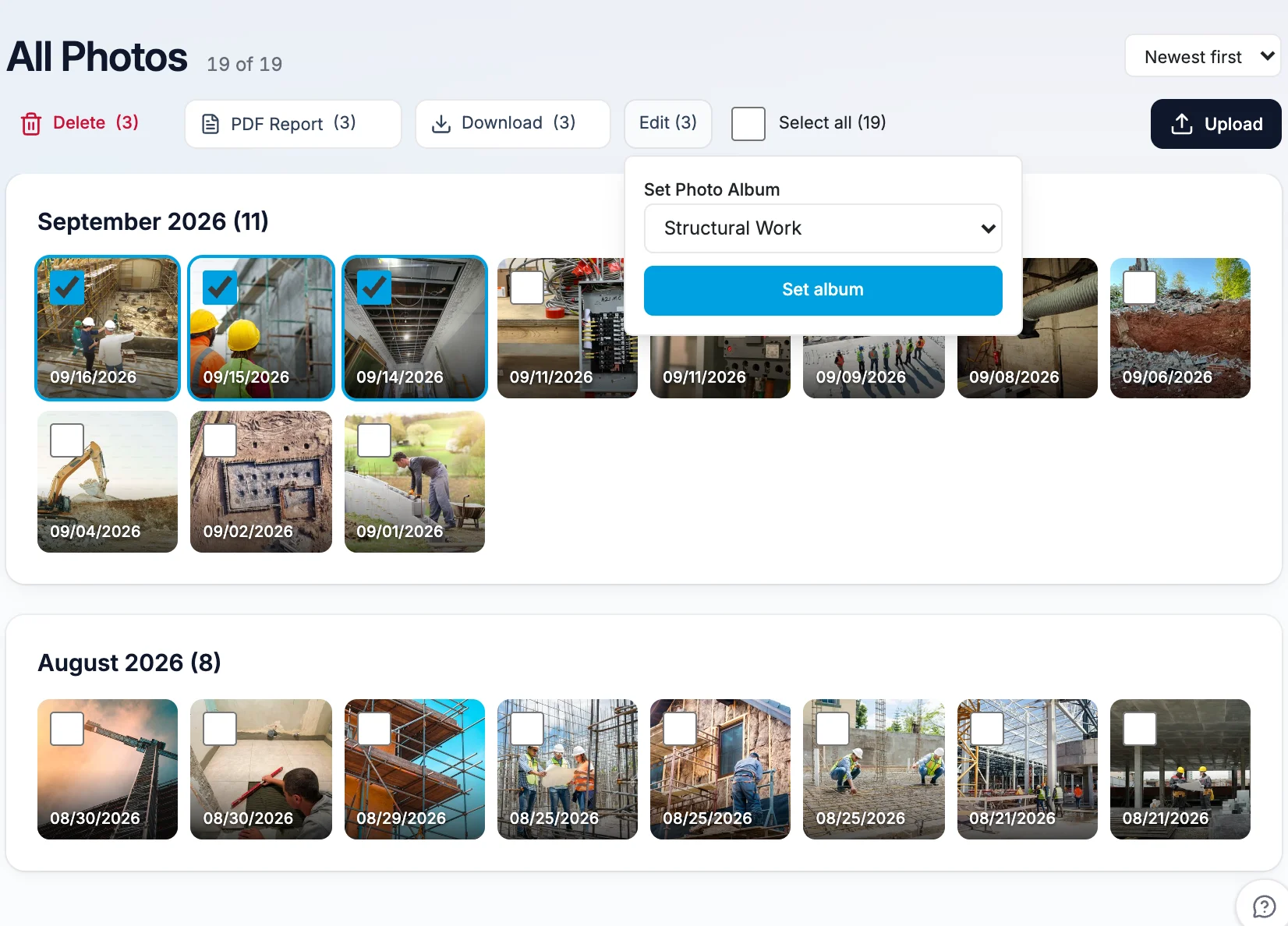
The page says, for example, 3 photographs moved. If you click Set album without choosing one, you'll see Choose an album. and your photos stay ticked.
Drag photos onto an album
- Tick the photos you want to move.
- Drag any one of them onto an album in the library. The album lights up when you're over it.
- Let go.
All the ticked photos move together. If you drag a photo that isn't ticked, only that photo moves.
Tip
To move a single photo, you can also open it and change its Album in the panel. See Edit a caption or album.