
A photo report is a PDF of photos with the details that make them useful as a record: when each was taken, its caption, album and location, and who uploaded it. It's printed on your company's letterhead.
Make a report
- Choose what goes in it:
- A whole album: click the album in the library and don't tick anything. The report is titled with the album's name.
- All Photos: stay on All Photos and don't tick anything.
- Your starred photos: click Starred in the library and don't tick anything.
- Particular photos: tick them. The button shows how many, for example PDF Report (3).
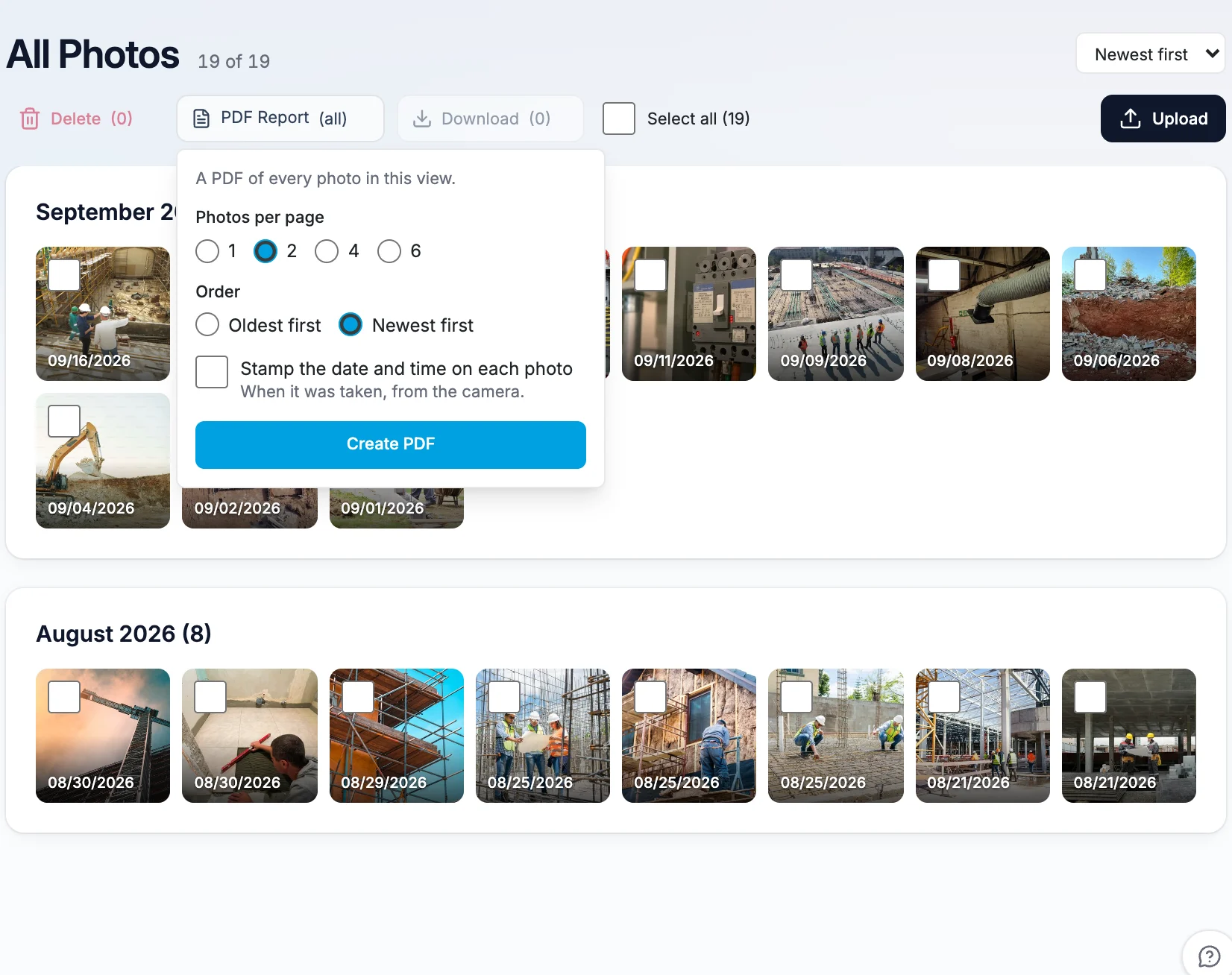
- Click PDF Report.
- Choose the options:
- Photos per page: 1, 2, 4 or 6.
- Order: Oldest first or Newest first. It starts with the order the grid is in.
- Stamp the date and time on each photo: prints the date and time it was taken in the corner of each photo, like a camera's date stamp.
- Click Create PDF.
The PDF opens in a new tab, where you can save or print it.
What's in the report
- A heading with the album name (or Photo report), the number of photos and the range of dates they were taken, plus the project's name, number, start and finish dates.
- For each photo: Taken and the date and time, its caption, its album and location, when and by whom it was uploaded, the daily report it's on (if any), and its file name. The file name links back to the photo in StruXure.
If a photo has no recorded date, it says Taken: not recorded by the device, and the date stamp is left off that photo rather than showing the upload date.
Limits
A report holds up to 300 photos. If the view has more, you'll see a message asking you to tick the ones you want or open one album. A report can't be made from the Trash.