
Access review shows what people can actually do, worked out from every group they hold. It's view only: change access in the Directory.
Find the person
- Go to Settings and click Access review. The By person tab is open.
- Type in Find a person or company to narrow the list.
- Click the person.
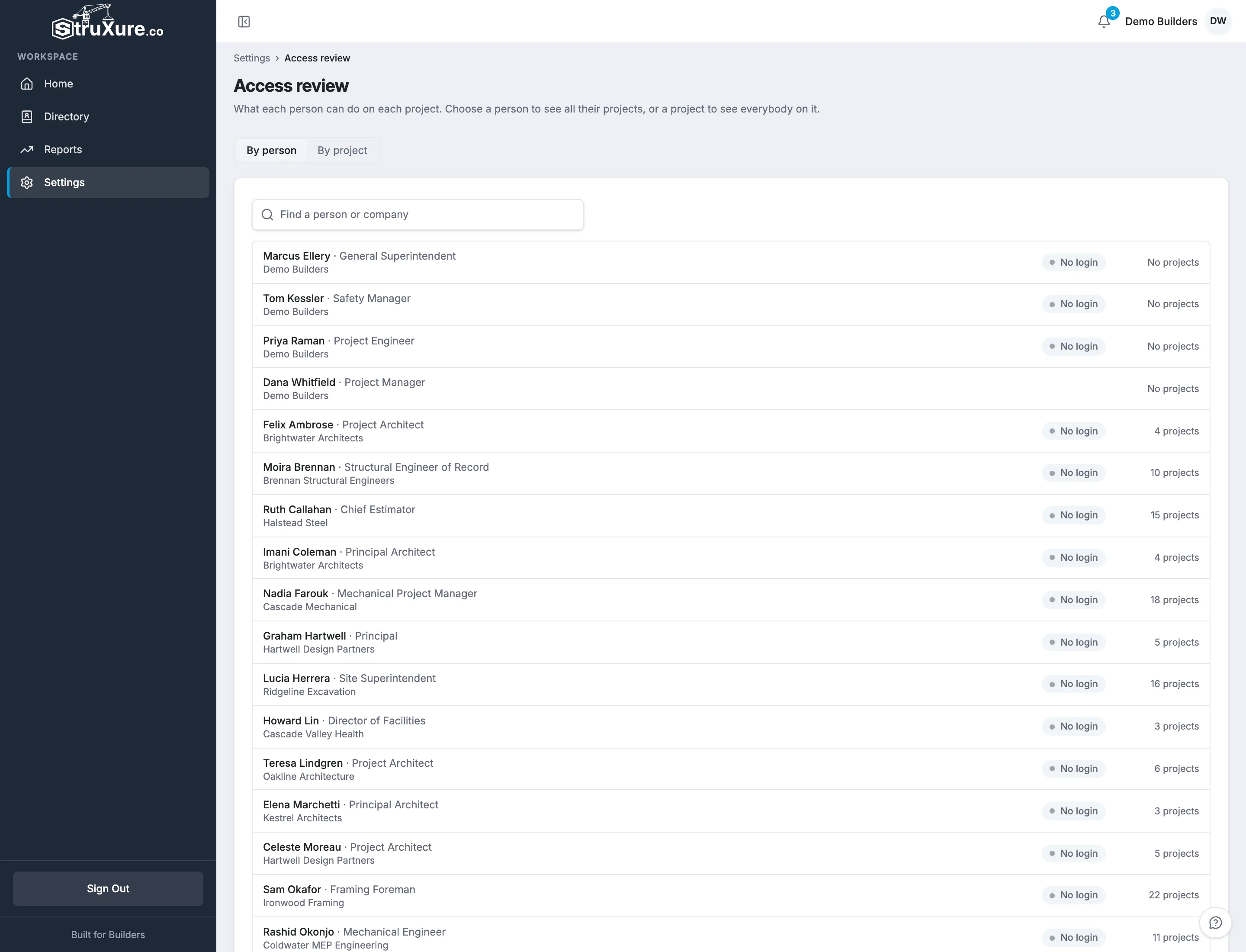
Each row shows the person's company, a badge if they can't sign in normally, and how many projects they're on:
| Badge | Meaning |
|---|---|
| (none) | They can sign in. |
| Invited | They've been invited but haven't signed in yet. |
| No login | They're in the Directory without a sign-in. |
| Access revoked | Their sign-in to this workspace has been taken away. |
Read their page
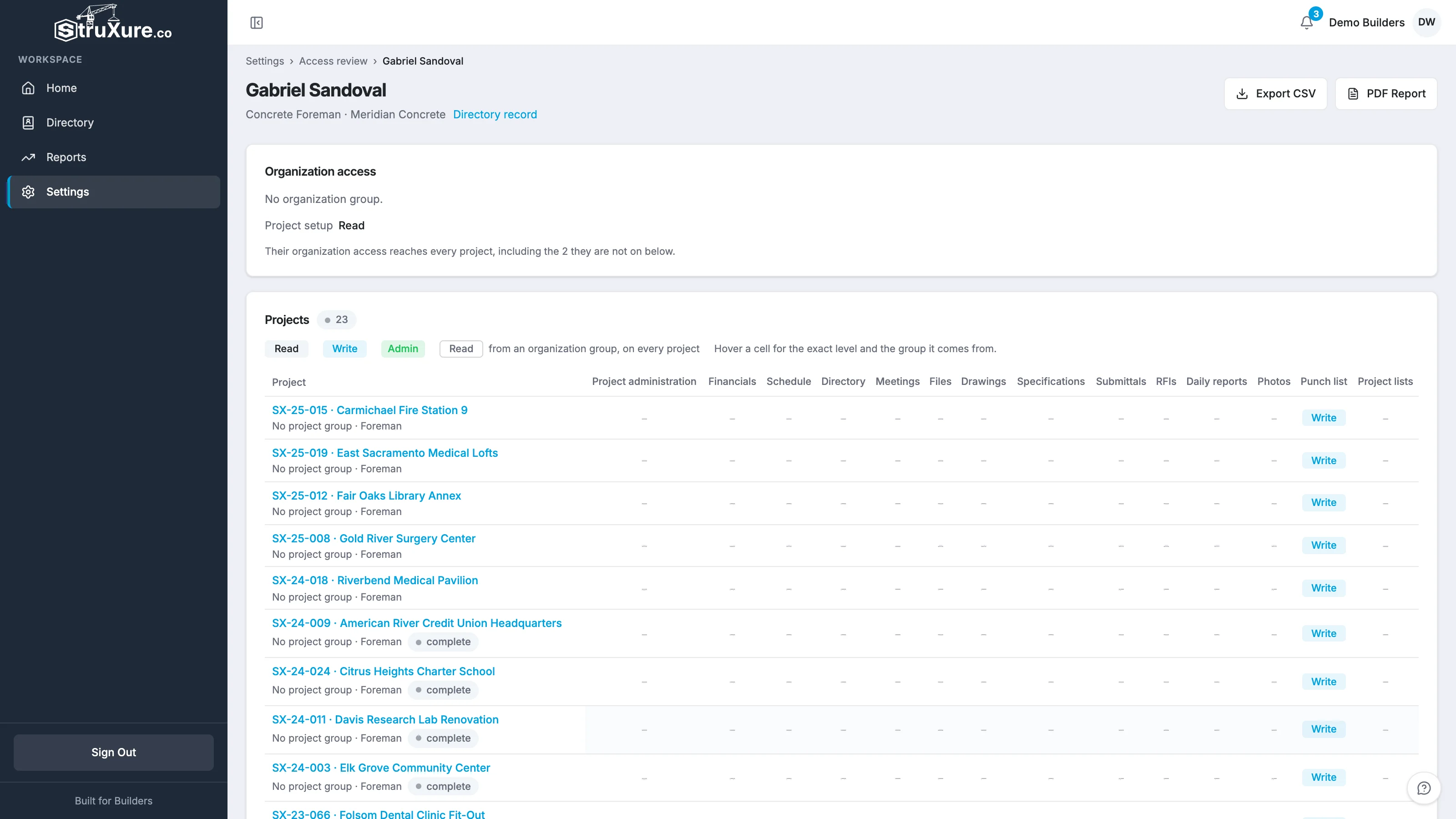
- The heading shows their title and company, the sign-in badge, Inactive if their Directory record is inactive, and a Directory record link to change their access.
- A note at the top says if they have no login, or if their access has been revoked. For a revoked person, the levels below are what they would have if it were restored.
- Organization access shows their organization group, if any, and the workspace areas it gives. If it reaches every project, it says so, including how many projects they aren't on.
- Projects has one row per project they're on, and one column per project area.
In the grid:
- Each cell shows the level they hold on that area, named as in Permission Groups (such as Respond on RFIs or Markup on Drawings). A dash means no access.
- The color shows how high the level is: gray for view only, blue for a level that can change things, green for the area's top level.
- A cell with an outline comes from an organization group and applies on every project.
- Hover over a cell to see the group it comes from. "Granted directly, not through a group" means it wasn't given through a permission group.
- Under the project name are their project group, their role on the team, and badges: Not on team if they have access but aren't on the project's team, a project status such as complete, and No access if they're on the project but can do nothing there.
Click a project's name to see everybody on it. See Review who has access to a project.
Download it
- Export CSV downloads a spreadsheet with one row per project: number, name, status, whether they're on the team, team role, project group, whether they have access, and the level on each area, in the area's own words.
- PDF Report opens a printable report of the same.
Who can do this
Access review needs Permissions — Read or Admin, or Organization directory — Project Users or Admin. Without it, the tile isn't shown in Settings.