
Some people belong on every job: a general superintendent, a safety manager, an accountant. Mark them as default project users, and every new project starts with them on its team.
- Go to Settings and click Default project users.
- The list shows everybody in the Directory who works at your own company, under Internal users at your company's name.
- Tick the people who belong on every job, and untick anyone who doesn't.
- Click Save.
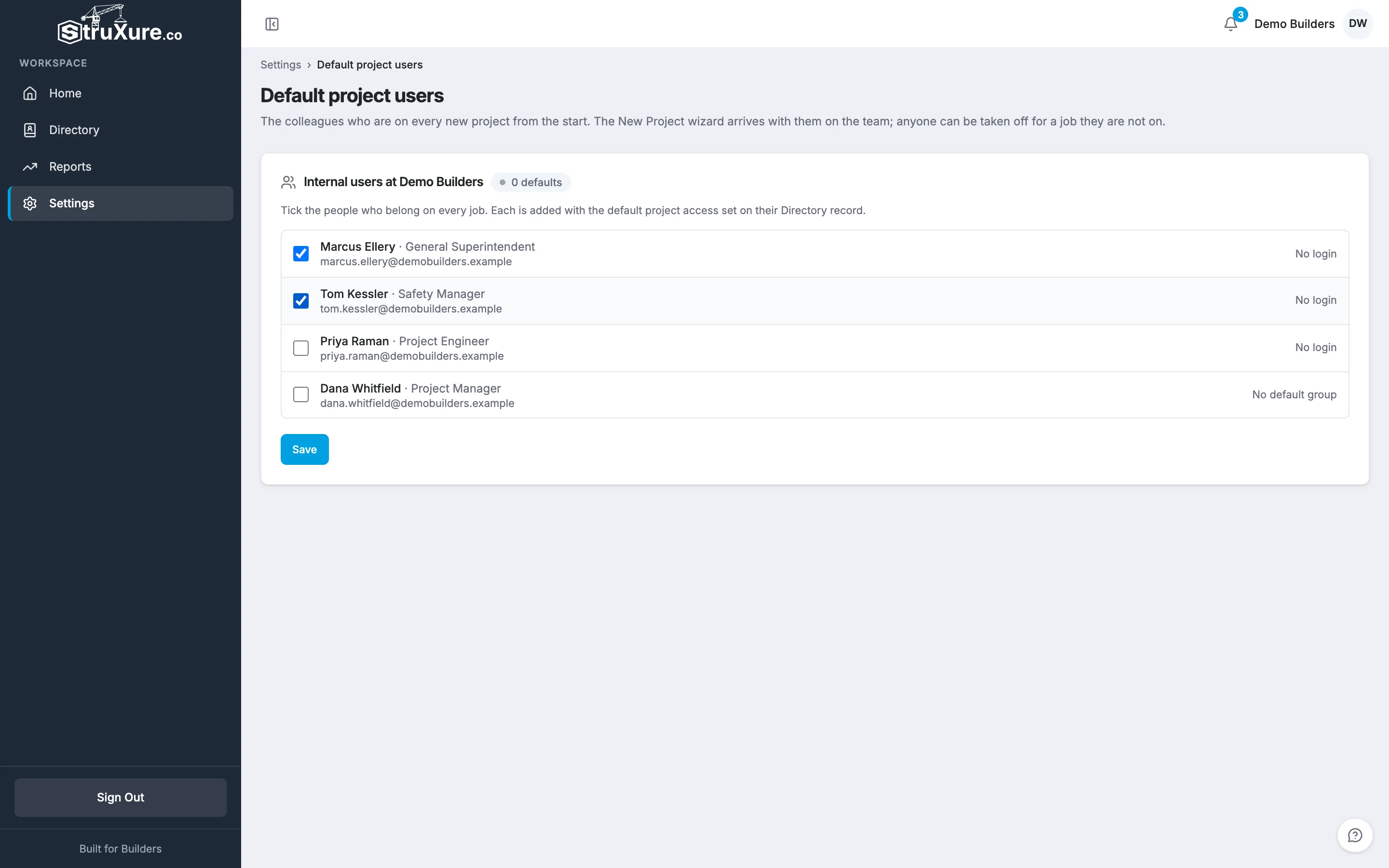
The page says, for example, Saved. 2 people are added to every new project. The Settings page shows the same count on the Default project users tile.
What happens on a new project
- The New Project wizard arrives with the default project users already on the team. You can take anyone off for a job they're not on. See Add the team in the wizard.
- Each person is added with the Default project access group set on their Directory record, shown on the right of their row. If a row says No default group, set one in the Directory first, or choose their access in the wizard. See Give someone access.
- A row that says No login is a person who can't sign in. They're on the project's team, but they have no access until they're given a sign-in.
Ticking someone here doesn't put them on projects that already exist.
If the list is empty
- No company is marked as this workspace's own yet means StruXure doesn't know which company is yours. Click Choose it under Company and set it.
- Nobody in the Directory works at your company yet means you need to add your colleagues to the Directory, under your company, first.
Who can do this
Anyone with Settings — Read can see the list. Changing it needs Organization directory — Project Users or Admin; without it, the boxes are greyed out and there's no Save.