
The Team step of the New Project wizard puts people on the project in one go. It offers everyone in your workspace's directory.
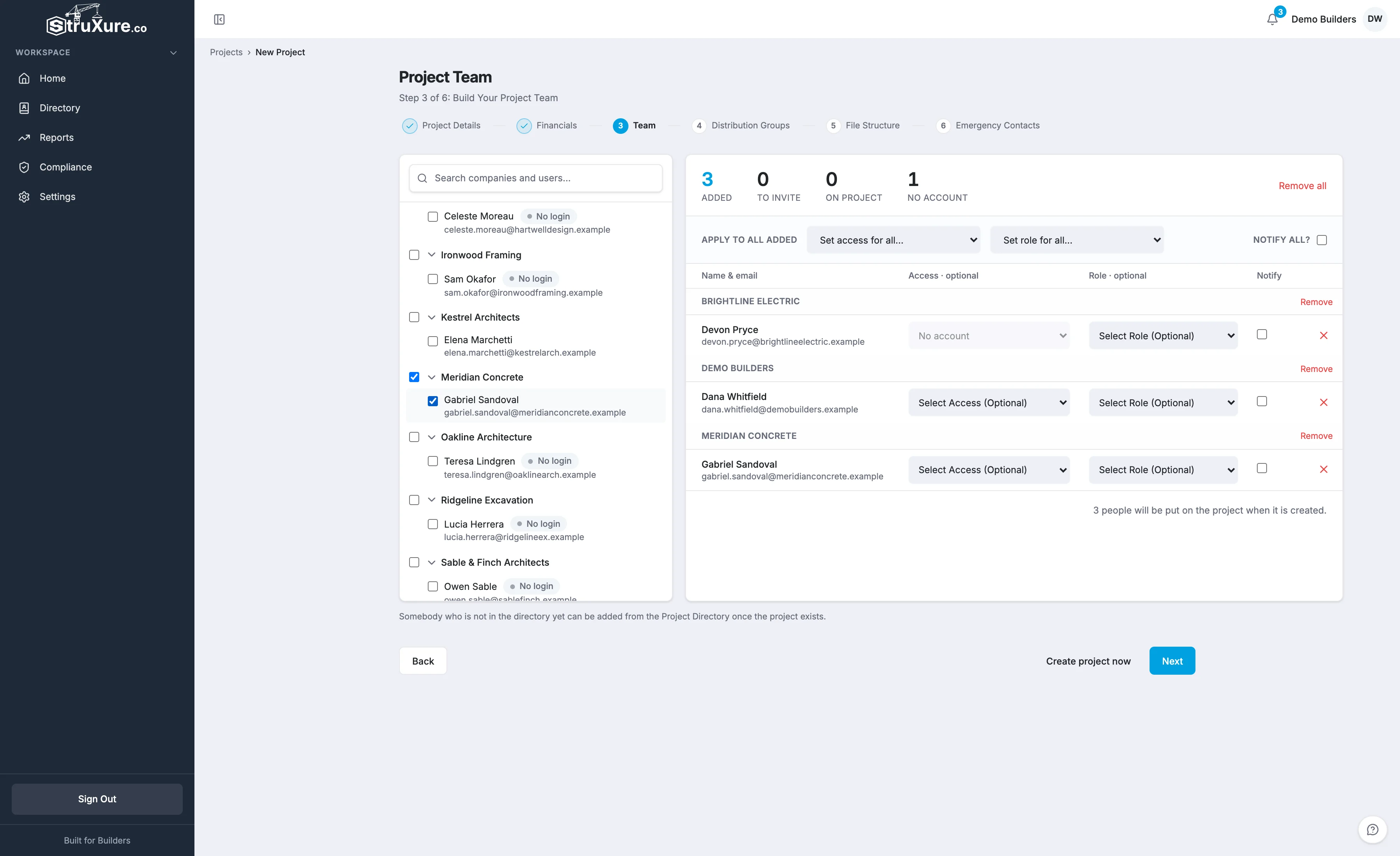
Pick people
- In the wizard, go to the Team step.
- On the left, tick the people who are on the job. Tick a company's name to add everyone there. Use Search companies and users... to find someone.
- Each person ticked appears on the right, grouped by company.
People your company has marked as on every new project are already listed when you arrive. Take anyone off who isn't on this job.
Set access, role and invite
For each person on the right:
| Column | What it sets |
|---|---|
| Access · optional | Their permission group on this project, for example External - Subcontractor. Leave it blank to use their default project access. People without a StruXure login show No account here. |
| Role · optional | What they're called on the job, for example Foreman or Project Manager. |
| Notify | Tick to email them an invite to the project once it's created. |
To set the same thing for everyone listed, use Apply to all added: Set access for all..., Set role for all... and Notify all?.
To take someone off, click the × on their row, or Remove beside a company, or Remove all.
The counters at the top show how many are ADDED, how many will be invited (TO INVITE), and how many have NO ACCOUNT.
Good to know
- Access only appears if you can change permissions on projects.
- Somebody who isn't in the directory yet can be added from the project's Directory once the project exists. The wizard doesn't create new people.
- Owner and architect companies chosen on step 1 are added to the project's companies even if nobody from them is on the team.
- Taking someone off the team also takes them off every default recipient list on the next step.
- Nothing is saved, and nobody is emailed, until you click Finish or Create project now.