
The dashboard's Project Team card lists the people in the project's directory whose project role is marked Include on project team. Use it to keep the card to the people others need to reach, such as the project manager, superintendent and foremen.
Open the project and choose Admin in the sidebar.
Scroll to Custom types and find Project roles.
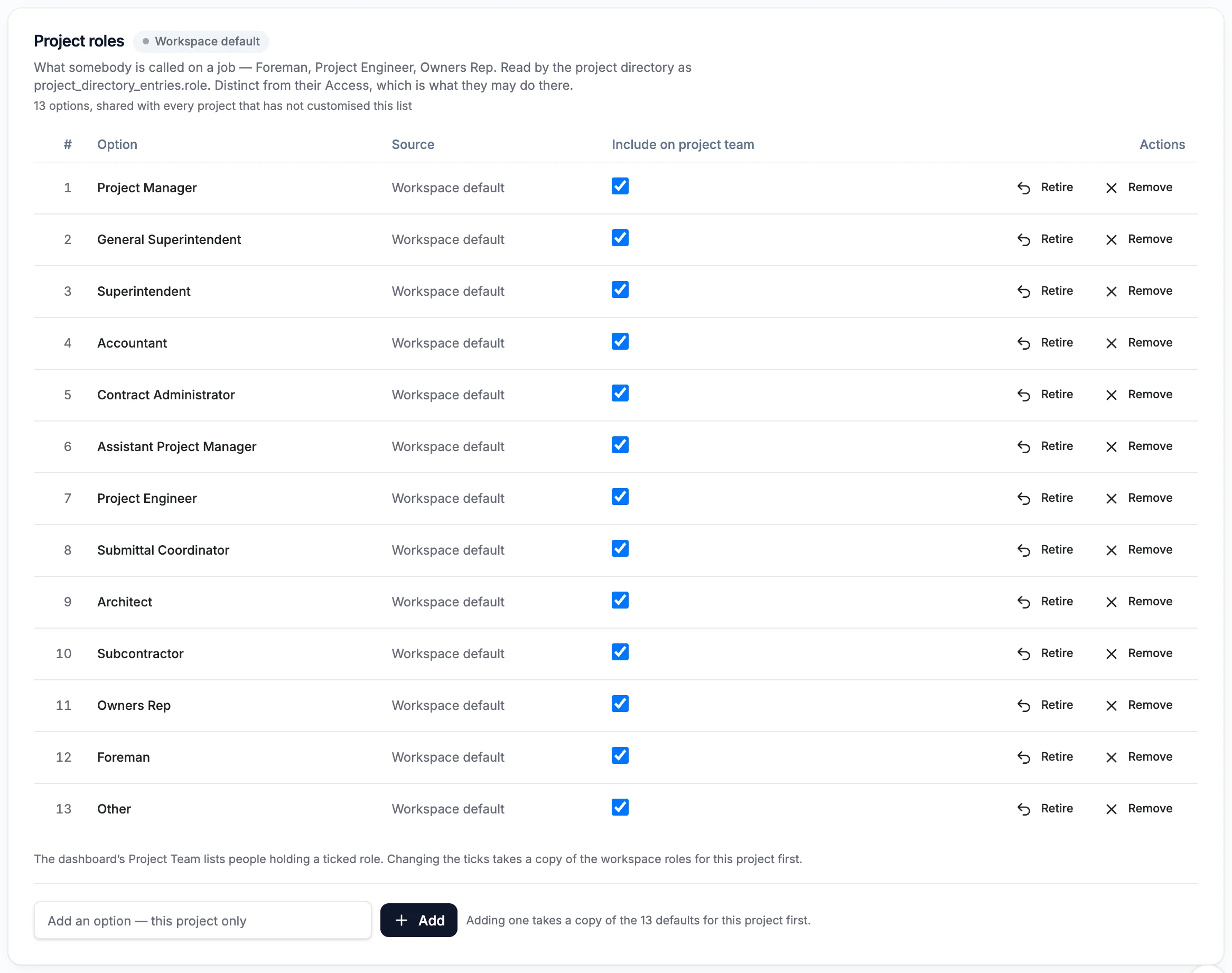
Tick or untick Include on project team for each role.
Click Save in the bar at the bottom right.
The page says Project Team roles saved. The dashboard lists people holding the ticked roles.
The first time you change the ticks, StruXure takes a copy of the workspace's project roles for this project, so other projects aren't affected. To go back to the workspace's roles, click Reset to defaults and confirm.
A person's project role is set when they're added to the project, or later in the project's directory.