
The File Structure step of the New Project wizard sets up the project's Files with a ready-made set of folders.
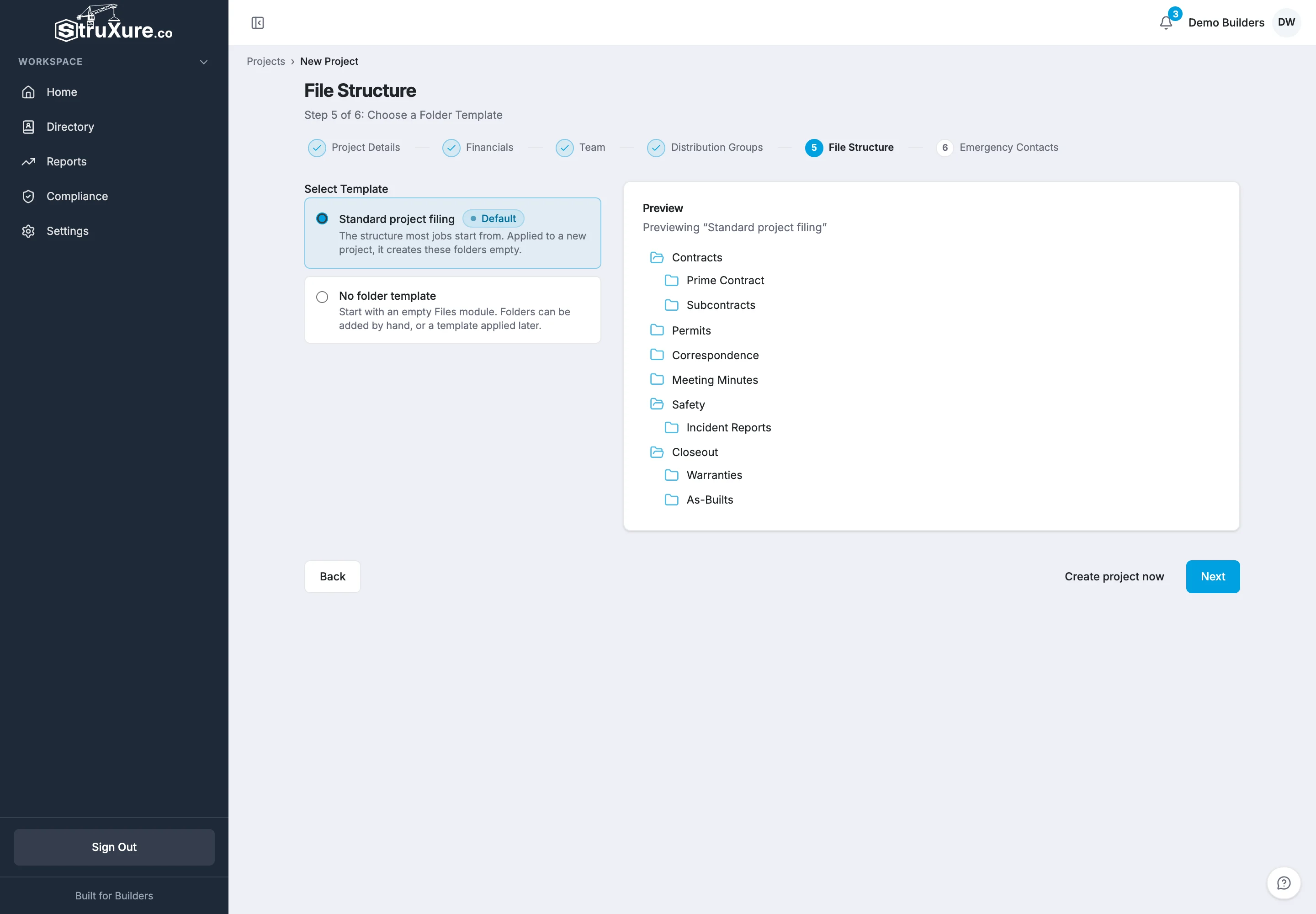
- In the wizard, go to the File Structure step.
- Under Select Template, choose a template. Your workspace's default is marked Default and is already selected.
- The Preview on the right shows the folders it will create, with folders inside folders indented.
- To start with no folders, choose No folder template.
- Click Next, or Create project now.
The folders are created empty when the project is created. You can add, rename and remove folders in Files afterwards.
Your company admin manages the templates in Settings.