
The Project Overview card counts every open RFI, submittal, schedule activity, milestone and punch item on the project against the date it's due.
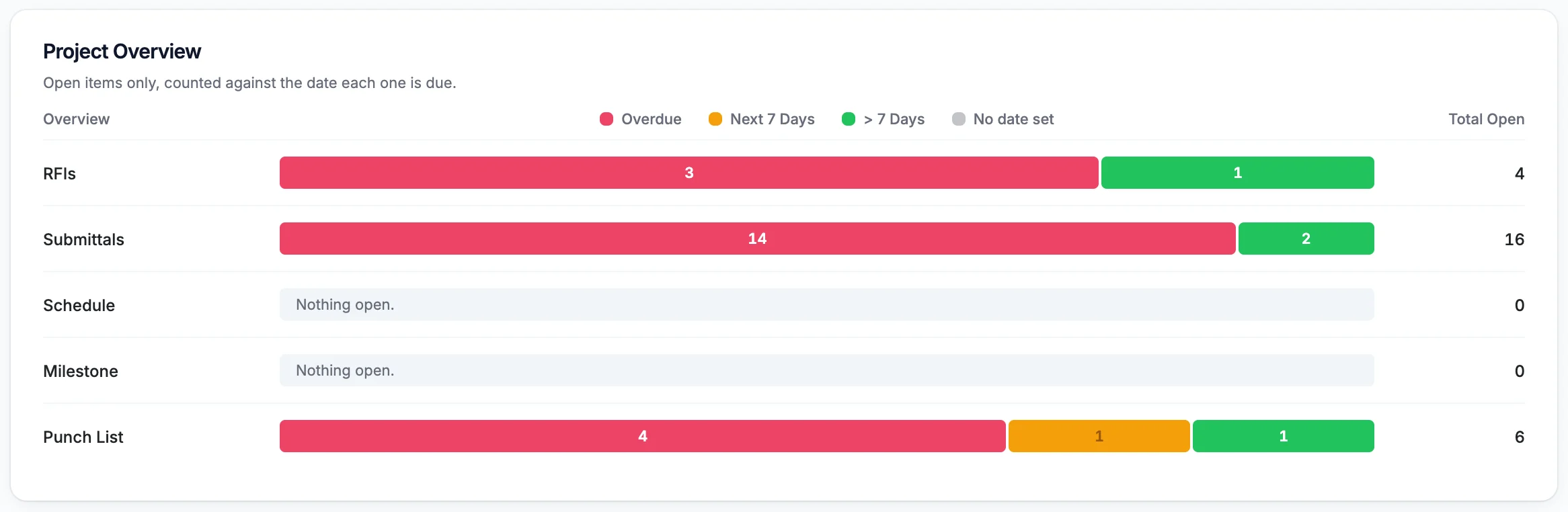
| Colour | Means |
|---|---|
| Overdue (red) | The due date has passed. |
| Next 7 Days (amber) | Due within the next week. |
| > 7 Days (green) | Due later than that. |
| No date set (grey) | Open, with no due date. |
Each bar is scaled to its own row, so it shows the split within a module. Compare modules using the Total Open column. A row with nothing open says Nothing open.
List the items behind a number
Open the project's Dashboard.
In Project Overview, click a coloured segment (for example the red Overdue part of the Punch List row), or click the number under Total Open to see all of them.
A panel opens on the right listing each item with its number, title, status, who it's with and its due date. Overdue dates are red.
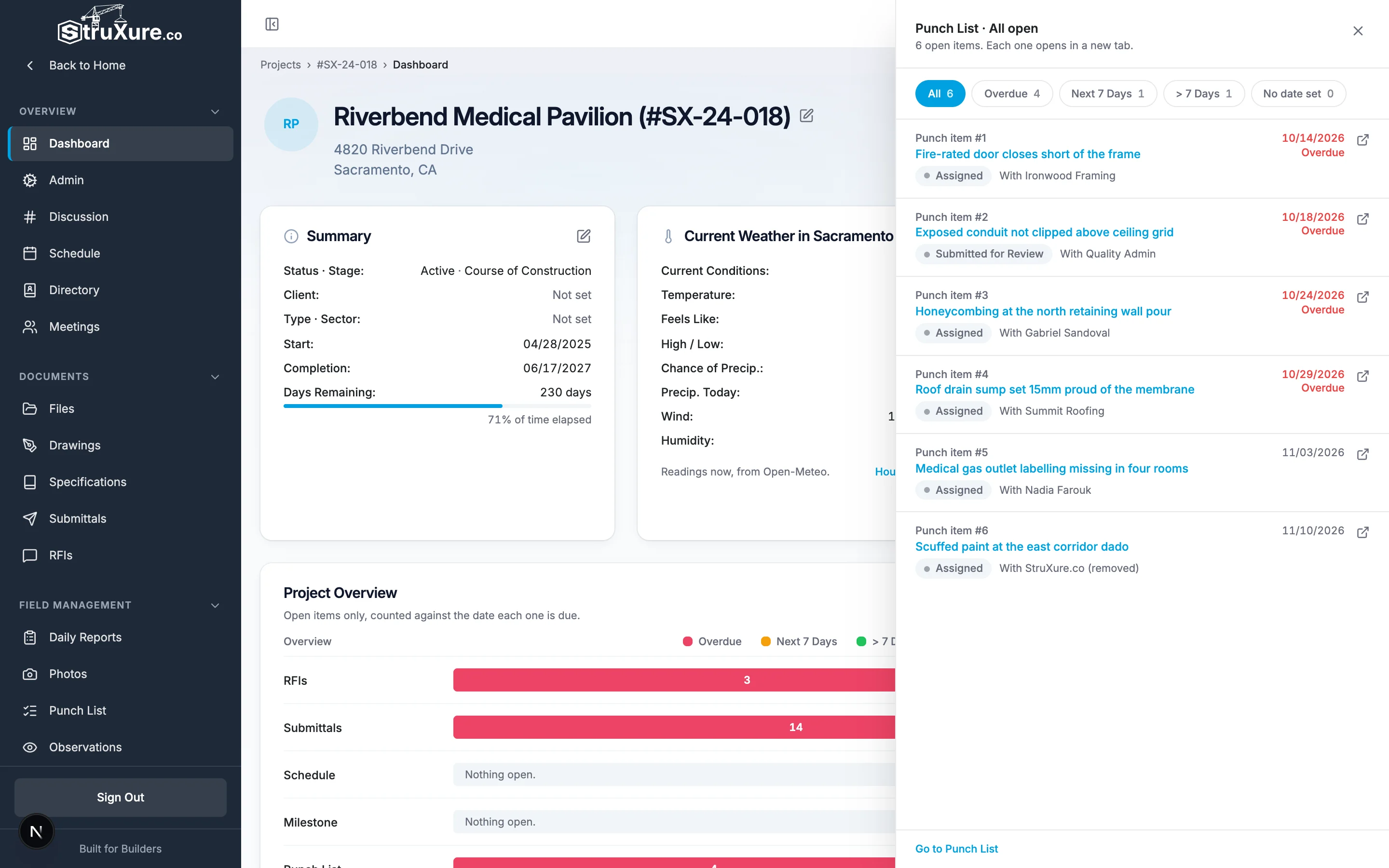
Use the chips at the top (All, Overdue, Next 7 Days, > 7 Days, No date set) to switch between groups.
Click an item to open it in a new tab.
Click Go to Punch List (or the module's name) at the bottom to open the full register in a new tab.
Close the panel with the × or Esc.
A row only appears if you have access to that module. Schedule and Milestone count the activities and milestones on the project's current schedule.