
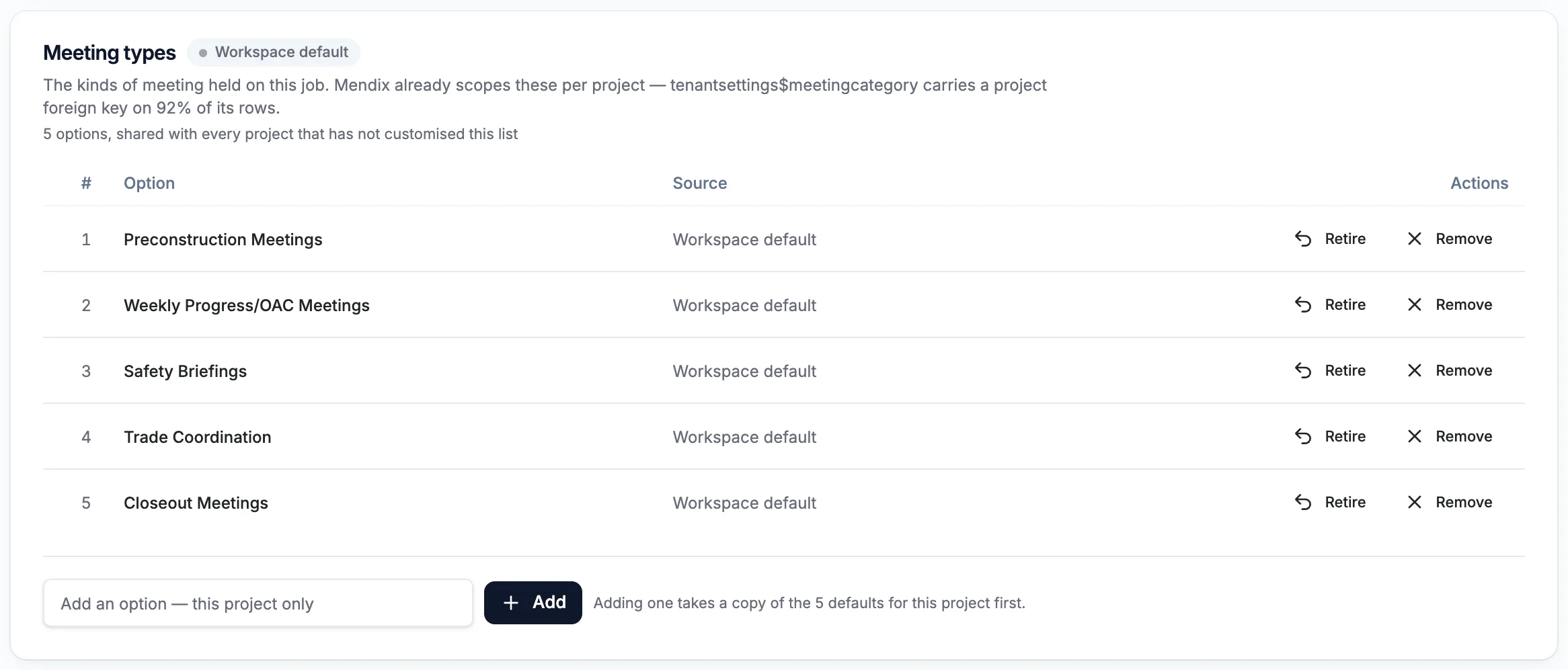
The Custom types section of Project Admin lists the pick lists this project's forms offer. Each follows your workspace's list (Workspace default) until the project changes it. Then it's Customised for this project and stops following the workspace.
The lists, and who can change them
Anyone with Project administration — Admin on the project can change every list. Someone without it can still change a list through its module:
| List | Who else can change it on a project |
|---|---|
| Submittal types | Submittals — Admin |
| RFI reasons | RFIs — Admin |
| Punch list categories | Punch list — Write or Admin |
| Delay reasons | Daily reports — Create / Edit / Delete / Complete or above |
| Meeting types | Meetings — Write or Admin |
| Document categories | Files — Read / Create / Edit / Delete or above |
| Project roles | Directory — Manage Companies and Users or above |
Observation types can be changed only with Project administration — Admin.
You see every list, but only the controls for lists you can change.
Add an option
- Open the project and choose Admin in the sidebar.
- Scroll to Custom types and find the list.
- Type the option in the box at the bottom and click Add.
The first time you change a list, StruXure copies the workspace's options to the project and makes the change in the copy. Other projects aren't affected.
Observation types
Observation types has two extra columns. Category is Quality or Safety, and Private by Default makes a new observation of that type start private.
- Choose each type's Category, and tick or untick Private by Default.
- Click Save in the bar at the bottom right.
The page says Observation types saved for this project. To add a type, type its name, choose its Category, tick Private by Default if you want it, and click Add.
Retire, restore or remove an option
- Retire stops offering an option on new records. Records that already use it keep it. A retired option is struck through; click Restore to offer it again.
- Remove takes it off this project's list. Click Remove option to confirm. Records already filed under it keep the name they were given.
Go back to the workspace list
Click Reset to defaults on a customised list, then click Reset to defaults again to confirm. The project's copy is discarded and it follows the workspace list again, including anything added to it since.
Project stages, types, sectors, bid types and owner types are set for the whole workspace in Settings, not per project.