
Every project has a number. It appears in the project's breadcrumbs and links and on every record, email and PDF. A number uses letters, digits, -, . and _ only, up to 60 characters, and no two projects can share one.
When you create a project
If your workspace has a numbering pattern, step 1 of the wizard shows the next number from it in Project Number, with the hint The next number from this workspace's pattern.
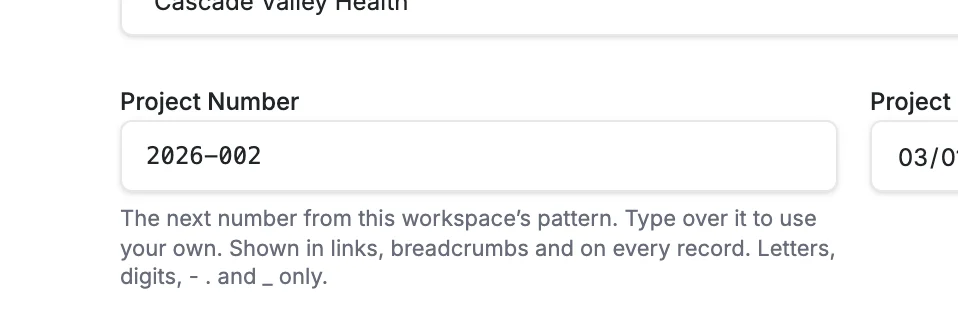
- To use it, leave it as it is. The number is taken when you click Finish. If someone else created a project in the meantime, you get the next free number instead.
- To use your own, type over it. To go back to the proposed number, click Use next number under the box.
- If the pattern starts from the owner's client code, choose the Owner first. If that company has no client code yet, the hint asks for one. If you can edit the directory, type the code and click Save code. Otherwise, type a number yourself.
If your workspace has no numbering pattern, type the number yourself. The project can't be created without one.
Your company admin sets the numbering pattern in Settings.
Set or change the number later
Open the project and choose Admin in the sidebar.
In General Information, find Project number and click Change (or Set number if it has none).
A dialog explains that every screen and every new export will show the new number, while emails, PDFs and exports already sent keep the old one.
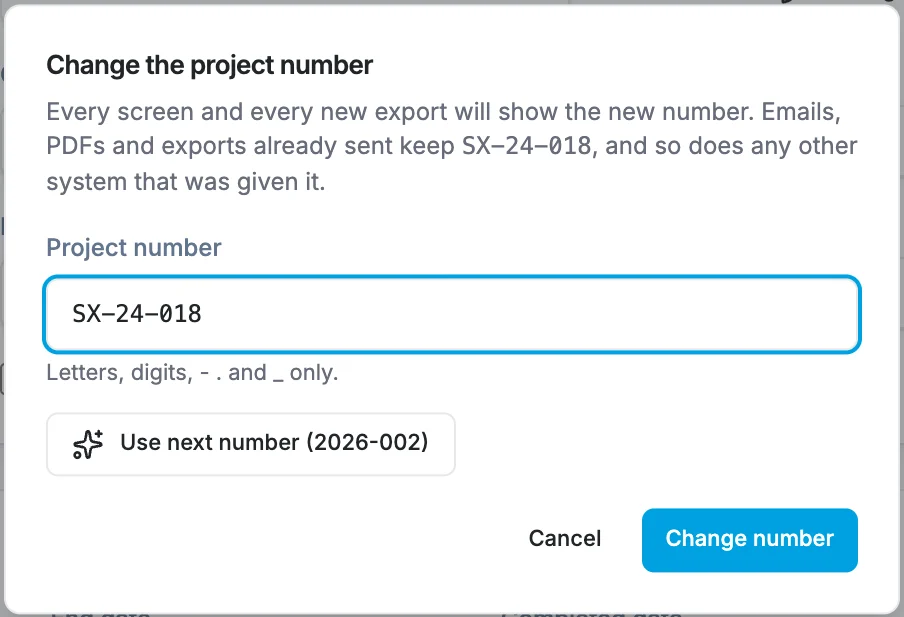
Type the new number and click Change number (or Save number). Or click Use next number to take the next one from the workspace's pattern.
The page says The project number is now …. Under the number, a line shows the last change, who made it and when, and how many earlier changes there were.
If a number is refused
| Message | What to do |
|---|---|
| There is already a project numbered "…": … | Choose another number. |
| "…" belongs to …, which is in the recycle bin. | A deleted project still holds its number. Restore it and change its number first, or choose another. |
| "…" was the number of …, which keeps it. | Old numbers stay with the project that had them, so links to it keep working. Choose another. |
| A project number uses letters, digits, - . and _ only. | Remove spaces and other characters. |