
A project's address appears on its dashboard. Its coordinates (latitude and longitude) are what the weather card, the hourly forecast and daily report weather use to look up conditions at the site.
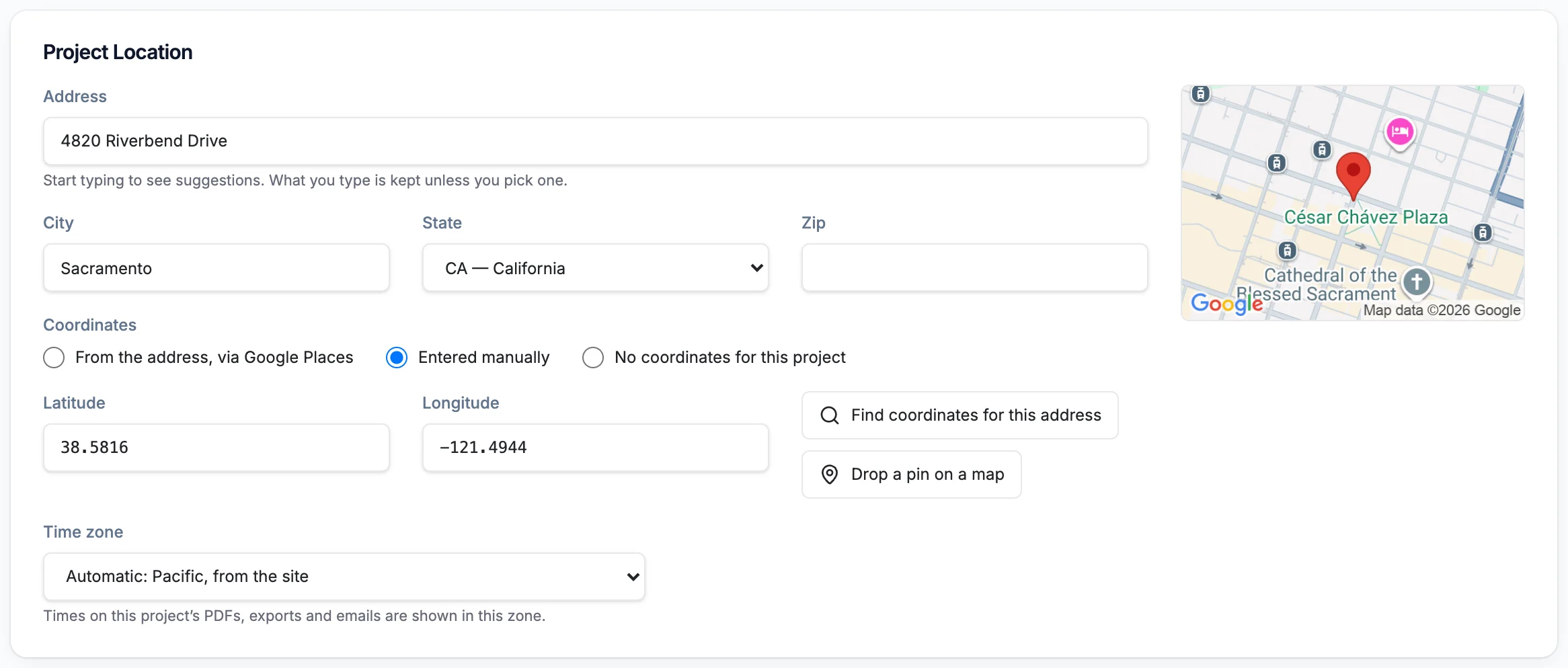
You set both in the same place: on step 1 of the New Project wizard, or later in the Project Location card on Project Admin.
Look up the address
In Street Address (in the wizard) or Address (on Project Admin), start typing.
Suggestions appear under the box. Use the arrow keys or the mouse to choose one.
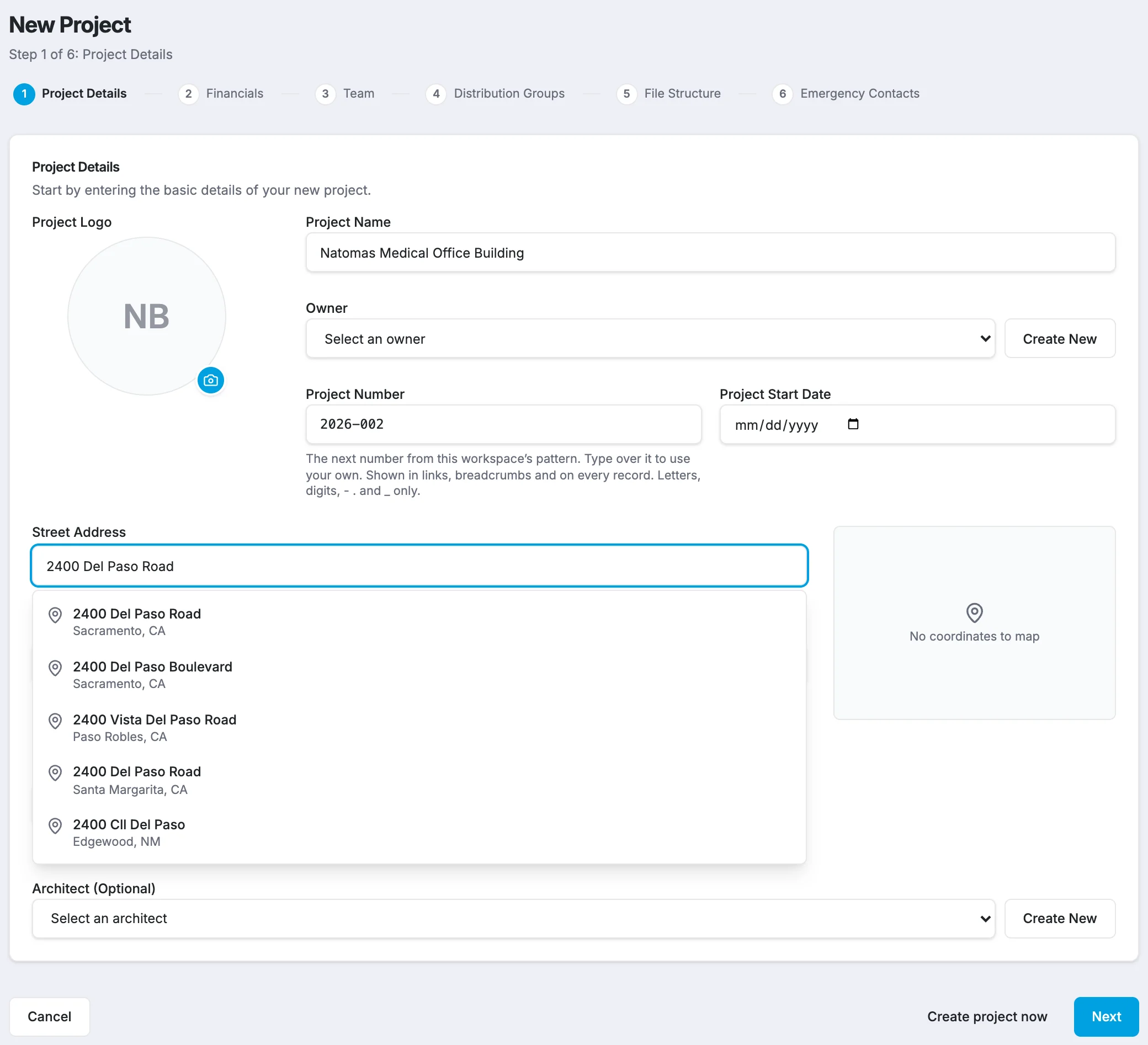
Choosing a suggestion fills in City, State, ZIP, Latitude and Longitude, and sets Coordinates to From the address, via Google Places. The map preview shows the spot.
What you type is kept as it is unless you pick a suggestion. If suggestions aren't available, the hint says so: type the address and coordinates yourself.
The three coordinate settings
| Setting | Means |
|---|---|
| From the address, via Google Places | The coordinates came from a suggestion you chose. |
| Entered manually | You typed the coordinates, or placed a pin on the map. Editing either number switches to this. |
| No coordinates for this project | The project has no coordinates. Conditions at the site aren't looked up, on the dashboard or on daily reports. |
Find coordinates for an address you typed
- Type the address, city, state and ZIP.
- Click Find coordinates for this address.
- A box shows the address found and its coordinates. If it says This is the closest match, not an exact one, check it.
- Click Use these coordinates, or Discard.
Drop a pin on the map
- Click Drop a pin on a map. A map opens.
- Click the spot, or drag the pin.
- The latitude and longitude update and Coordinates changes to Entered manually.
- StruXure looks up the address at the pin. Empty address boxes are filled in. If you've already typed something different, a box shows what's different, for example City: … instead of …. Click Use the pin's address or Keep mine.
- Click Close map when you're done.
If no address is found at the spot, the pin and its coordinates are kept anyway.
Time zone
Times on a project's pages, PDFs, CSV exports and emails are shown in the project's time zone, for example 10:15 AM CDT on a Houston job. On screen, the zone's abbreviation shows only if you're in a different time zone; point at a time to see it where you are. Meetings show in each meeting's own time zone.
The Time zone field in the Project Location card is set to Automatic to begin with. Automatic uses:
- the time zone at the project's coordinates, or
- if the project has no coordinates, the time zone most of its state uses, or
- if neither is known, the time zone in Settings > PDF documents.
The option shows which zone it found, for example Automatic: Central, from the site. If the job is near a time zone line, or the state guess is wrong, pick the zone from the list. A zone you pick stays when the address changes. Choose Automatic again to go back.
Save
- In the wizard, the address is saved when the project is created.
- On Project Admin, a bar appears at the bottom right saying Unsaved changes in Project Location. Click Save.
Click the map preview to open the location in Google Maps.
Latitude must be between -90 and 90, and longitude between -180 and 180. Enter both or neither.