
Everything in StruXure happens inside a project: one job, with its own team, its own RFIs, submittals, drawings, files, daily reports, punch list and schedule. Your workspace's Home page lists every project you can see, and New Project starts a new one.
The parts of a project you'll use most
| Where | What it's for |
|---|---|
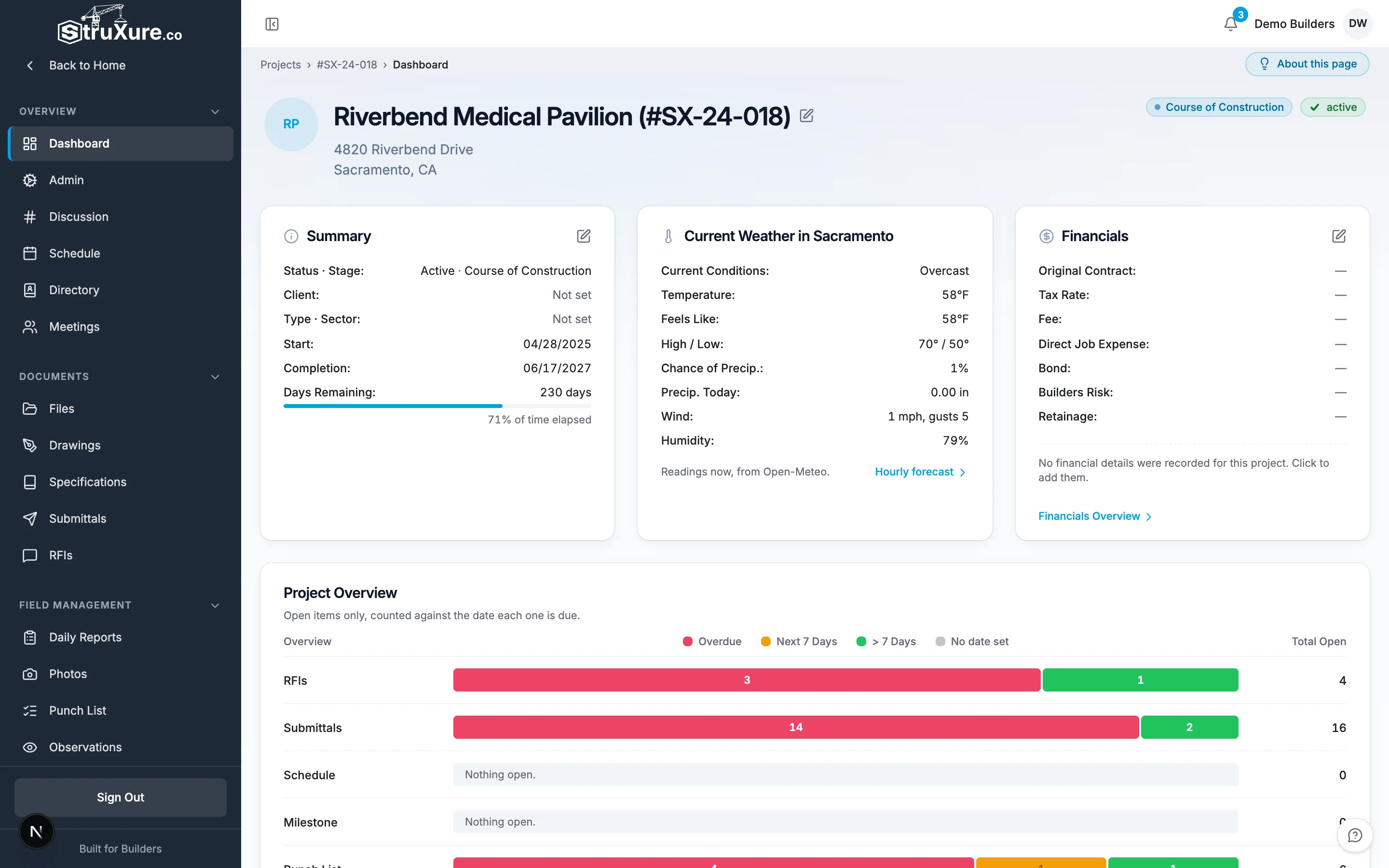
| Dashboard | The page a project opens on. The project at a glance: dates, weather at the site, open work by due date, the day's schedule, the project team and emergency numbers. See The project dashboard. |
| Admin | Project Admin: the project's details, dates, address, emergency information, default recipients, module settings and lists. See Project Admin at a glance. |
| Directory | Who is on the project and what they can do there. |
| The modules | Discussion, Schedule, Meetings, Files, Drawings, Specifications, Submittals, RFIs, Daily Reports, Photos, Punch List, Observations, Forms, Locations and Equipment, in the project sidebar. |
The life of a project
Someone creates it. A person who can create projects clicks New Project on Home and walks through the New Project wizard: details, team, default recipients, folder template and emergency contacts. Only the name is needed to start; Create project now skips the rest. See Create a project.
A project can also arrive from another system, such as monday.com, as a Draft project. It waits under Drafts on Home, unseen by its team, until someone opens it in the same wizard and finishes it. See Finish setting up a Draft project.
The project admin finishes setting it up in Project Admin: dates, stage, type, address and map pin, logo, emergency information, who receives new records by default, and the lists its forms offer.
The team runs it day to day from the dashboard and the modules.
When the job is done, the project admin ticks Project complete. The project moves to the Complete tab on Home. See Mark a project complete.
If a project was created by mistake, someone who can create projects deletes it. It goes to the projects Recycle Bin on Home, where it can be restored with everything in it. See Delete and restore a project.
Every project has a number
A project's number (for example SX-24-018) appears in its breadcrumbs, its links and on every record. Your workspace can propose the next number from a pattern, and Project Admin can change it later. See Project numbers.
Times and dates
Times on every page of a project, from the dashboard to Project Admin show in the project's time zone. If you're in a different time zone, each time shows the project's zone after it, for example 2:00 PM MST; point at it to see the time where you are. The dashboard's today, and what's due or overdue on it, go by the project's day. Meetings are the exception: they show in each meeting's own time zone.
Who can do what
- Anyone on a project can open its dashboard.
- Project setup — Admin lets you create projects, and delete and restore them.
- Project administration — Read opens Project Admin to view; Admin lets you change it.