
The activity log is the workspace's record of the major things people do: what was created and deleted, files and plan sets uploaded, photos rotated or cropped in the StruXure app, people added to and removed from projects, permission changes and sign-ins.
Open it
Go to Settings and, under Activity, click Activity log.
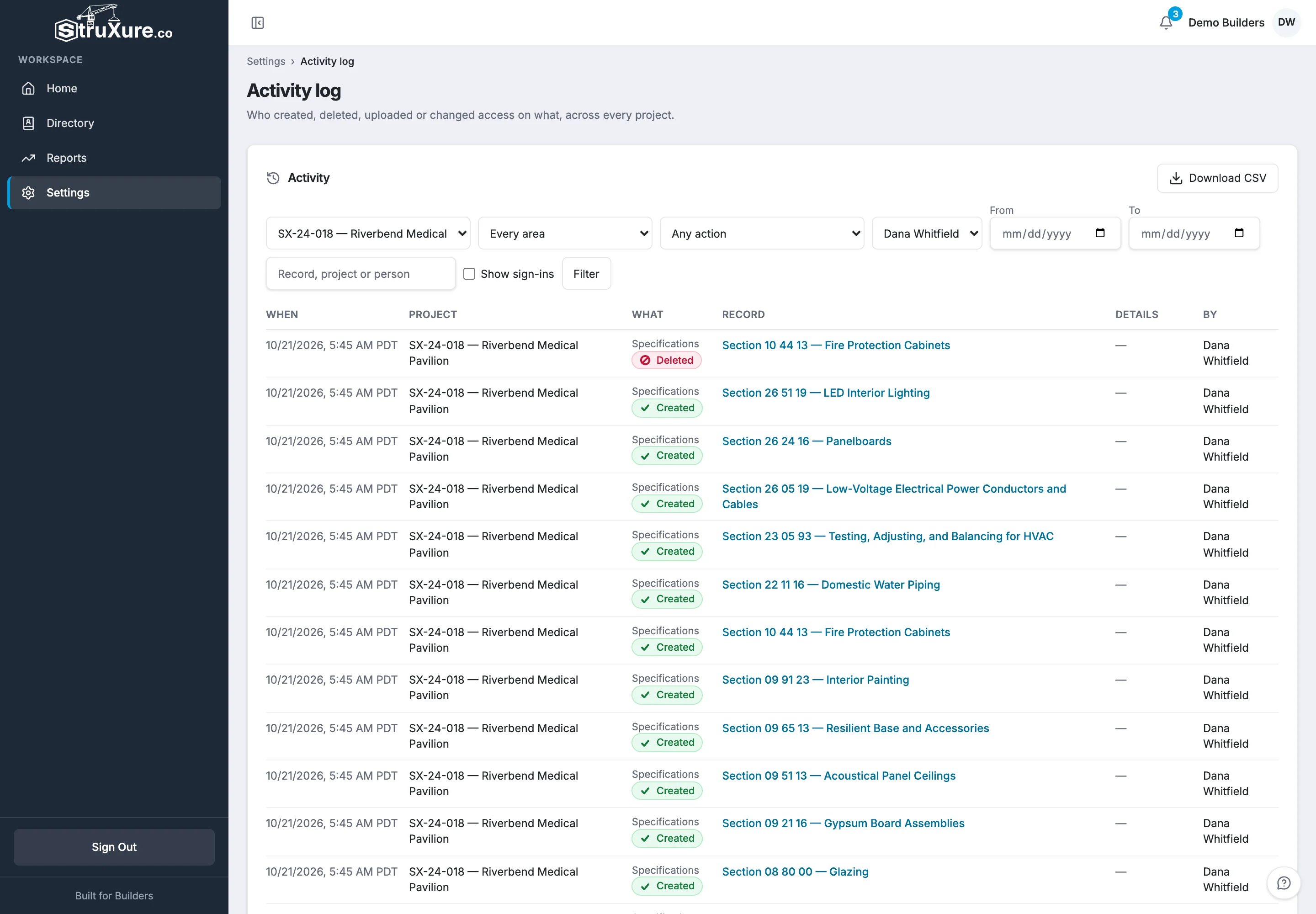
Each row shows:
| Column | What it shows |
|---|---|
| When | The date and time, in your time zone. |
| Project | The project, if the act happened on one. Click it to open that project's own activity page. |
| What | The area, such as RFIs or Permissions, and the action, such as Created, Group given or Sign-in refused. |
| Record | What it happened to. Click it to open the record, where it still exists. |
| Details | Anything else recorded, such as a status change shown as "Open → Closed". |
| By | Who did it. System means StruXure did it on its own. |
The newest are first, 50 to a page. Use Older and Newer at the bottom to page through. The line at the bottom says when the log started recording.
Filter it
Choose any of these, then click Filter:
- All projects: one project.
- Every area: one area, such as Directory, Permissions or Sign-in.
- Any action: one kind of act, such as Removed from project or Group taken away.
- Anyone: one person.
- From and To: a date range.
- Record, project or person: words in the record's name, the project or the person's name.
- Show sign-ins: include each sign-in and sign-out. They're left out otherwise, so they don't swamp the list. Choosing the Sign-in area shows them too.
A filtered view is its own web address, so you can bookmark it or send it to another admin.
Things worth looking for
| To see | Filter by |
|---|---|
| Who changed what a group allows, or created or deleted a group | Area Permissions |
| Who was given or lost a group | Action Group given or Group taken away |
| Who was added to or removed from projects | Area Project team |
| Who was given or lost a sign-in | Action Sign-in access changed |
| Failed attempts to get into the workspace | Action Sign-in refused |
| When StruXure support was given or lost access | Action StruXure support approved, StruXure support declined or StruXure support removed |
| Projects that arrived as Drafts from another system, and when each was finished | Area Project, actions Created, Draft updated and Status changed |
| Who added, changed, hid or deleted a custom field | Area Custom fields |
| Everything one person did | Anyone: that person |
Refused sign-ins are always recorded. Repeated attempts are grouped into one row with the number of attempts.
See and revoke Connected Agents
If your company has Connected Agents, the page has a Connected Agents card listing the AI assistants people have connected to this workspace: who connected it, the assistant, when it was connected and last used, and its status.
To disconnect one, click Revoke on its row and confirm. It stops working straight away, and the person has to connect it again from the assistant to use it.
A connection also ends on its own when it hasn't been used for 30 days (Lapsed), when Connected Agents are turned off on the Integrations page, or when the person is deleted from the Directory. Each end is a line in the log under Connected Agents, saying who ended it, or System for a lapse. What each assistant asked for is there too.
Download it
Click Download CSV. The file has the rows that match your filter, with the times in UTC.
What isn't in it
The activity log records major acts, not every edit. Detailed changes to a record, and who viewed or downloaded it, are in that record's own history, which only that module's admins see. See Who sees a record's history.
Lines about a private RFI or a private observation you can't see don't appear.
Who can do this
The activity log needs Settings — Admin. Without it, the tile isn't shown. Project administrators see a single project's activity on the project's Admin page; see See a project's activity.