
Use this before a job starts, when a subcontractor leaves, or when you close a project out, to check that the right people, and only them, can get in.
Find the project
- Go to Settings and click Access review.
- Click the By project tab.
- Type in Find a project to narrow the list, and click the project.
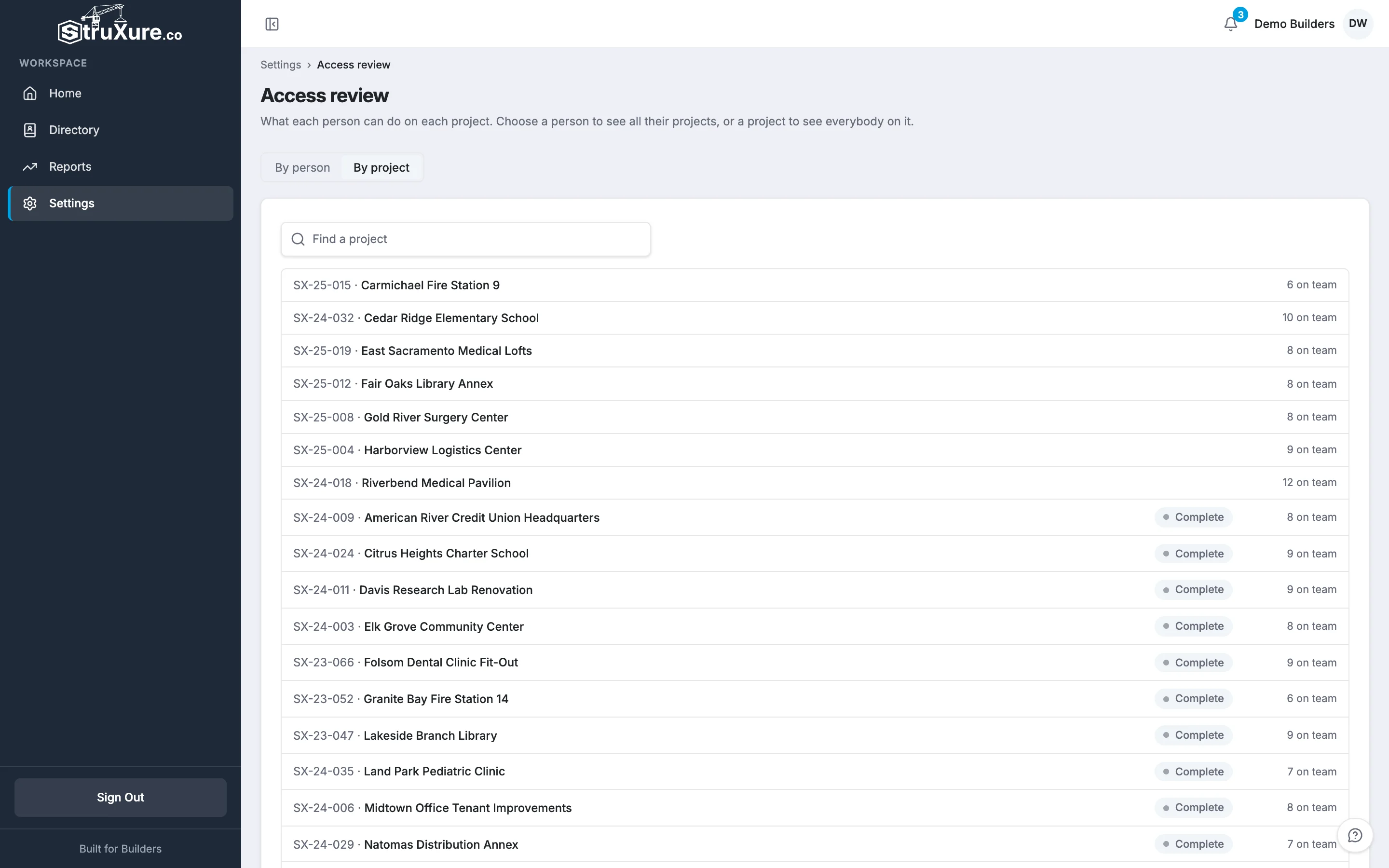
Each row shows how many people are on the team, and a status badge such as Complete for projects that aren't active.
Read the project's page
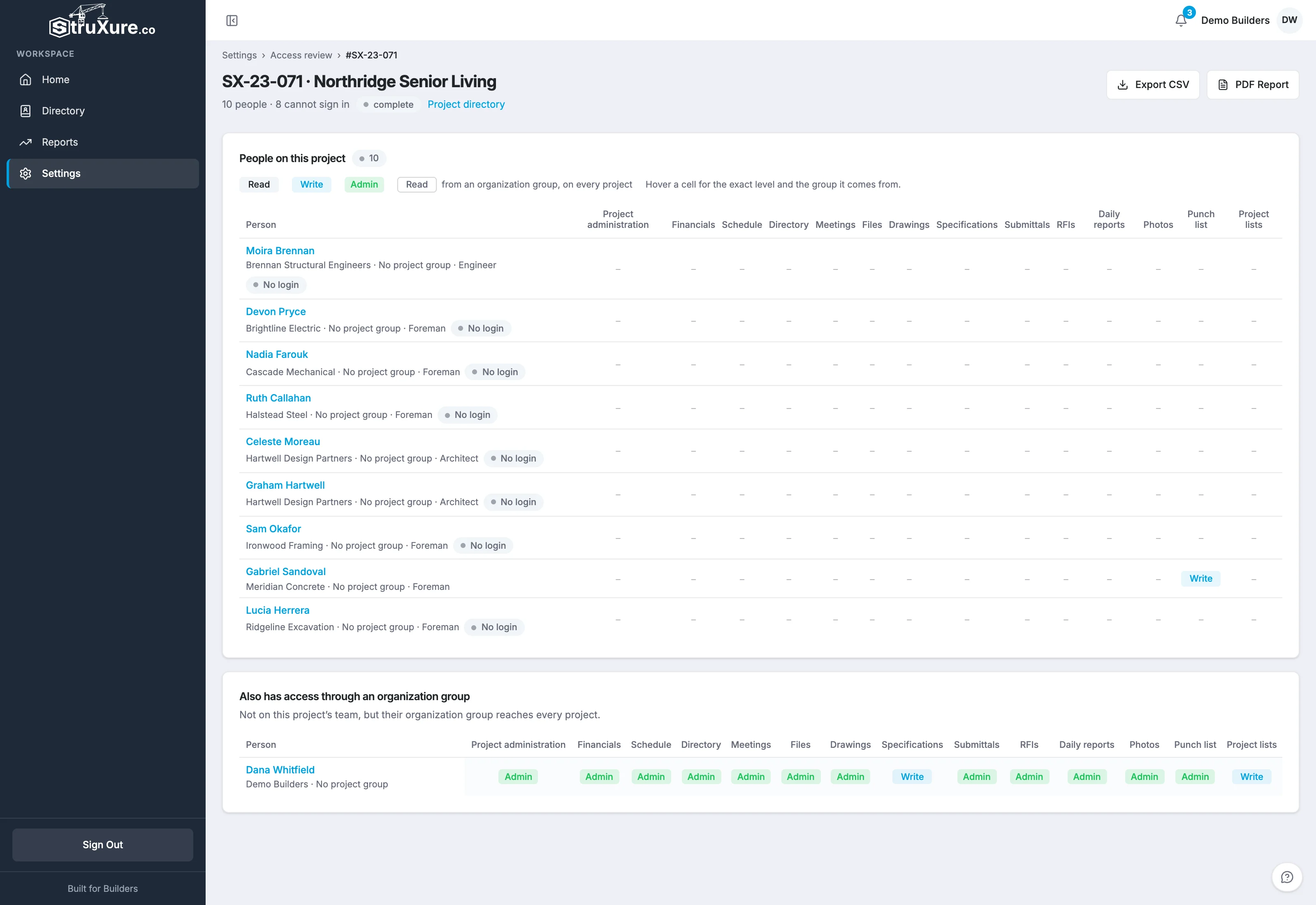
The line under the project name counts the people on it, how many cannot sign in, and how many have no access. Project directory opens the project's directory, where you change people's access.
People on this project lists everybody on the project's team, and anyone who has access to it without being on the team. Under each name are their company, their project group (or No project group), their role on the team, and badges:
| Badge | Meaning |
|---|---|
| No login | They're on the project but have no sign-in, so they can't open it. |
| Invited | They've been invited and haven't signed in yet. |
| Access revoked | Their sign-in to the workspace has been taken away. |
| Not on team | They have access to the project but aren't on its team. |
| No access | They can sign in and are on the project, but can do nothing there. |
The columns are the project areas. Each cell is the level held on that area, named as in Permission Groups (such as Respond on RFIs), or a dash for no access. Hover over a cell for the group it comes from. A cell with an outline comes from an organization group.
Also has access through an organization group lists people who aren't on this project's team, but whose organization group reaches every project, such as a Super Admin. They can open this project even though nobody added them.
Click a person's name to see their access on every project. See Review one person's access.
Download it
- Export CSV downloads one row per person: name, company, title, email, Can sign in, whether they're on the team, team role, group, whether they have access, and the level on each area in the area's own words.
- PDF Report opens a printable Access Review for the project.
Fix what you find
Access review doesn't change anything. To change what someone can do:
- On one project: change their Access or remove them in the project's directory. See Change access and project roles on a project and Remove people or companies from a project.
- Everywhere: change their Organization access in the Directory. See Give someone access.
- For everyone on a group: change the group. See Change what a permission group allows.