
Removing someone from a project only affects that project. Their access to the project ends straight away. They stay in the workspace Directory and on their other projects, and you can add them back later.
Remove people
- Open the project's Directory.
- Tick the people to remove.
- Click Remove from Project in the toolbar. It shows how many are selected.
- Click Remove from project to confirm.
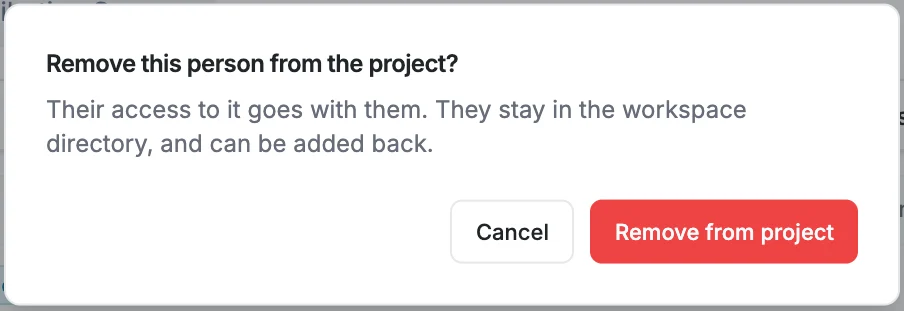
The page says Removed … from this project, along with the access that came with it. They are still in the workspace directory.
Remove a whole company
Tick a company's box to select the company and everybody at it, then click Remove from Project. You're asked what to do:
- Remove people and company: everybody goes, and the company is no longer offered on delays, manpower or submittals on this project.
- Remove people only: everybody goes, but the company stays on the project, for example because the work continues with other people.
A company that has nobody on the project can be removed on its own: tick its box (it says selected — Remove takes the company off this project), or use the bin on the Companies tab. See Add companies to a project.
When someone can't be removed
- Somebody selected is referenced by work on this project — an RFI or a daily report — so they cannot be removed from its directory. Leave them on the project; you can set their Access to None instead.
- Left … on the project: people from there are still on it. Remove the people first, then the company.
To remove someone from the whole workspace, see Delete a person or a company.