
People are added in the workspace Directory, or from a company's page. To add someone straight onto a project, you can also use Create User on the project's Add Users page; see Add people to a project.
Add a person
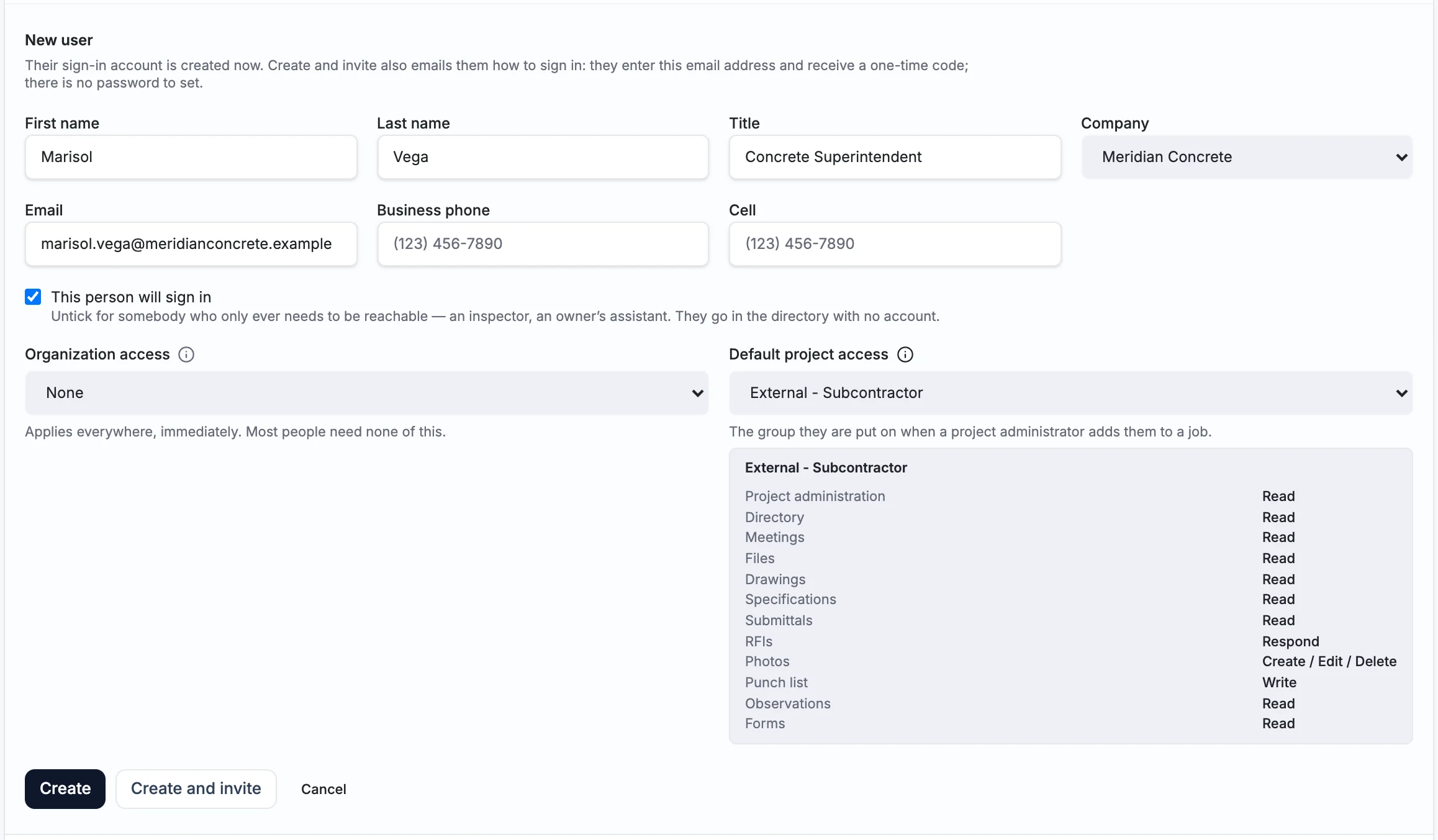
Open Directory and click New User. Or open the company's page and click New User on its Users card, which chooses the company for you.
Enter First name and Last name, and their Title if you know it.
Choose their Company, or No company.
Enter their Email, Business phone and Cell.
Decide whether they sign in:
- Leave This person will sign in ticked to create their sign-in account now. Email is required.
- Untick it for somebody who only needs to be reachable, such as an inspector. They go in the Directory with no account, and Email becomes optional.
If they will sign in, choose their access (both are optional):
- Organization access applies everywhere, straight away. Most people need None. You only see this if you have Organization directory at Admin.
- Default project access is the group they get when a project administrator adds them to a job.
Click the ⓘ beside either label to see what the chosen group allows.
Click Create, or Create and invite to also email them how to sign in.
What happens next
The page confirms what was done:
- Created … Their invitation has been emailed. after Create and invite.
- Created … Nothing was emailed — they will hear from us when they are added to a project. after Create. Their account is ready; they enter their email address and receive a one-time code.
- They already had an account, so they can open this workspace now. when the email address already has a StruXure account, for example from another workspace.
- Added … to the directory. No account was created. when This person will sign in was unticked.
The invitation email tells them that their StruXure account is set up, and to sign in by entering their email address and the one-time code that is emailed to them. There is no password to set.
If the invitation couldn't be sent, the message says so. Open their record later and click Invite; see Invite someone to sign in.
If their sign-in account couldn't be created, the message says They cannot sign in yet — their account could not be created. Everything else is saved. Ask somebody with workspace settings access to finish it.
If something goes wrong
| Message | What to do |
|---|---|
| A person needs a first and last name. | Enter both names. |
| That does not look like an email address. | Check the email address. |
| … is already in this directory with an account. | They're already here. Search the Users list for them. |
| … is already in this directory. | A contact with that email already exists. |
| Granting organization access needs Organization directory at Admin. | Leave Organization access at None; somebody with Admin can grant it later. |