
Each project's dashboard has a Project Team card. It lists the people in the project's directory whose Project Role is marked Include on project team, with their role, email and phone numbers. Open directory on the card goes to the project's directory.
Choose the roles for every project
- Open Settings → Dropdown Options.
- Choose the Project roles list.
- In the Include on project team column, tick the roles that belong on the card and untick the others.
- Click Save project team roles.
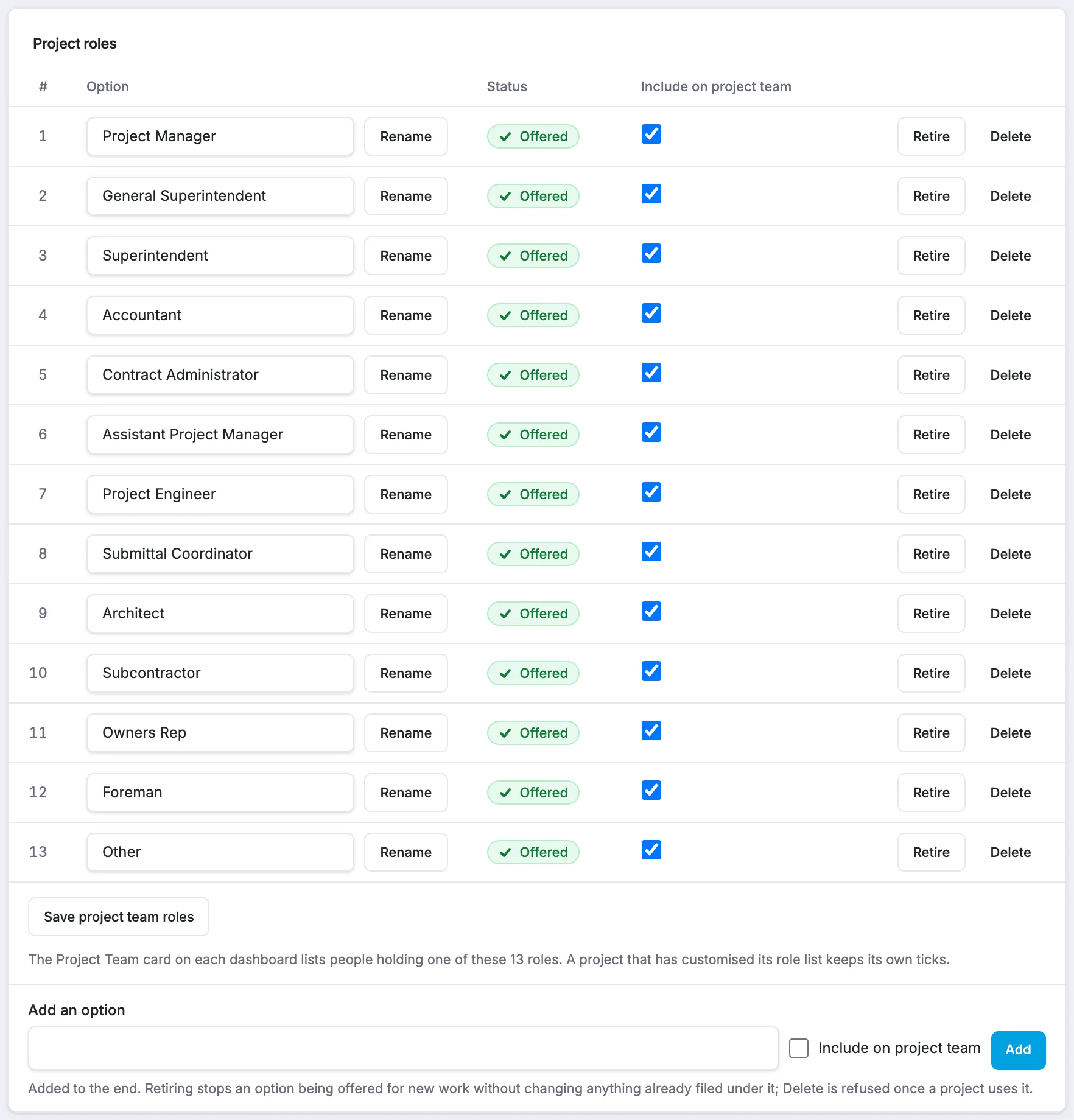
When you add a new role with Add an option, tick Include on project team beside it to include it straight away.
A project that has customised its own role list keeps its own ticks.
Choose the roles for one project
- Open the project's Admin page (you need Project administration access to see it).
- Find the Project roles list.
- Tick or untick Include on project team, and click Save in the bar at the bottom right.
The first change takes a copy of the workspace's roles for this project, so later changes in Settings no longer reach it.
If the card is empty
The card says Nobody on this project holds a role marked Include on project team. Give people a project role (see Change access and project roles on a project), or tick more roles.