
Each company has its own page. Open it from the Companies list by clicking the company's name or the pencil at the end of its row, or from a person's page by clicking their company in the path at the top.
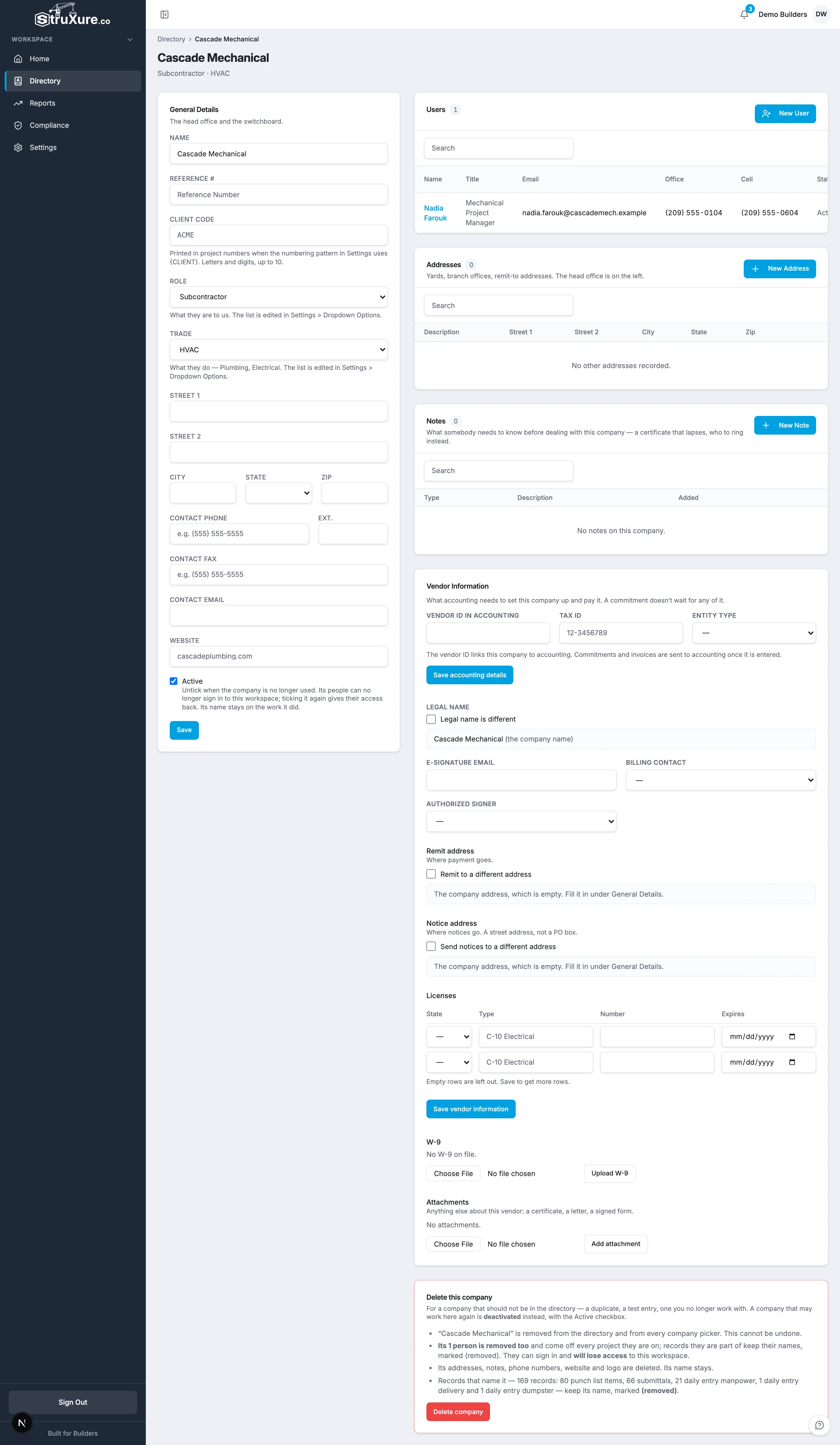
Change the company's details
General Details holds the head office and the switchboard: Name, Reference #, Client code, Role, Trade, Street 1, Street 2, City, State, Zip, Contact phone and Ext., Contact fax, Contact email and Website. As you type the street, suggestions appear; pick one to fill in the city, state and zip as well. What you type is kept if you don't pick one.
- Change the fields you need.
- Click Save.
The page shows Saved.
People at the company who don't have their own address use this one, so when the company moves, their address follows.
See and add the company's people
The Users card lists everybody at the company, with their title, email, phones and status. Click a name to open their record.
To add someone, click New User on the card. The form is the same as the Directory's, with this company already chosen. See Add a person.
Add other addresses
The Addresses card is for yards, branch offices and remit-to addresses.
- Click New Address.
- Enter a Description (such as Yard or Billing) and the address. Pick a suggestion as you type the street to fill in the rest.
- Click Add address.
To change one, click its pencil. To remove one, click its bin and confirm with Remove address. Removing an address doesn't touch the head office in General Details.
Add notes
The Notes card is for what somebody needs to know before dealing with the company, such as a certificate that lapses.
- Click New Note.
- Choose a Type if you like, and write the Description.
- Click Add note.
Each note shows who wrote it and when. Correcting a note keeps its author and date. Removing a note is permanent: Nothing keeps a copy of it.
Make it a vendor
If your company has the Financials add-on, the page has two tabs: General, with the cards above, and Accounting, with its Vendor Information (vendor ID in accounting, tax ID, remit and notice addresses), Licenses and Compliance. See Keep a company's vendor information.
Mark a company inactive
When you stop working with a company, untick Active in General Details and click Save. It's greyed out in the Companies list and its name stays on the work it did.
Its people can no longer sign in to this workspace, and anything they're signed in to closes within 15 minutes. Their access groups and projects are kept. Tick Active again to bring the company back: its people who are active themselves can sign in again, with what they had before.
If any of its people can sign in, only people with Organization directory at Admin see the Active box. Your own company can't be made inactive, and neither can the company you belong to.
Messages you might see
| Message | What it means |
|---|---|
| There is already a company called "…". | Another company has that name. |
| Another company already uses reference "…". | Reference numbers must be unique. |
| Choose the trade from the list. | That trade is no longer offered. Pick another from the list. |
| An address needs at least one line filled in. | Enter at least one part of the address. |
| A note needs something written in it. | Write a description. |
Who can edit
With Organization directory at Read, you see the page with its fields locked and no buttons. A deleted company's page shows only its name, marked (removed).