
People are added to a project from the people already in the Directory. If someone isn't there yet, you can create them on the same page.
Add people
Open the project's Directory and click Add Users.
On the left, tick the people you want. Tick a company's box to add everybody at it. Use Search companies and users... to find someone. People already on the project are greyed out and marked On Project; people who can't sign in are marked No login.
On the right, set each person's details (all optional):
- Access · optional: their permission group on this project. It starts as their Default project access. People with no login show No account and can't be given one here.
- Role · optional: their project role, such as Foreman or Architect.
- Notify: tick to email them that they've been added.
Apply to all added sets Set access for all..., Set role for all... or Notify all? for everybody on the right at once.
Click Update Directory. The button shows how many people you're adding.
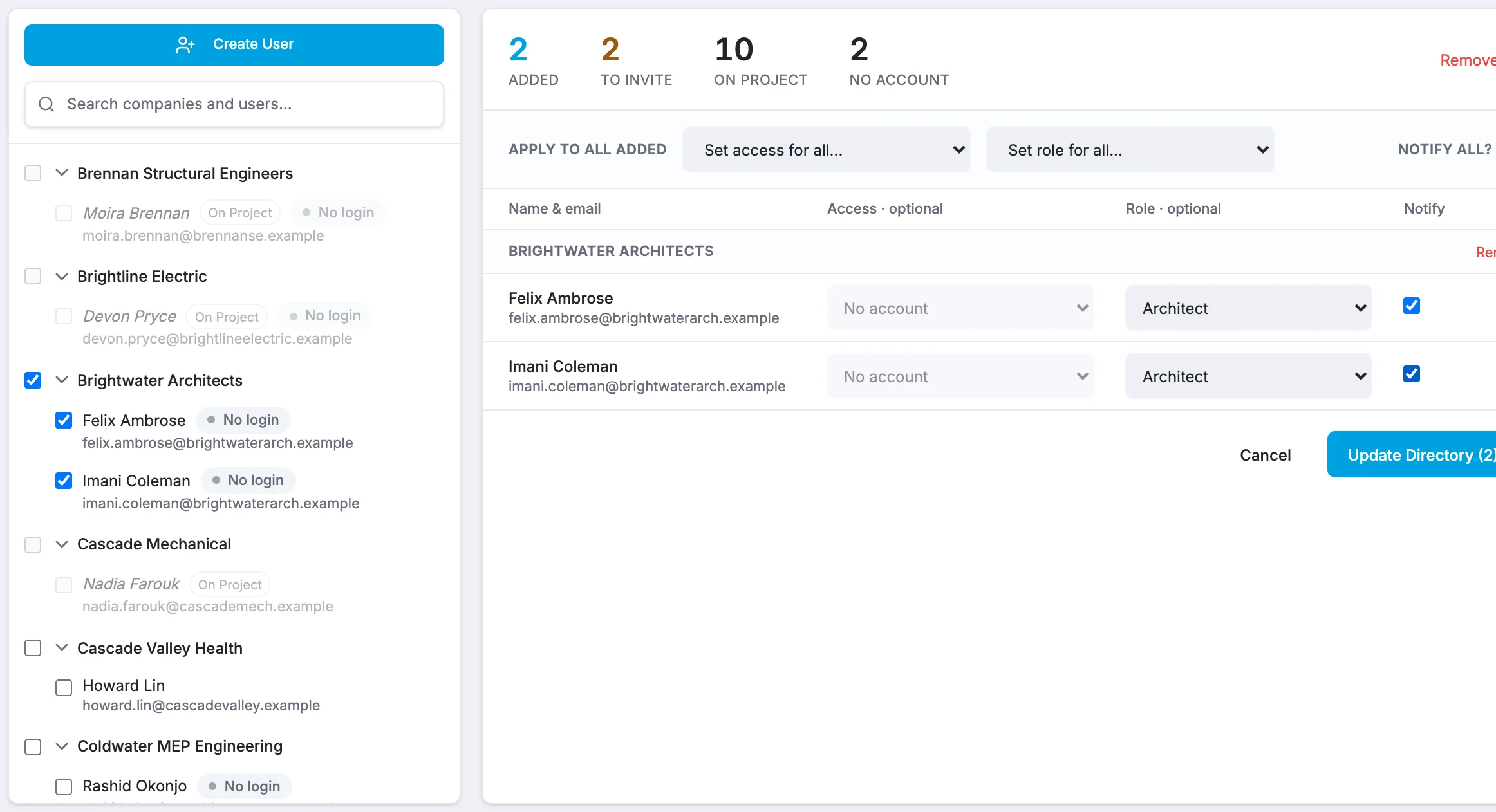
The counts at the top show how many are ADDED, TO INVITE (Notify ticked), already ON PROJECT, and have NO ACCOUNT. Remove (or Remove all) takes people back off the right-hand list before you save.
Back on the Project Directory, the message says how many were added, how many were already on the project, how many were added with no account, and how many were emailed.
The Access column only appears if you have Manage / Change Permissions on the project's Directory. Without it you can still add people with a role, and somebody with that permission sets their access afterwards. If you try to set access without it, nobody is added and the message explains why.
Create someone who isn't in the Directory
- On the Add Users page, click Create User.
- Enter First name, Last name, Email, Title and Company. New companies are created in the workspace Directory first.
- Leave This person will sign in ticked to create their account now (nothing is emailed), or untick it to add them as a contact only.
- If they'll sign in, choose their Default project access if you like.
- Click Create.
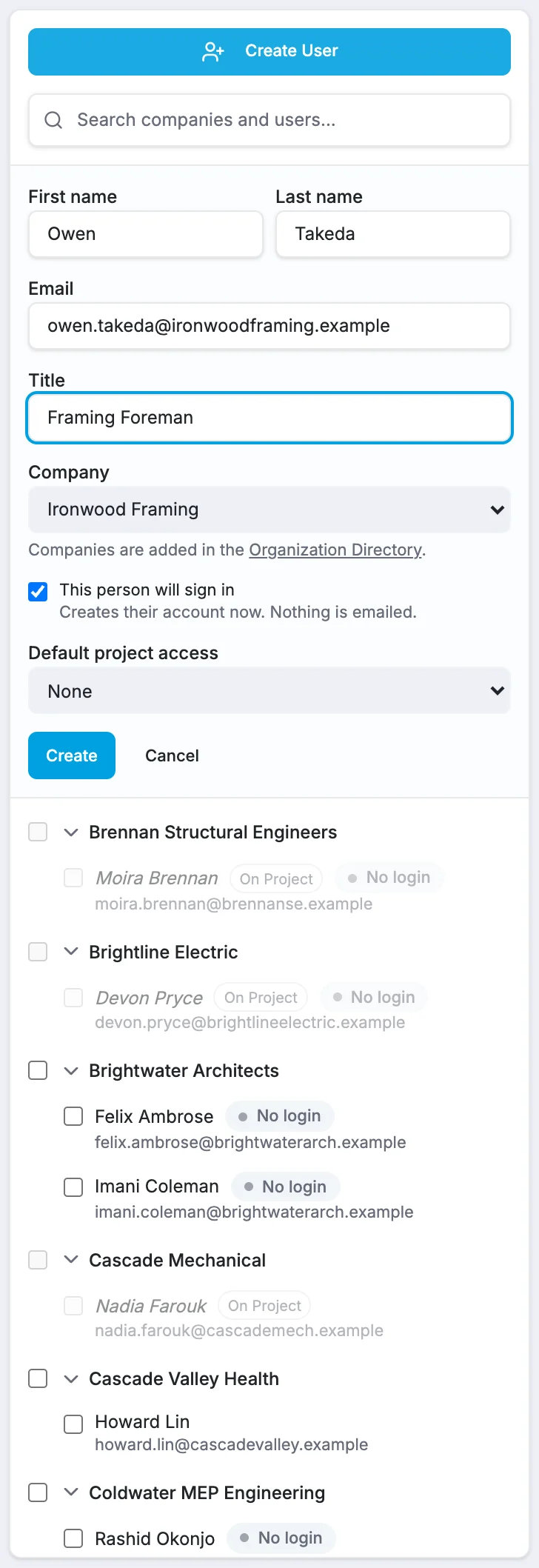
They're created in the workspace Directory and ticked in the list: Created … and selected them below. They are not on the project until you press Update Directory. Set their access, role and Notify, then click Update Directory.
Messages you might see
| Message | What it means |
|---|---|
| Nobody was selected. | Tick at least one person. |
| Project access has to be a project group. | Choose a project-level group. |