
The workspace Directory has two lists: Users (people) and Companies. Switch between them with the tabs above the list.
Find a person
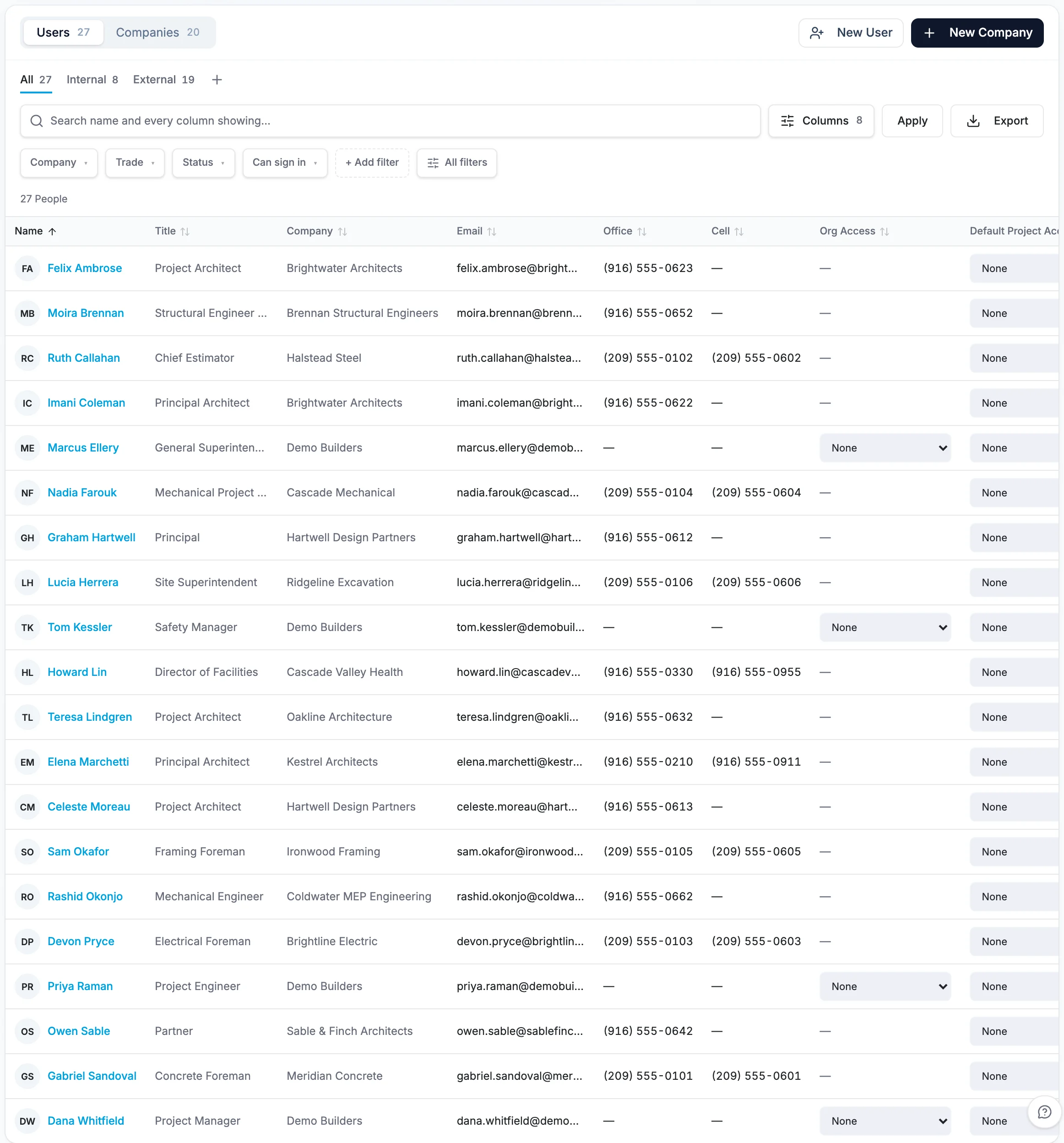
- Tabs: All, Internal (people at your own company) and External (everyone else), each with a count.
- Search: type in Search name, title, company, email…. The list updates when you pause typing; you don't need to press Enter. Search looks at the name and the text in every column that's showing, except On your projects.
- Filters: Company, Trade, Status and Can sign in are always in the filter row. + Add filter offers Internal or external, Org Access, Default Project Access, On your projects, Project role and Company role. All filters combines conditions with "and" and "or".
- Sort: click a column heading. Click again to reverse it.
- Columns: click Columns to show more, such as Can sign in, Status, On your projects, Project roles (every role they hold on projects you can see), and the company's Trade, phone, email, website and location. Name is always shown.
- Column widths: drag the right edge of a heading to make a column wider or narrower, and double-click the edge to fit it. To go back, click Columns, then Reset column widths.
Inactive people are greyed out.
To keep a set of filters and columns, click + after the tabs and save it as a view. Views work as they do on other lists; see Save a view.
Find a company
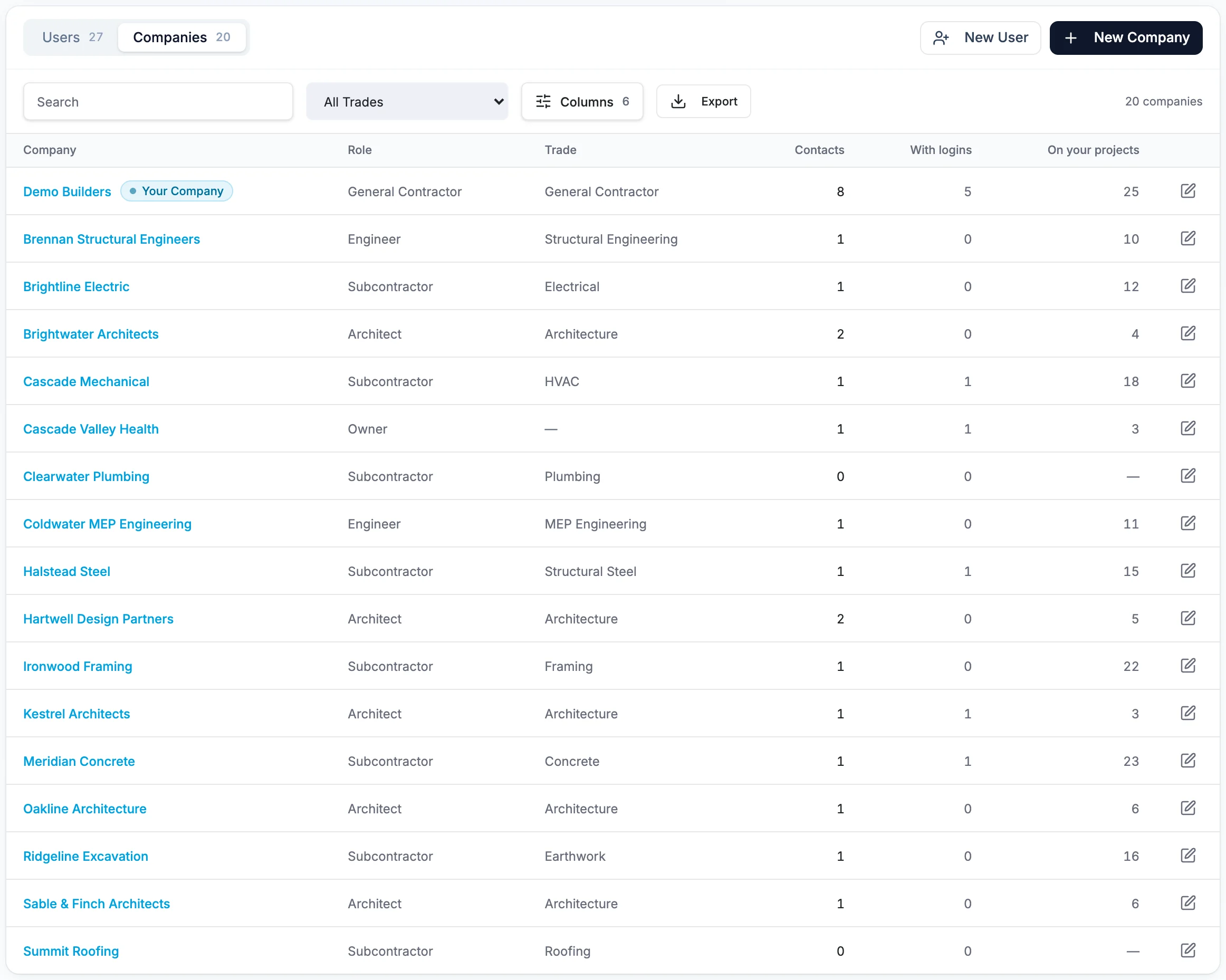
- Search matches the company name and every column showing.
- All Trades filters to one trade, or to No trade recorded.
- Columns offers Role, Trade, Status, Reference #, Phone, Email, Website, Location, Contacts, With logins and On your projects. Your choice is remembered.
Click a company's name to open it.
Export to CSV
Both lists have an Export button. It downloads a CSV of the rows that are showing, in the columns that are showing, in the order shown. Filter and choose columns first to get exactly the file you want.
The file is named for the list and the day, such as directory-users-2026-10-21.csv.
Accounts with no directory record
If somebody can open the workspace but has no Directory entry, they're listed under Accounts with no directory record below the list, with their email, access and number of projects.