
A saved view is a named tab that remembers your filters, search, columns and sort. Only you can see your views, and they appear on the punch list of every project you open.
Save a view
- Set up the list the way you want it: filters, search, columns and sort.
- Click + at the end of the tabs.
- Name the view, e.g. "High priority" or "My items", and click Save view.
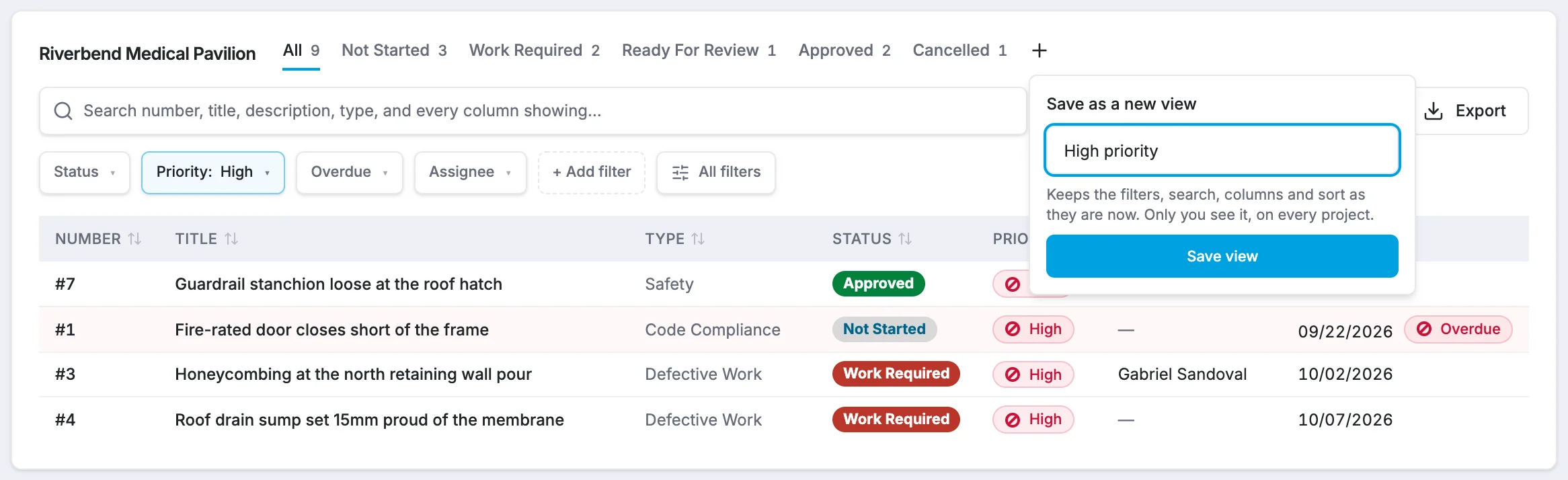
The view appears as a tab after the status tabs.
Update a view
If you change the list while a view is open, a bar says Changed since "…" was saved. Choose:
- Save to update the view.
- Save as new to keep the original and save the changes as a new view.
- Reset to discard the changes.
Manage your views
Open a view, then click the ⋯ menu on its tab to:
- Rename it.
- Set as Default View, so it opens whenever you go to a punch list. Remove as Default View undoes this.
- Duplicate it.
- Move left or Move right to reorder your tabs.
- Delete view. This only removes the tab; no punch items are affected.
Limits
View names can be up to 60 characters, and you can have up to 30 views on the punch list.