

Use the tabs
The tabs across the top of the list show All items or one status at a time, with a count on each: Draft, Assigned, Submitted for Review, Complete and Cancelled. You see only your own Drafts, unless you're a punch list administrator.

The four totals above the list (Outstanding, Overdue, High priority, Complete) always count the whole punch list, whatever you have filtered. Click Overdue, High priority or Complete to filter the list to those items.

Search
Type in the search box and press Enter or click Apply. Search looks at the item number (with or without #), title, description, type, and every column currently shown. Click Clear to start again.
Filter
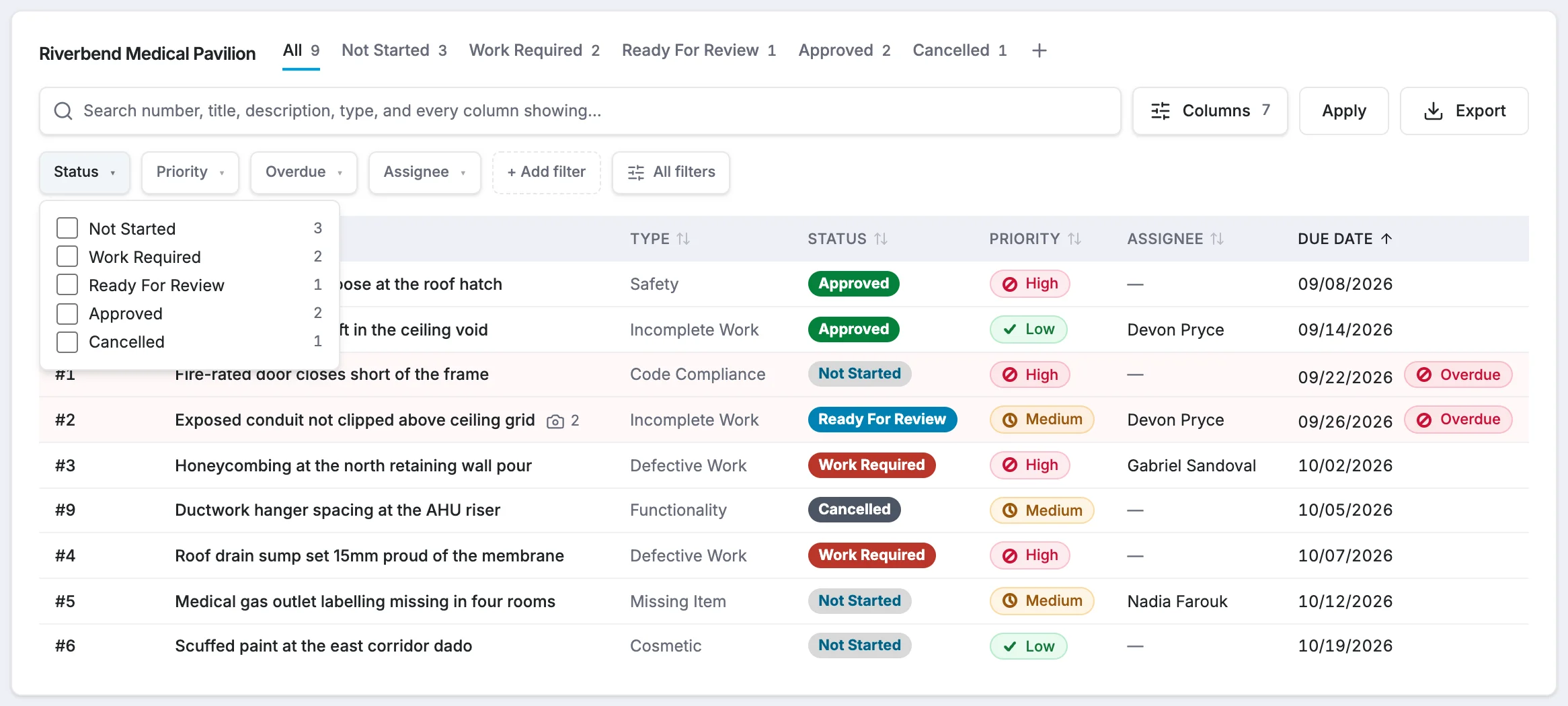
Status, Priority, Overdue and Assignee are always in the filter row. Click one, tick the values you want, and the list updates when the menu closes. Each value shows how many items have it, including (blank).
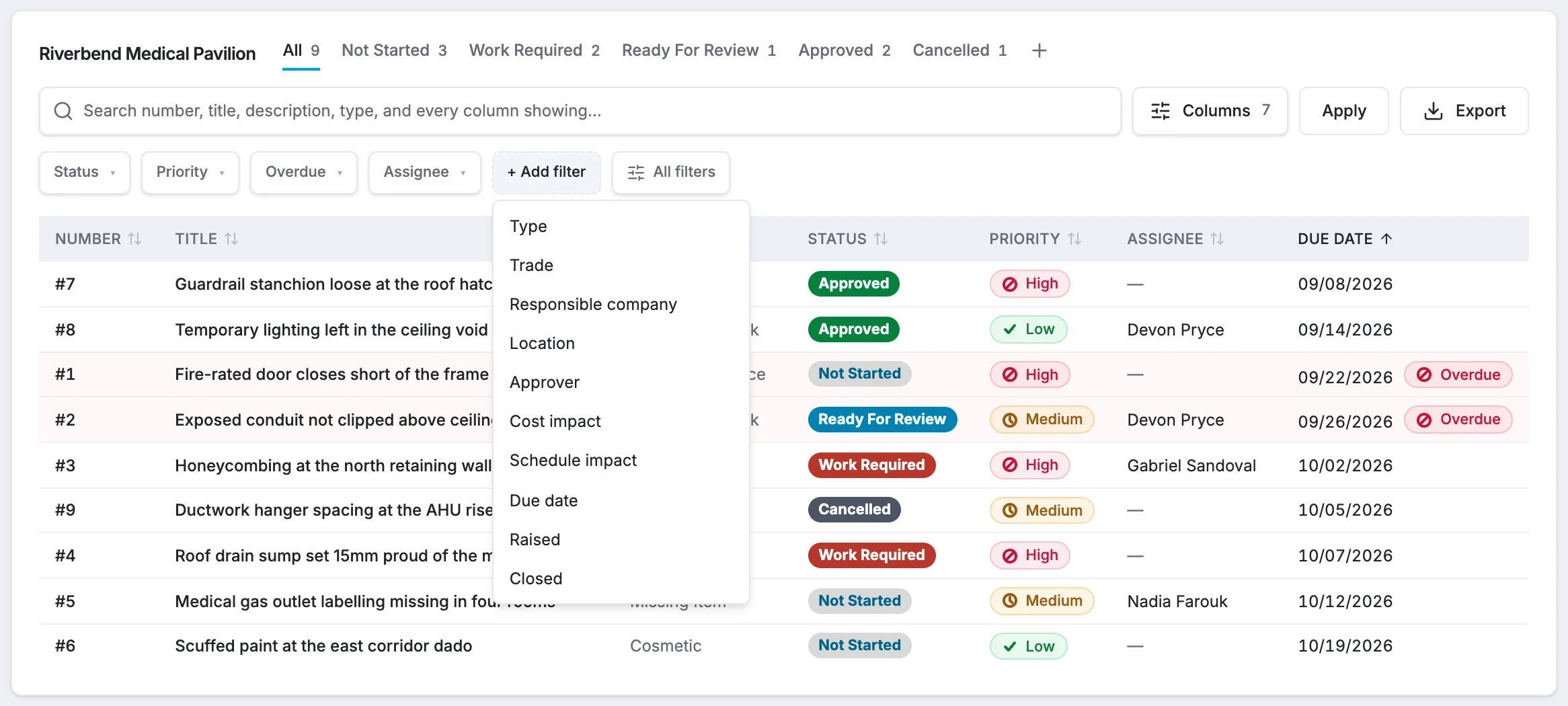
For anything else, click + Add filter and choose from Type, Trade, Responsible company, Location, Approver, Cost impact, Schedule impact, Due date, Raised or Closed. Date filters let you choose is before, is after, is between, is blank or is not blank.
Combine filters with "and" and "or"
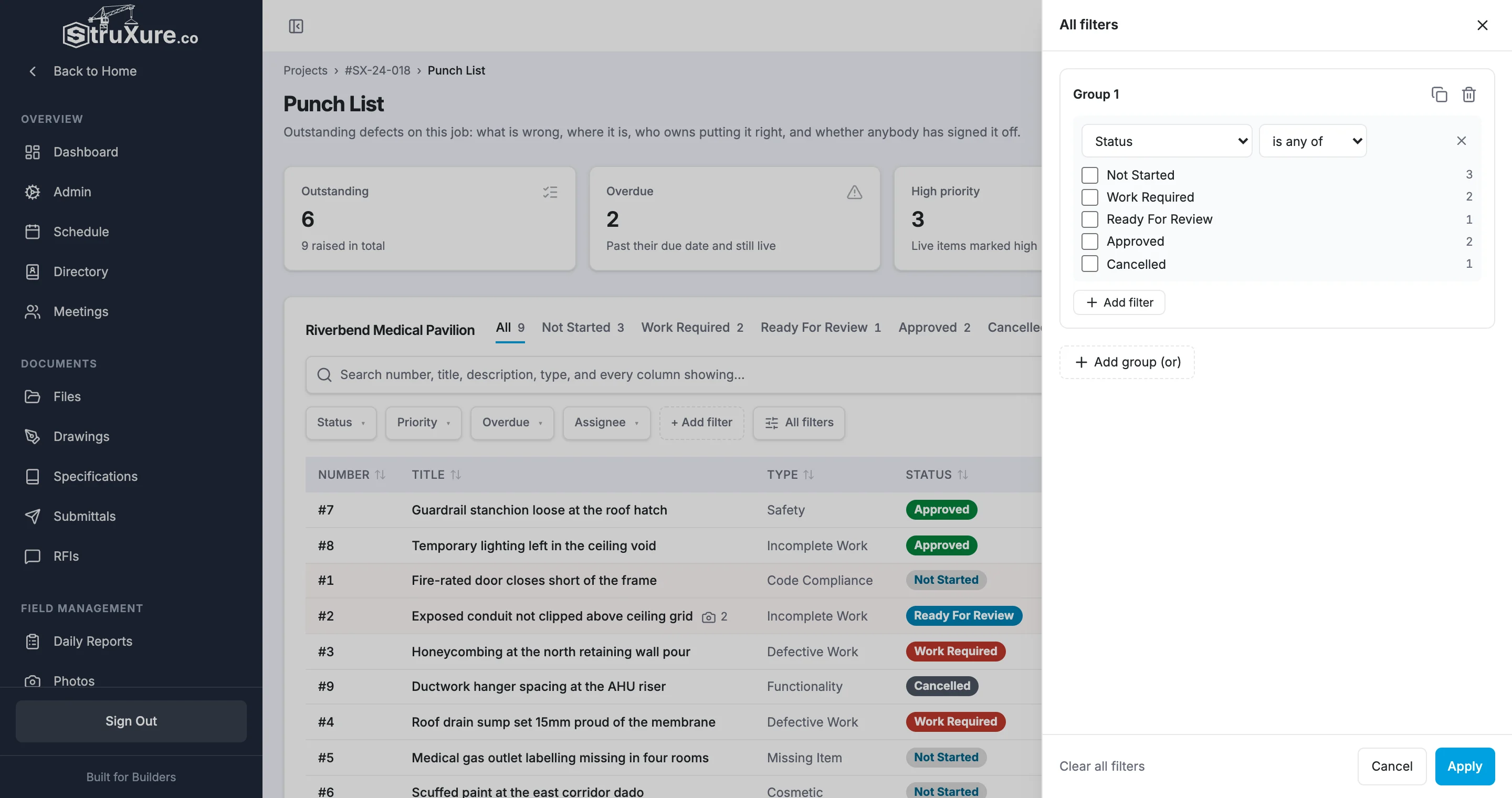
Click All filters to build more complex filters. Conditions in the same group must all match (and). Click Add group (or) to add another group; an item shows if it matches any group. Click Apply when you're done, or Clear all filters to start over.
Choose columns
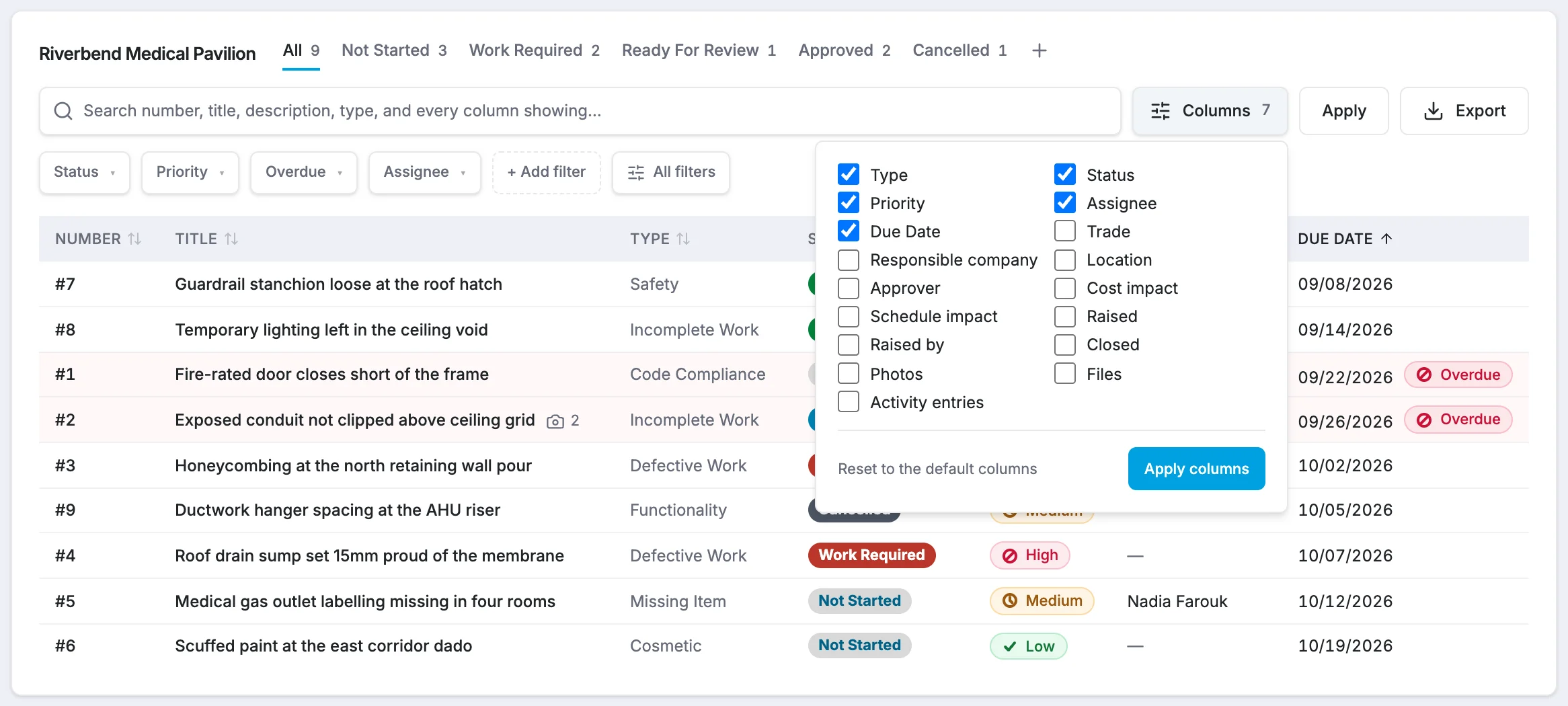
Click Columns, tick the columns you want, and click Apply columns. Number and Title are always shown. Besides the defaults you can add Trade, Responsible company, Location, Approver, Cost impact, Schedule impact, Raised, Raised by, Closed, Photos, Files and Activity entries. Reset to the default columns puts things back.
Sort
Click a column heading to sort by it. Click again to reverse the order, and a third time to go back to the default order: by due date, earliest first, with undated items last.
StruXure remembers your columns and sort in this browser. To keep a set of filters too, and to get it back on any project, save it as a view.