
StruXure doesn't email anyone automatically when a punch item is raised or changed. To tell someone about an item, send it from the item.
- Open the punch item.
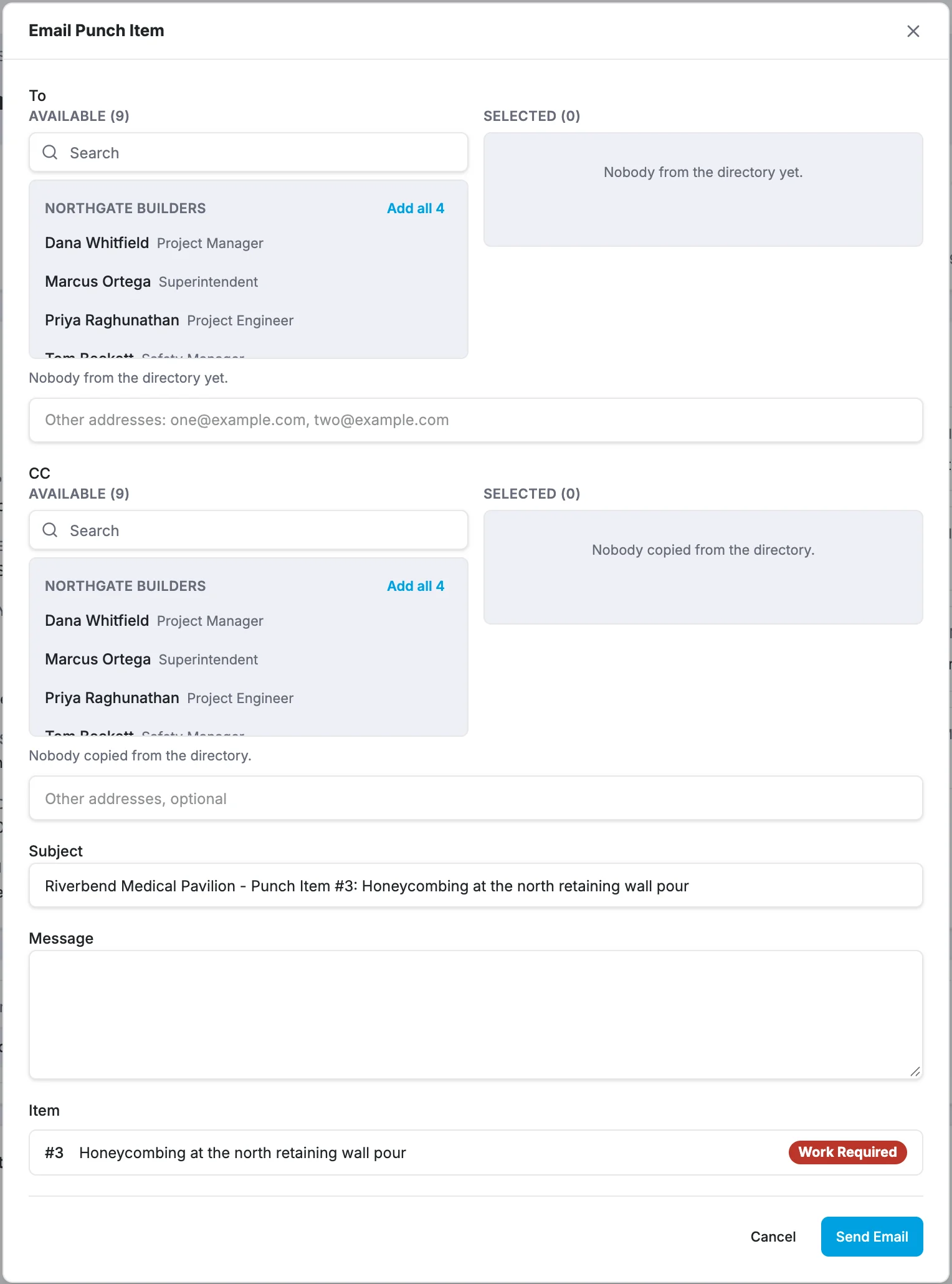
- Click Email in the top right.
- Choose who to send it to:
- To: pick people and groups from the project directory, and/or type other addresses separated by commas or semicolons.
- CC: optional, same as To.
- Check the Subject. It starts as the project name, item number and title.
- Optionally, add a Message of your own.
- Click Send Email.
When you see Email queued., the email has been accepted and is sent in the background.
What the email contains
Your message, followed by the item's number and title, status, priority, due date, location, assignee, company and description.
Good to know
- To may already be filled in. If your project has default punch list recipients, they're selected when the dialog opens. See Choose who punch item emails go to by default.
- "Nobody chosen for To has an email address on file…" The people you picked have no email address in the directory. Add their address in the Directory, or type it in the box instead.