
You can comment on an item, attach photos and files, and move it on from the Activity & Status Log. You can also change its status from the timeline across the top of the item. Each entry records your name and the time.
Change the status from the timeline
- Open the punch item.
- On the timeline across the top, click the status you want. Only the statuses you're allowed to move this item to can be clicked; each one says what it does, such as Mark complete or Send back.
- Check the confirmation. A note is optional, except when you send an item back (say what still needs fixing). When you submit an item for review, say what was done, attach a photo or file in the confirmation, or both.
- Click the button in the confirmation.
The item moves and you stay where you are on the page. You can also choose a new Status when you edit the item; Save asks you to confirm the change.
Comment in the Activity & Status Log
Open the punch item.
In Activity & Status Log, type a Comment, attach photos or files, or both. Drag them into the box under the comment, choose them, or click Take a photo on a phone. They're attached to this comment and also added to the item's photos and files.
Click the button for what you want to do:
- Comment adds your comment without changing the status.
- Submit for review (anyone with Write, admins included) moves it to Submitted for Review, with your comment and photos as the evidence. It needs a comment or a photo.
- Send back or Mark complete (if you're a punch list admin) signs the item off or returns it to the assignee. Sending back needs a comment saying what still needs fixing.
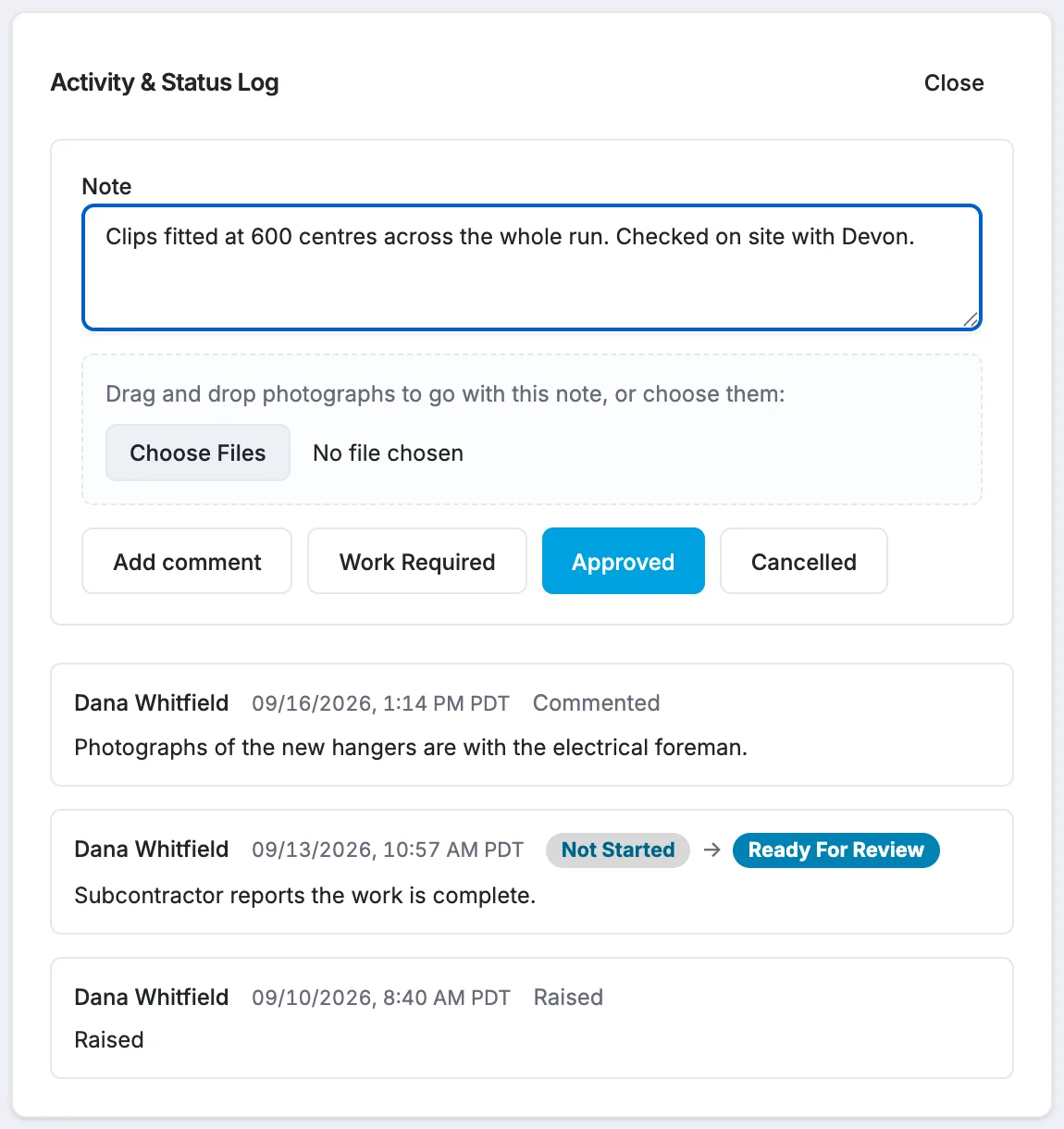
Only the actions you can take on this item are shown. If you chose Submit for review, Send back or Mark complete, confirm it in the dialog.
The new entry appears at the top of the log and you stay where you are on the page. The people on the item (its assignee, approver and the person who raised it) get an email about your comment, grouped with any other changes made at about the same time. You don't get one about your own comment.
To publish, cancel or reopen an item, use the timeline.
Which statuses you can choose
The buttons on the timeline depend on the item's current status, and on who you are:
| Current status | Button | Moves it to | Who can |
|---|---|---|---|
| Draft | Publish | Assigned | The person who raised it, or an admin |
| Draft, Assigned, Submitted for Review | Cancel item | Cancelled | The person who raised it, or an admin |
| Assigned | Submit for review | Submitted for Review | Anyone with Write, including an admin |
| Assigned, Submitted for Review | Mark complete | Complete | An admin |
| Submitted for Review | Send back | Assigned | An admin |
| Complete, Cancelled | Reopen | Assigned | The person who raised it, or an admin |
"An admin" means someone with Admin access to the punch list. Buttons you can't use are hidden. See Mark a punch item complete, send it back, or reopen it.
If something goes wrong
- "Write a comment or attach a file." A comment needs words, a file, or both.
- "Add a comment or a photo saying what was done before you submit it for review." Type what you did or attach an "after" photo, then click Submit for review again.
- "Say what still needs fixing before you send it back." Type what still needs fixing in the comment box or the confirmation.
- "Somebody else moved it first. Here is where it is now." Someone changed the item while you had it open. Check the timeline and the log before trying again.
- "A … item cannot go straight to …" Someone else changed the item while you had it open. Refresh the page and check the log before trying again.
- "Nothing changed — the item was already in that state, or somebody else moved it first." The item was already in that status, so nothing was recorded.
Log entries can't be edited or deleted. If you made a mistake, add another comment that corrects it.