
If you're a subcontractor, the general contractor raises punch items and assigns them to your company. Your job is to fix each one and tell them it's ready to check. This is the whole process.
1. Find your items
- Open the project and choose Punch List in the sidebar.
- Click Assignee in the filter row and tick your name. You can also add a Responsible company filter from + Add filter to see everything assigned to your company.
- Items are sorted by due date, so the most urgent are at the top. Anything past its date is tinted red and marked Overdue.
Save this as a view so it's one click next time: click + next to the tabs and name it "My items". See Save a view of the punch list.
2. Read the item
Click the item's number or title. The details tell you what's wrong, where it is, and when it's due. Check the Activity & Status Log on the right for notes from earlier walks. If an item was sent back to you, the latest note says what is still wrong.
3. Fix it and send it for review
When the work is done:
- In Activity & Status Log, type a Comment saying what you did.
- Drag "after" photos into the box under the comment, or click Take a photo on a phone. They're attached to your comment, so the reviewer sees the evidence alongside it.
- Click Submit for review, and confirm. You need a comment or a photo to submit.
To ask a question or give an update without submitting, click Comment instead. The project team gets an email about it.
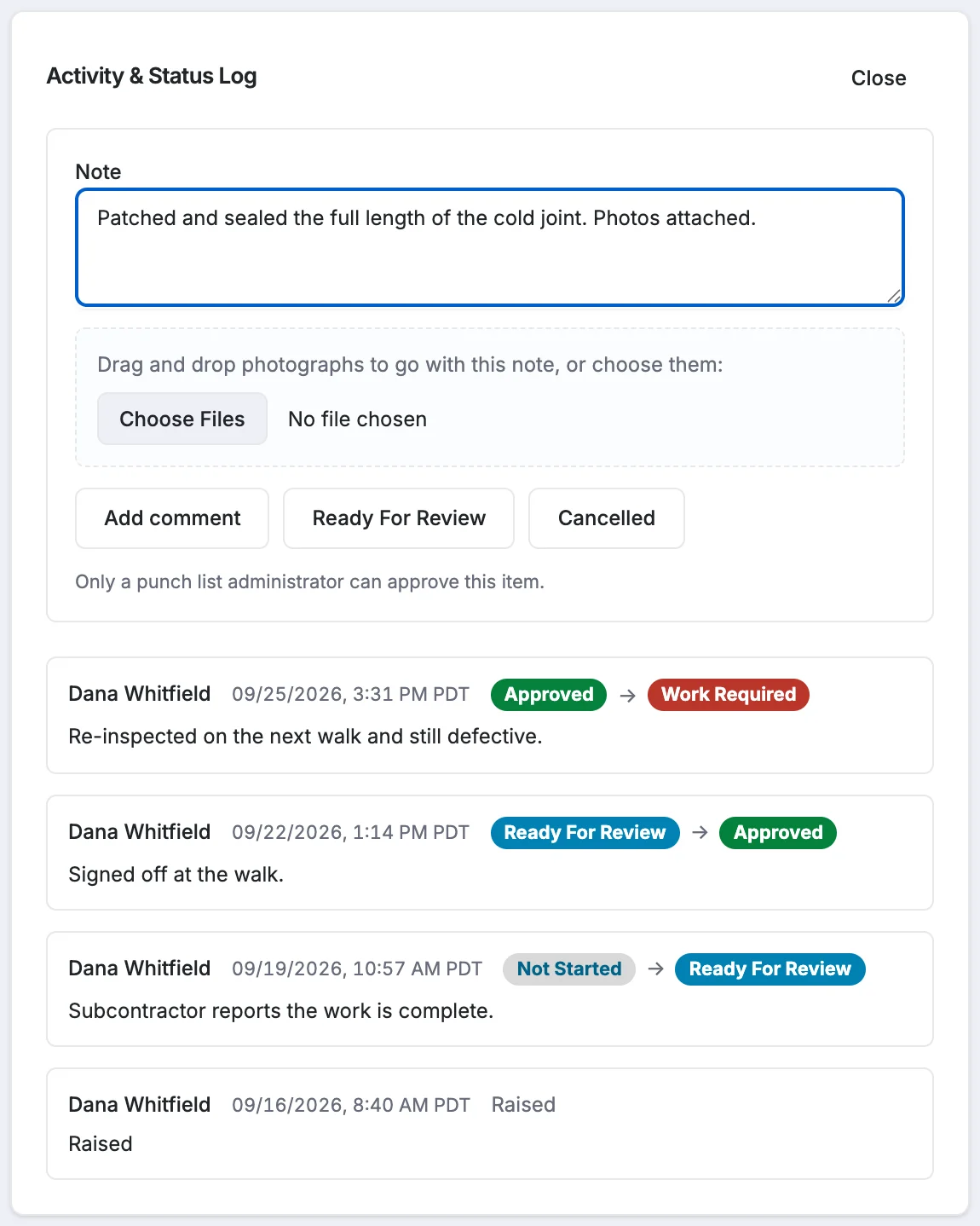
The item moves to Submitted for Review and the project team can see it's waiting for them.
4. What happens next
- If the fix is good, the project team marks it Complete and you're done with it.
- If not, they send it back: it's Assigned to you again with a note saying what's still wrong. Fix it and repeat step 3.
What you can't do
You can't mark your own items complete or send them back. Those buttons aren't shown to you. That sign-off belongs to the project team.