
Add the item
Open the project and choose Punch List in the sidebar.
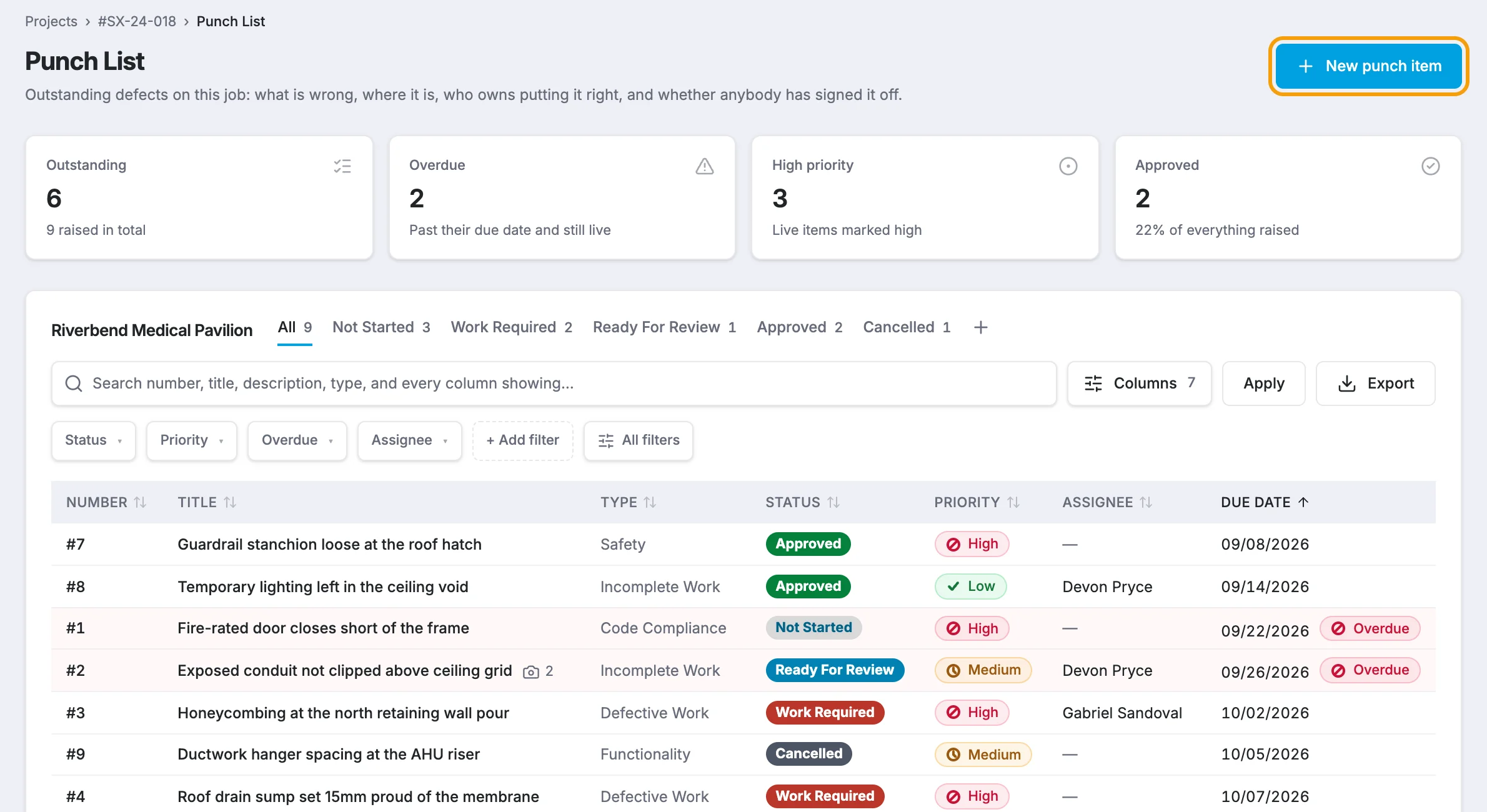
Click New punch item in the top right.
Fill in the form. Only Due date is required, but the more you add now, the less chasing later.
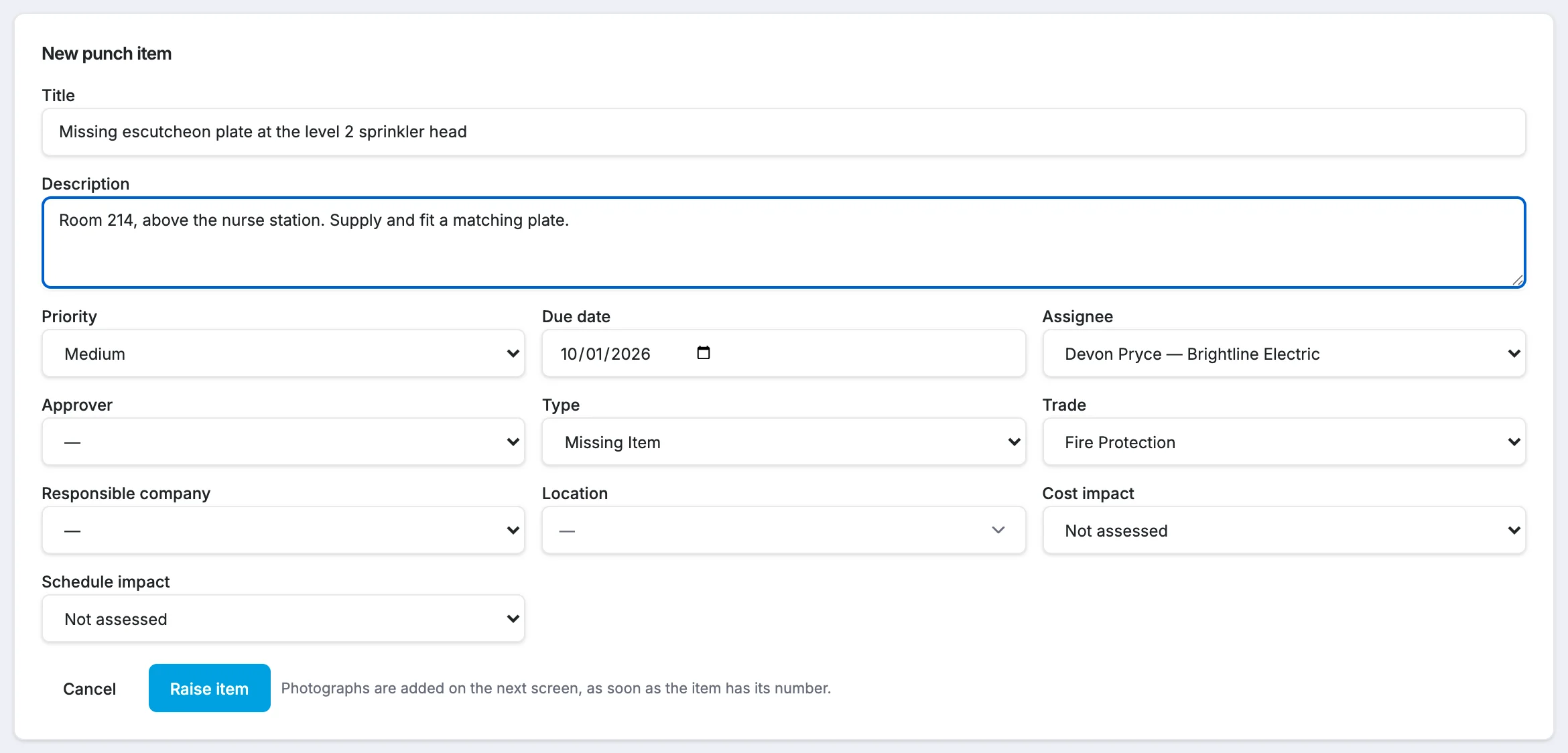
Click Raise item.
StruXure gives the item the next number on the project and opens it at the Photos section, ready for photos of the defect. See Add photos and files to a punch item.
What each field is for
| Field | What to enter |
|---|---|
| Title | A short description people will recognize on the list, e.g. "Fire-rated door closes short of the frame". If you leave it blank, the item is saved as Untitled. |
| Description | What is wrong, and what fixing it looks like. |
| Priority | Low, Medium or High. Starts at Medium. |
| Due date | When it needs to be fixed. Required. You can pick a past date, which is useful when you write up a walk after the fact. |
| Assignee | The person who should act on it. The list shows people in this project's directory, with their company. |
| Approver | The person expected to sign it off. Choosing someone here doesn't give them permission to mark it complete; it names who reviews it once it's submitted. |
| Type | The kind of defect, e.g. Incomplete Work, Defective Work, Missing Item, Cosmetic, Safety. Your company can change this list. |
| Trade | The trade the work belongs to, e.g. Concrete, Drywall, Electrical. |
| Responsible company | The company that owns the fix. |
| Location | Where on site it is. Start typing to search the project's locations, or type a new one and choose Add "…" as a new location. |
| Cost impact / Schedule impact | Whether the defect affects cost or schedule: Not assessed, Yes or No. |
Tip
If your company or project has punch list defaults set up, the Due date and Approver may already be filled in when the form opens. Due dates are counted in work days on the project's calendar, so weekends and holidays are skipped. Admins can change this: see Set punch list defaults.
Good to know
- Numbers are never reused. If item #12 is deleted, the next item is still #13, so a number always means the same defect.
- A new item is published as Assigned, so its assignee can see it straight away. To keep working on it first, click Save as draft instead: a Draft is seen only by you and punch list administrators, and nobody is emailed until you publish it from the item's Activity & Status Log.
- If the Assignee list says nobody is in the project's directory yet, ask your project admin to add the project team first.
- If the New punch item button is greyed out, you have read-only access to this punch list.