
Marking an item complete is the sign-off: it records that the defect has been checked and fixed. Only people with Admin access to the punch list can mark items complete or send them back.
Mark an item complete
You usually mark items complete once the assignee has submitted them for review. If the assignee won't submit it, for example because they don't use StruXure, you can mark an Assigned item complete yourself. You can also submit an item for review, with a comment or a photo, like anyone with Write access.
Open an item that is Submitted for Review or Assigned.
In Activity & Status Log, optionally type a Comment saying what you checked, e.g. "Checked on site, clips at 600 centres." You can attach photos too.
Click Mark complete.
Confirm in the dialog.
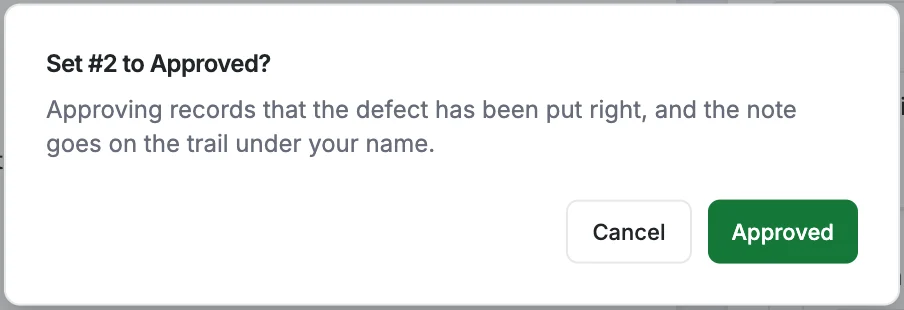
The item moves to Complete, the date is recorded (shown in the Closed column if you turn it on), and it stops counting as outstanding.
Send an item back
If the fix isn't good enough, send the item back to the assignee.
- Open an item that is Submitted for Review.
- In Activity & Status Log, type a Comment saying what is still wrong. This is required.
- Click Send back and confirm.
The item goes back to Assigned, and the send-back stays in its history.
Reopen a complete item
If a complete defect comes back, reopen it rather than raising a new item, so its history stays in one place. The person who raised the item can do this too.
- Open the complete item.
- On the timeline across the top, click Reopen.
- Optionally type a note describing what is wrong now, then confirm.
The completion date is cleared, the item is Assigned again, and it counts as outstanding again. A cancelled item is reopened the same way.
The Approver field on an item names who is expected to sign off, but it doesn't give that person permission to mark it complete. That always needs Admin access to the punch list. To give someone that access, see Who can do what on the punch list.