
Defaults save time when raising items. They pre-fill the Approver and Due date on the New punch item form. People can still change both on each item. There are two levels:
- Company defaults apply to every project.
- Project defaults override the company defaults on one project, field by field.
Changing a default only affects items raised afterwards. Existing items keep their dates and approvers.
Set company defaults
Go to Settings and open Module defaults.
Find the Punch List card.
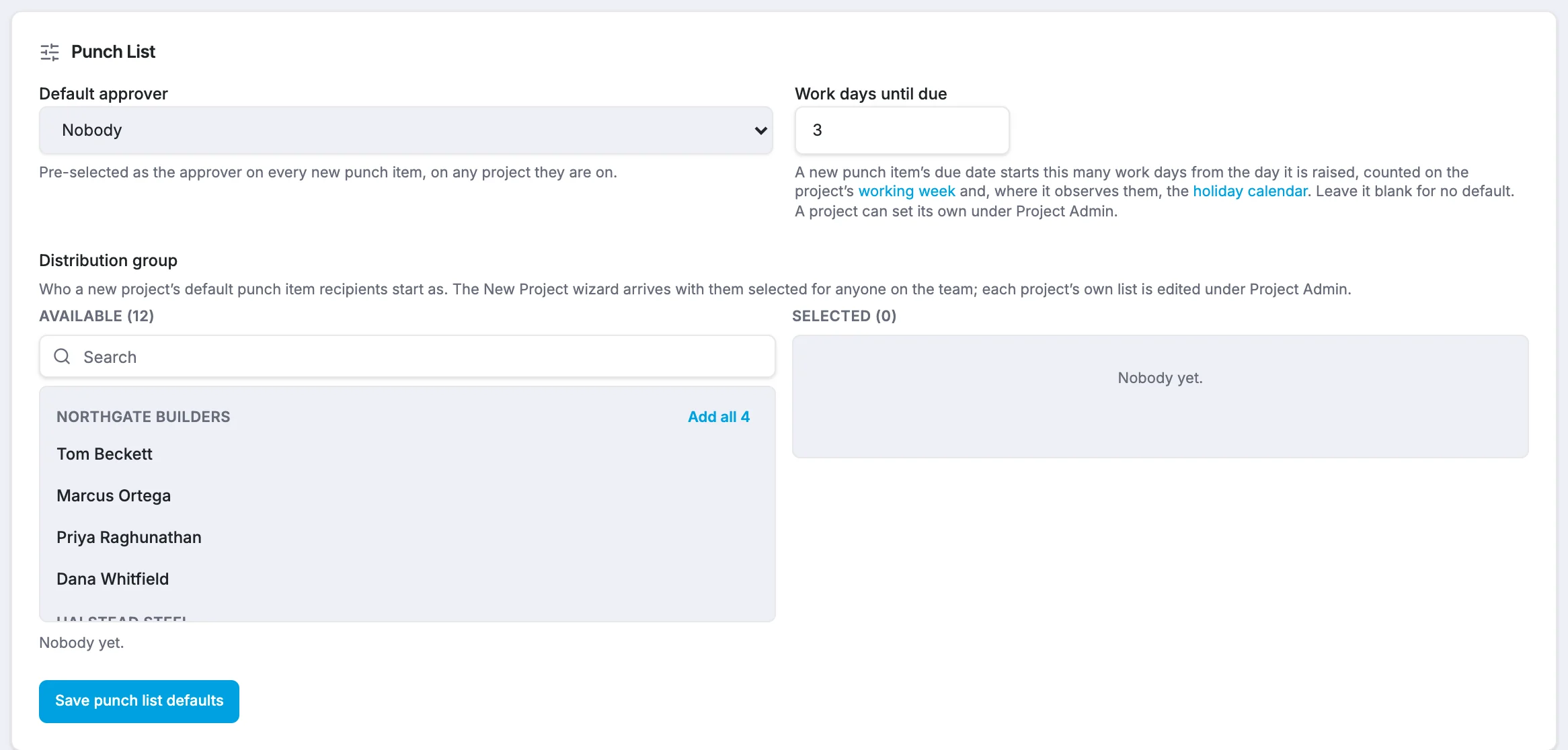
Set:
- Default approver: the person pre-selected as approver on new items. They're only pre-selected on projects where they're in the project directory.
- Work days until due: how many work days after the item is raised the due date should be (0–365). Leave it blank for no default due date.
- Distribution group: who a new project's default punch item email recipients start as. See Choose who punch item emails go to by default.
Click Save punch list defaults.
Set defaults for one project
- Open the project and choose Admin in the sidebar.
- Under Module settings, find the Punch List card. It says whether the project is following the company defaults or overriding them.
- Set Default approver (only people in this project's directory are listed) and/or Work days until due. Leave a field on its workspace default to keep following the company setting.
- Click Save punch list settings.
To go back to the company defaults, click Use workspace defaults.
How due dates are counted
Work days are counted on the project's calendar: its working week, observed holidays, shutdown days and any extra working days. For example, with 5 work days on a Monday-to-Friday project, an item raised on a Thursday is due the following Thursday. If a holiday falls in between, it's due a day later.