
Photos show what was found and prove it was fixed. Each punch item has a Photos section for images and a Files section for everything else.
Add photos or files
Open the punch item and scroll to the upload box above Photos.
Do one of these:
- Drag photos and files anywhere into the box.
- Click Choose Files and select them.
- On a phone or tablet, Choose Files also offers the camera.
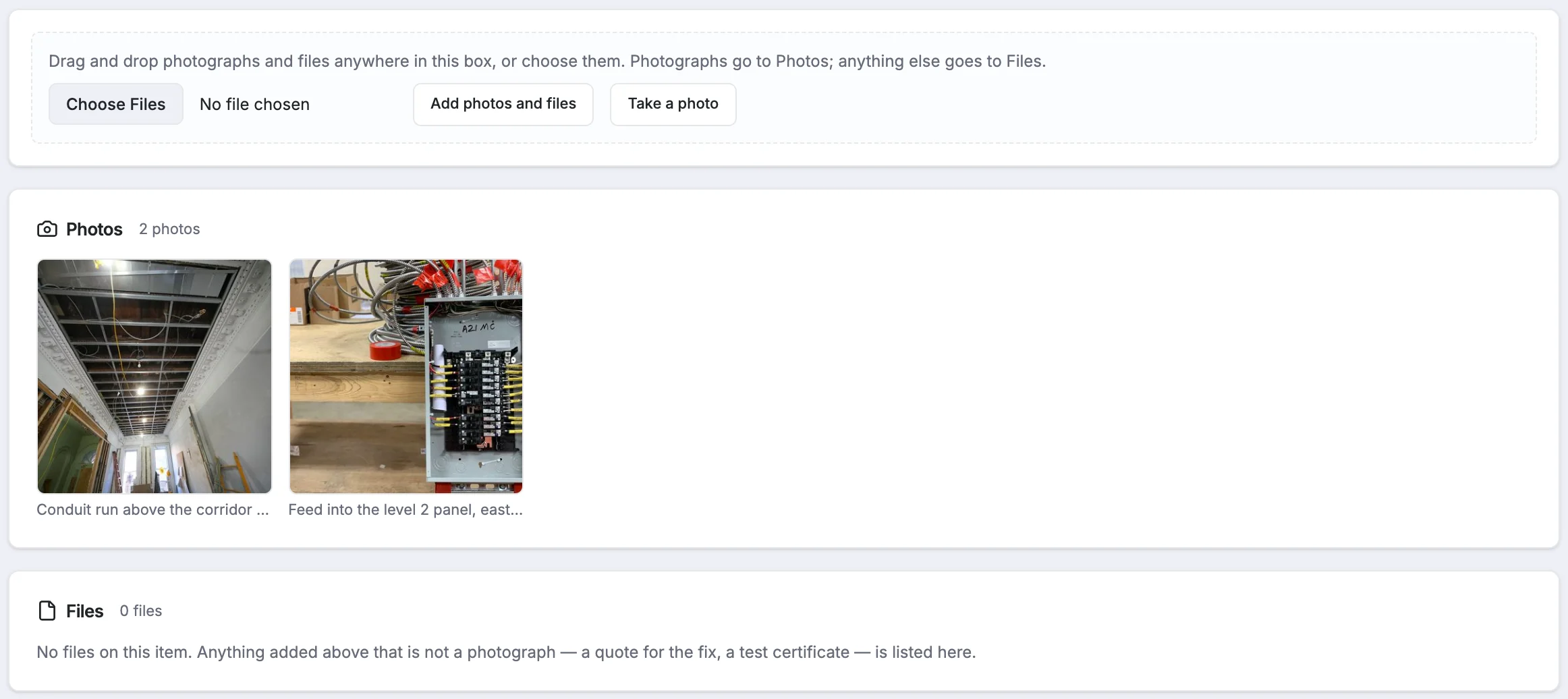
Photos appear as tiles. Anything that isn't a photo is listed under Files.
Photos (JPG, PNG, GIF, BMP, WebP, AVIF and HEIC) go to Photos. Anything else, such as a PDF quote or a test certificate, goes to Files. Files can be up to 5 GB each.
If you upload a file that's identical to one already on the item, StruXure tells you when the original was attached.
To attach an "after" photo to a comment or a submission, add it in the Activity & Status Log's comment box instead. The photo is attached to your comment, so the log shows the evidence next to the claim. See Comment on an item or change its status.
View, caption and download photos
Click any photo to open it full size.
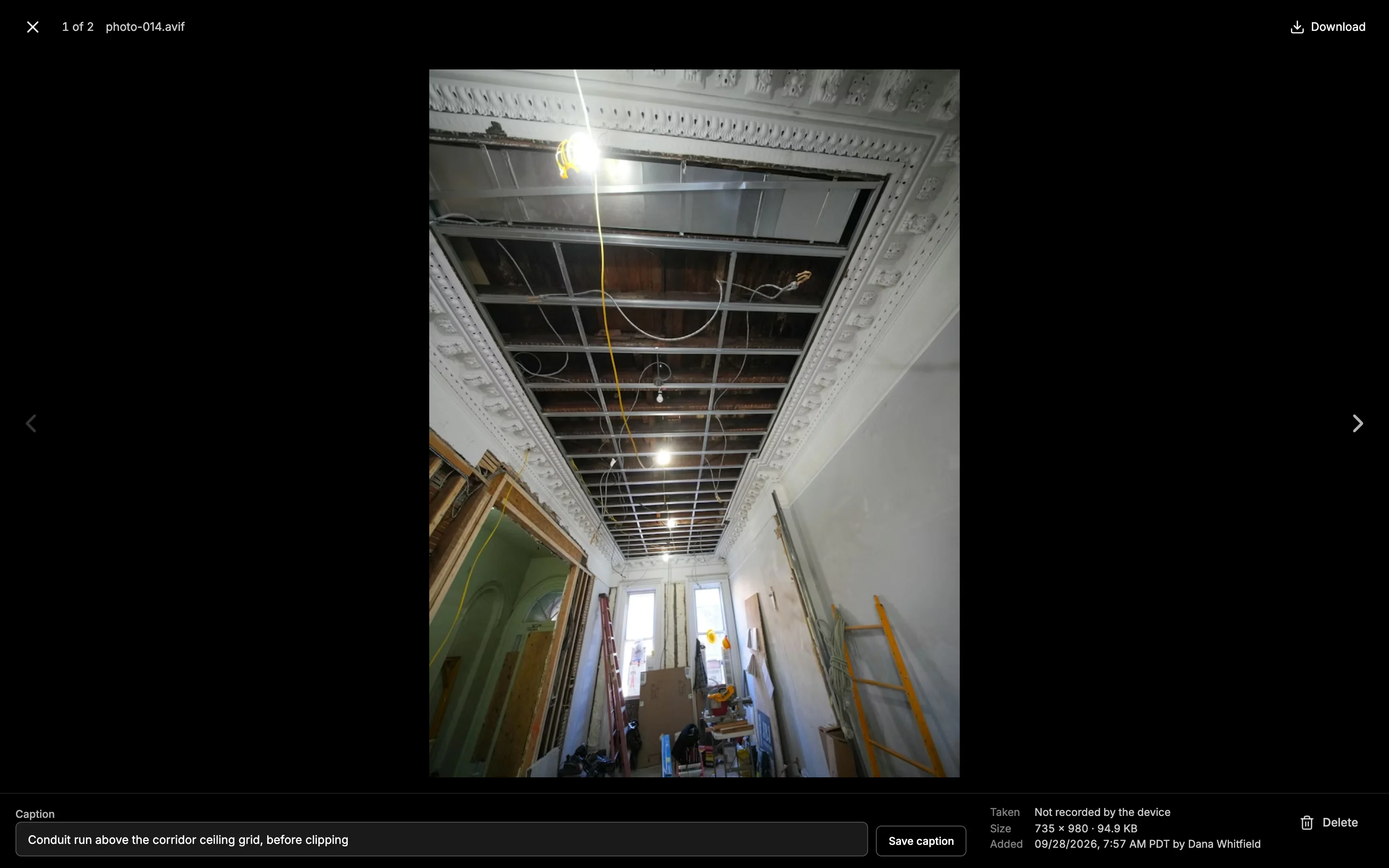
- Use the arrow buttons, or the ← and → keys, to move between photos. Press Esc to close.
- Click Download to save the original.
- The info panel shows when the photo was taken (if the camera recorded it), its size, who added it, and which log note it belongs to.
- To add a caption, type it in Caption (e.g. "Before, after, the bay number…") and click Save caption.
Delete a photo or file
In the photo viewer or the Files list, click delete, then confirm.
Deleted photos and files don't go to the recycle bin. They're removed permanently and can't be restored.