
A distribution group is one line on an RFI, a submittal or a specification email that reaches everybody in it. Each project has its own groups, on the Distribution Groups tab of its Directory.
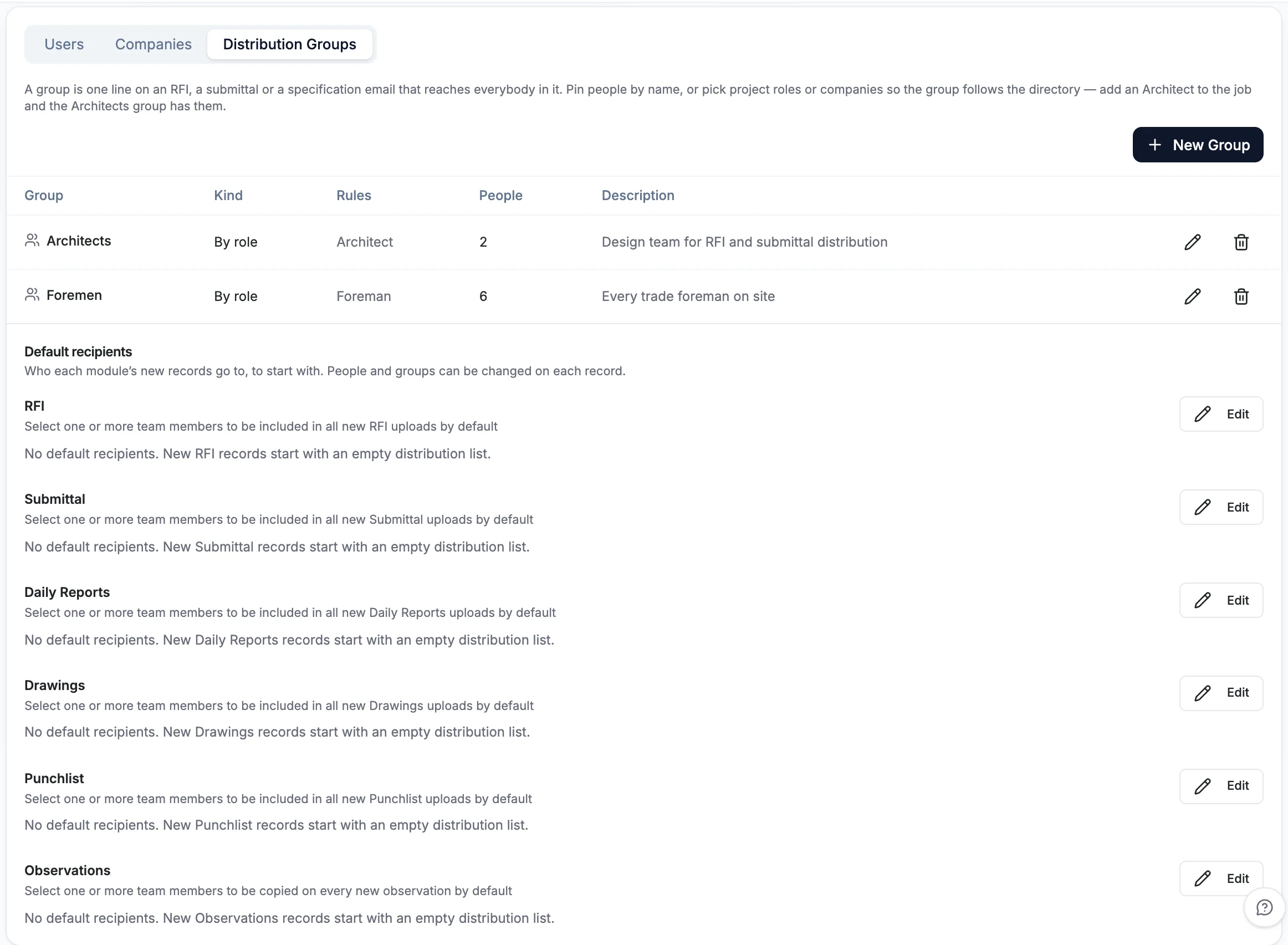
A group can follow the project directory, so you don't have to keep it up to date:
| Kind | Who is in it |
|---|---|
| By role | Everybody on the project whose Project Role is ticked. Add an Architect to the job and the Architects group has them. |
| By company | Everybody on the project employed by a ticked company. |
| People | Specific people you pin by name. |
A group can mix all three. People shows how many it reaches today; point at the number to see how many are pinned by name.
Create a group
- Open the project's Directory and choose the Distribution Groups tab.
- Click New Group.
- Enter a Name and, if you like, a Description.
- Choose who's in it, in any mix:
- Under By project role, tick roles.
- Under By company, tick companies on the project.
- Under Specific people, search for people and add them.
- Check Resolves to … people today at the bottom; it lists who the group reaches right now. Inactive people aren't counted or listed.
- Click Create group.
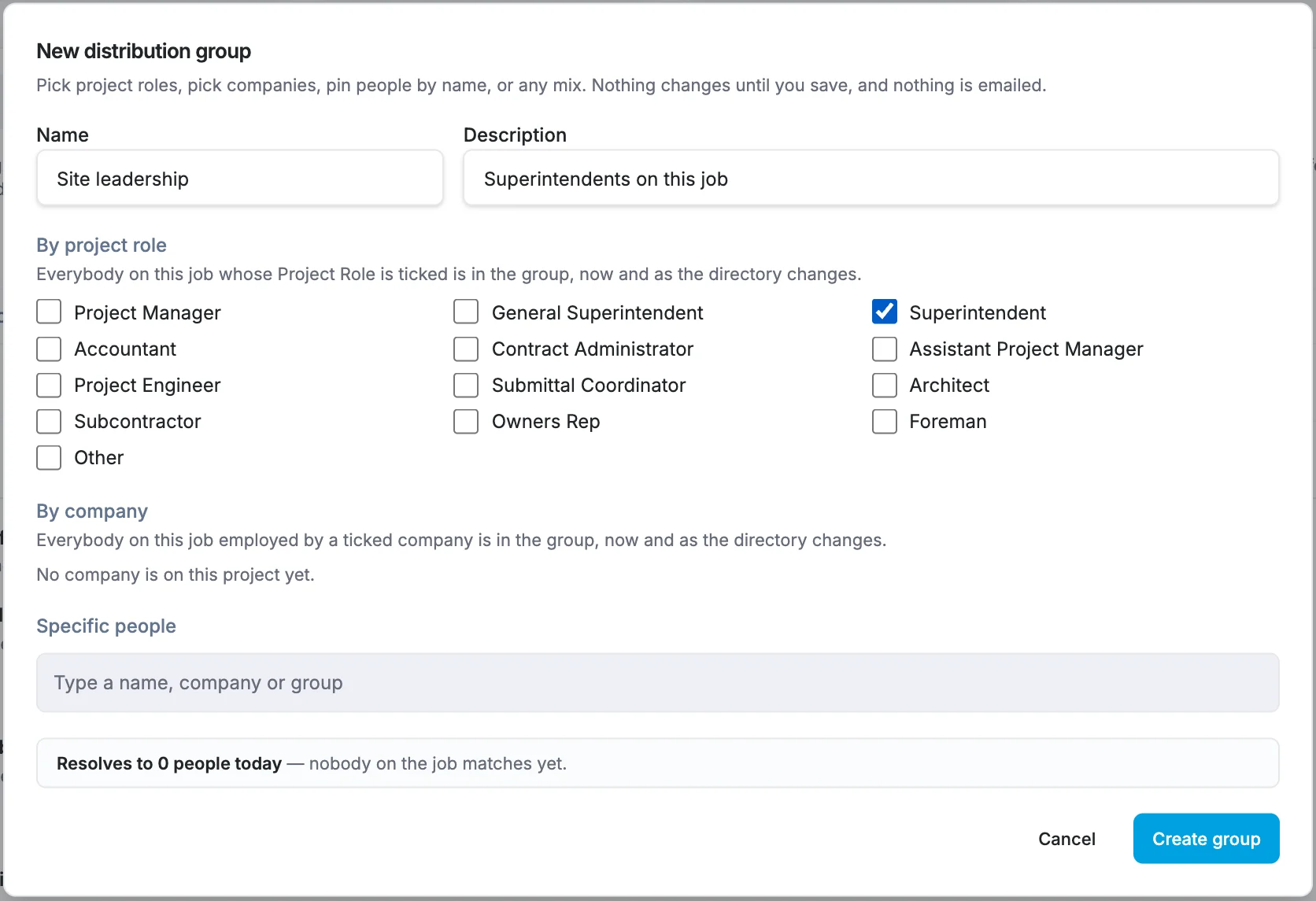
The group can be picked on RFIs, submittal distributions and specification emails straight away. Creating a group emails nobody.
Change a group
Click the pencil on the group's row, make your changes, and click Save group.
If a role in the group is no longer on the project's role list, it's marked (not on this project's list); a company that has left the project is marked (no longer on this project). Untick them to tidy up.
Retire and restore a group
Click the bin on the group's row and confirm with Retire group. A retired group is no longer offered anywhere and reaches nobody. Records that already name it keep the name.
Retired groups are listed under Retired at the bottom of the tab. Click Restore to bring one back.
Default recipients
At the bottom of the tab, Default recipients lists who starts on the distribution list of every new RFI, submittal, daily report, drawing, punch item and observation. Click Edit beside a module to change it. It's the same list as on the project's Admin page; see Choose default recipients.
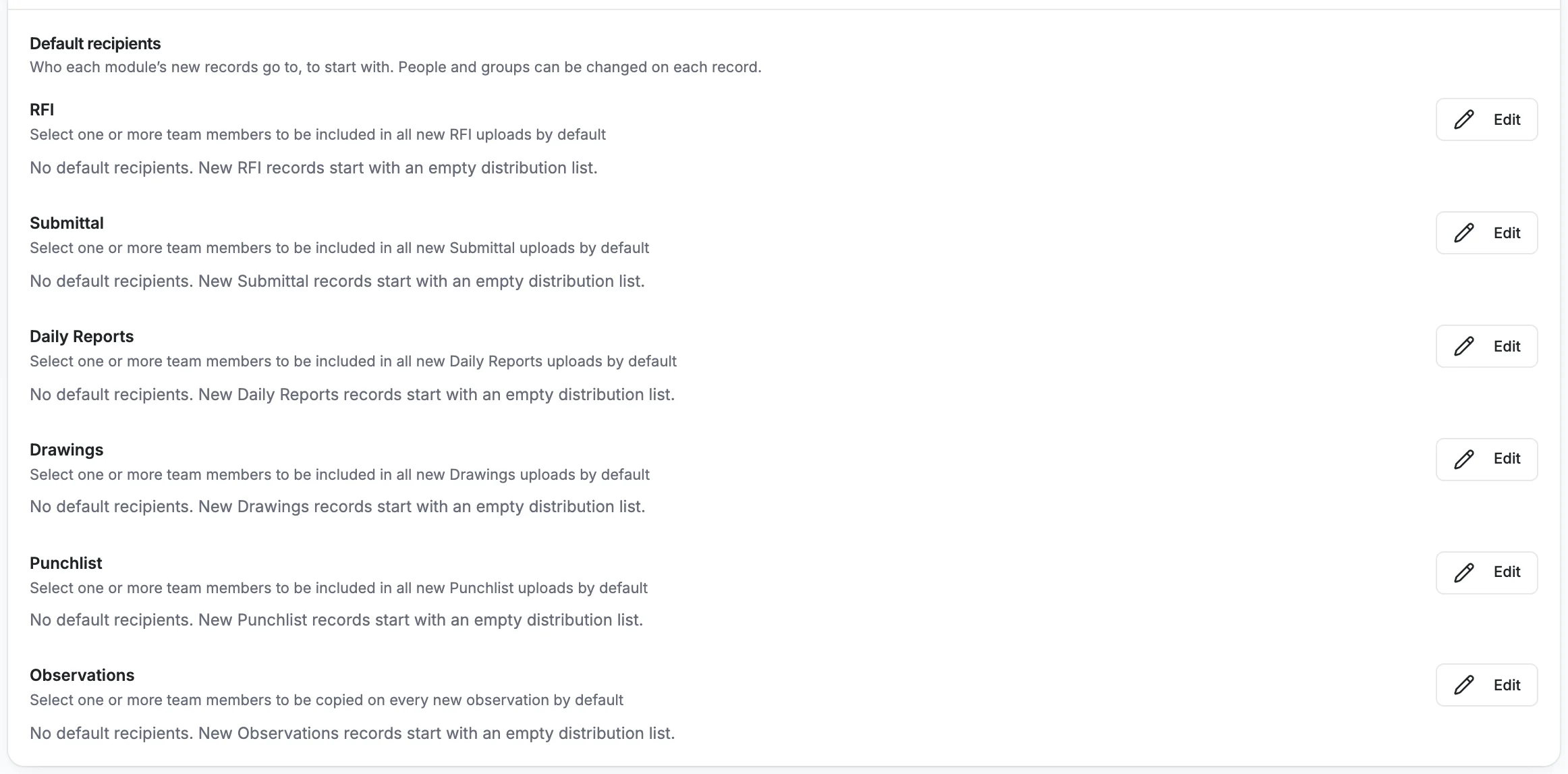
You see this only with Admin in Project administration, Manage / Change Permissions in Directory, or the top level in a module, and then only that module's list.
Messages you might see
| Message | What to do |
|---|---|
| A group needs a name. | Enter a name. |
| A group named "…" already exists on this project. | Choose another name. |
| A group needs at least one person, one project role or one company. | Tick a role or company, or add a person. |
| Another live group already has this name. Rename it, then restore. | Rename the live group, then restore this one. |