
Create a group when none of the existing ones fits a kind of person, for example an estimator who only reads drawings and specifications.
- Go to Settings → Permissions.
- Click New group at the top right.
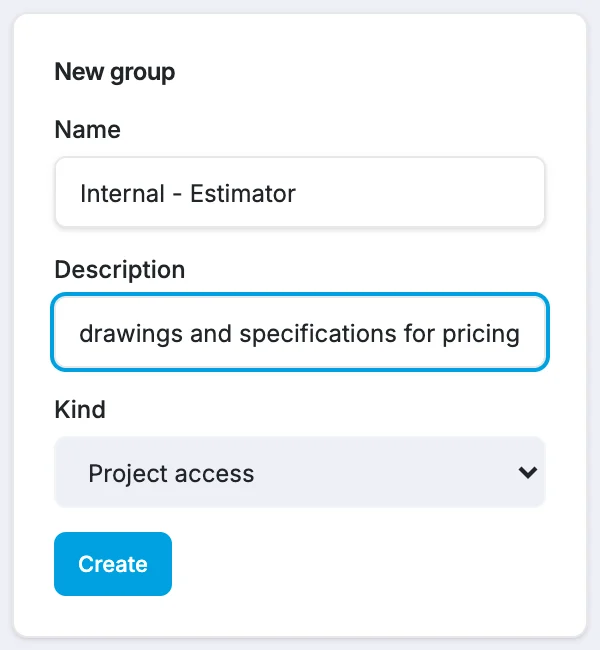
- Type a Name. Names must be unique, and up to 80 characters.
- Optionally, add a Description that says who the group is for.
- Choose the Kind:
- Project access for a group people hold on the projects they're on.
- Organization access for a group that applies across the workspace.
- Click Create. Cancel goes back to the list without creating anything.
The page opens the new group and says Created “…”. Set its access below. A new group allows nothing: every area is None.
- Choose a level for each area the group needs, and click Save access. See Change what a permission group allows.
The kind can't be changed later. If you chose the wrong one, delete the group and create it again.
If it doesn't work
If the group can't be created, the form stays open with what you typed and says why.
| Message | What to do |
|---|---|
| A permission group needs a name. | Type a name. |
| That name is too long for a permission group. | Use 80 characters or fewer. |
| There is already a group called “…”. | Choose a different name. |
Next
Put people on the group in the Directory: an organization group as their Organization access, a project group as their Default project access or their Access on a project. See Give someone access.