
The Photos section sits at the top of the day, under the weather. Photos you add here are the ones printed in the day's PDF. Every photo on a daily report is also in the project's Photos.
Pick photos already on the project
Open the day and click Add Photos in the Photos section. (Or choose Photos from New Entry.)
The Add Photos dialog opens on the Project photos tab. If photos were taken that day, it starts on Taken and the date; otherwise on All Photos. To pick from other days, choose All Photos or an album on the left. You can also search captions and file names.
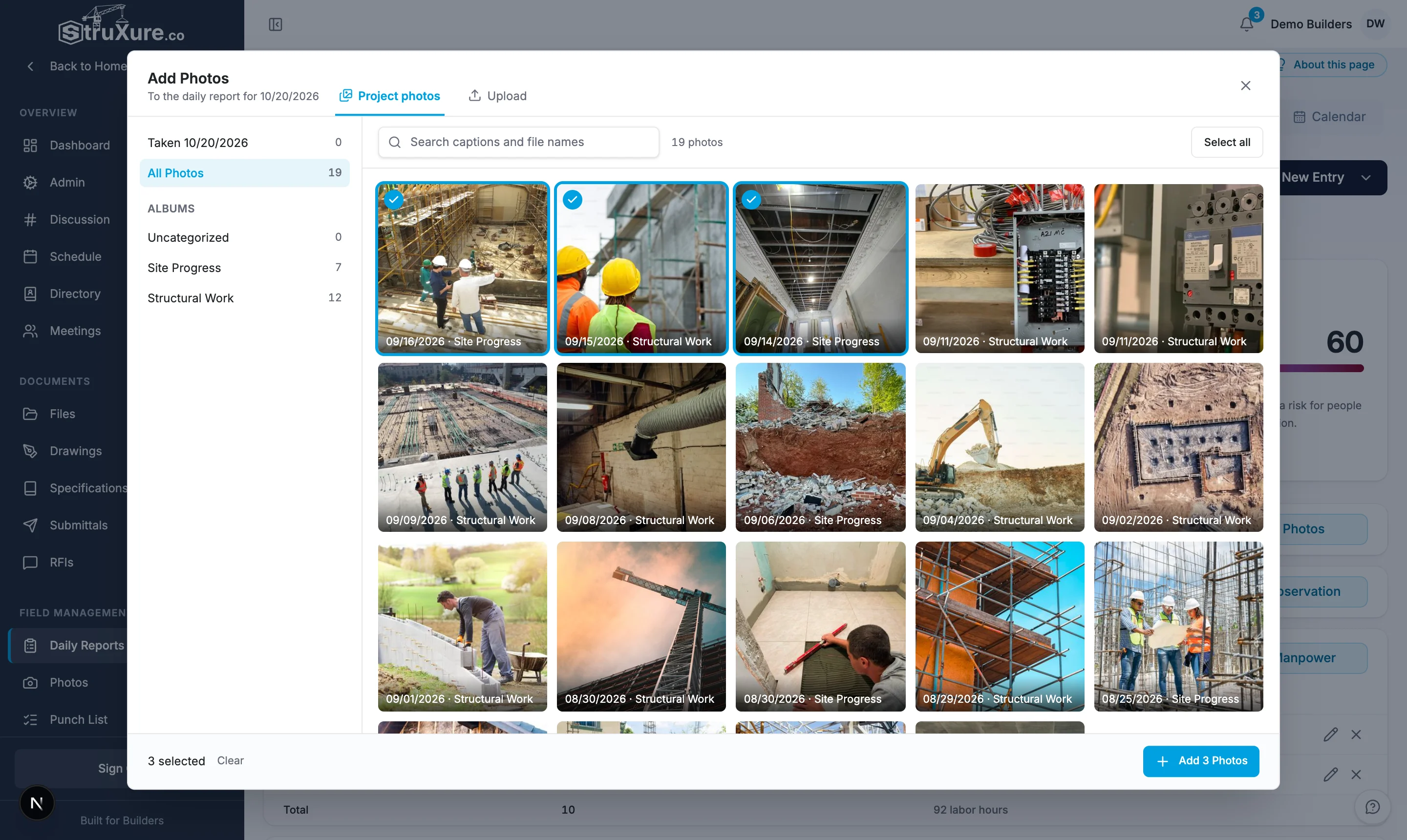
Click photos to select them. Shift-click selects a run, and Select all takes everything shown.
Click Add Photo (or Add 3 Photos, and so on).
The photos appear as tiles in the Photos section, and a message says how many were added.
A photo can be on only one day's report. A photo already on another day is greyed out and labelled with that day, for example On 10/16/2026, and can't be picked. One already on this day says On this report.
Upload new photos
- Click Upload in the Photos section, or the Upload tab in the dialog. You can also drag photos from your computer straight onto the Photos section.
- Click Choose photos…, or drag and drop them into the box.
- Choose an Album for them if you like. Left as No album (Unfiled), they show in Unfiled in the photo library.
- Click Upload & Add Photo (or Upload & Add 5 Photos, and so on).
Each photo shows its progress. They're added to this day and to the project's photos. Each photo can be up to 25 MB. A file that isn't a photo format StruXure accepts is listed as refused, with the reason.
Look through the day's photos
Click a photo's tile to open it full screen. ‹ and › page through this day's photos only, and × brings you back to the day.
Take a photo off the day
Hover over a photo's tile and click the × in its corner. It comes off this day's report but stays in the project's photos.
What you can't do on a locked day
On a Submitted, Approved or Complete day the Add Photos and Upload buttons and the × are hidden. You can still click a photo to open it.
The Photos section only appears if you can see the project's photos and the Photos module is switched on. Upload appears only if you can also add photos to the project.