
On a project whose daily reports don't need approval, you finish a day with Complete Day. The day becomes Complete, is locked, and its PDF is emailed in one step.
If the button says Submit for Approval instead, the project's daily reports need approval. See Submit a day for approval.
- Open the day. It must be Open (or Sent Back).
- Click Complete Day at the top.
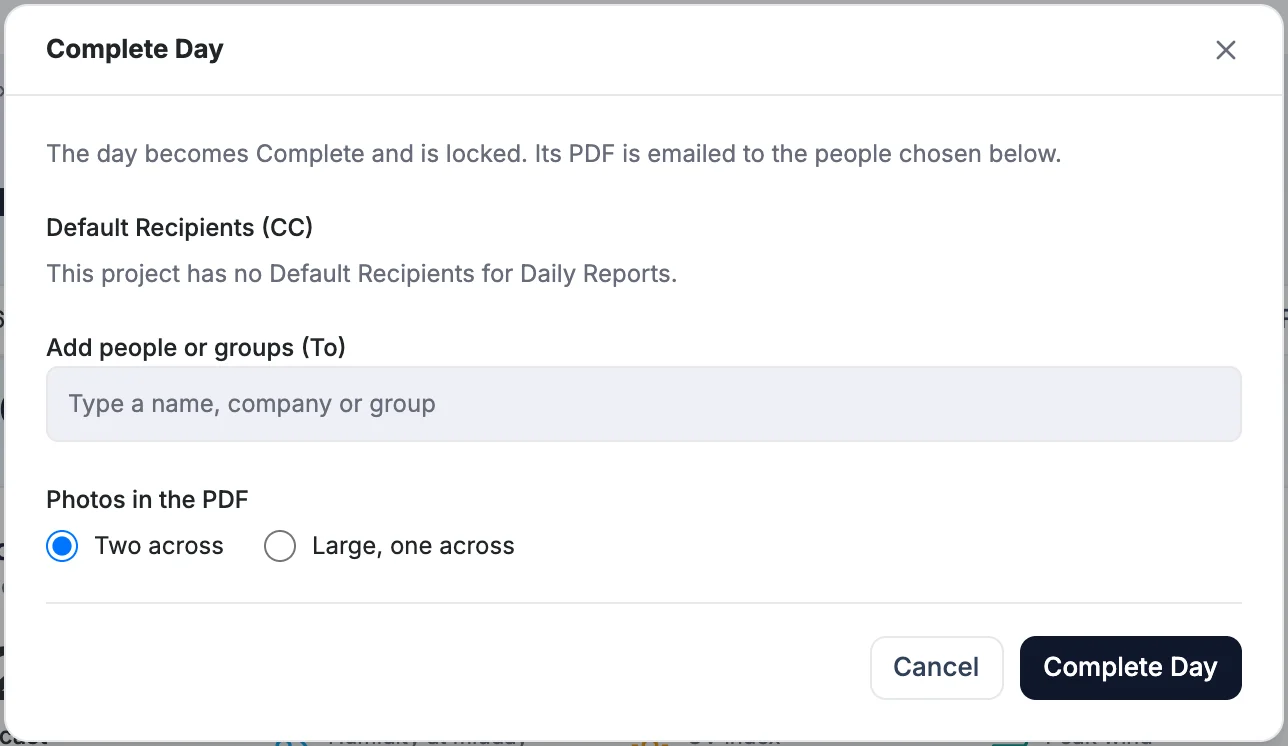
- In the Complete Day dialog, choose who gets the email:
- Default Recipients (CC) lists the project's default recipients for daily reports, all ticked. Untick anyone who shouldn't get this one. That changes this email only, not the project's list.
- Under Add people or groups (To), click in the box and pick people or groups from the list. If you add nobody, you are To yourself.
- Under Photos in the PDF, choose Two across or Large, one across.
- Click Complete Day.
A green message confirms it, for example Day completed. The report was emailed to 4 people. The status changes to Complete, and a grey bar says the day is complete and locked. A Distribution panel at the bottom of the day lists who it was sent to and when.
What the email is
One email goes to everyone chosen, from you "via StruXure", with replies coming back to you. The day's PDF is attached. If the PDF is too big to attach (over 7 MB, usually because of many large photos), each person gets their own email with a download link instead, and the message on the day says so.
If nobody gets it
- If you untick everyone and add nobody, the day is still completed, but no email is sent. The message says Nobody was chosen to receive it, so no email was sent.
- If nobody chosen has an email address, the message says so.
You can send it later with Distribute. See Email a finished day.
After it's complete
The day is locked: entries and photos can no longer be added, changed or removed. To correct it, reopen it. See Reopen a finished day.