
A Complete or Approved day is locked. If something on it is wrong, reopen it rather than leaving it, so the report stays the true record of the day.
Who can reopen
| The day is | Who can reopen it |
|---|---|
| Complete | The person who completed it, or anyone else with approval access to the project's daily reports |
| Approved | An Approver for the project who didn't write the report |
If you can't reopen a day, the Reopen button isn't shown.
Reopen a day
- Open the day.
- Click Reopen at the top. The Reopen this day card opens under the date, saying who finished the day and what reopening does.
- Type why under Why is this day being reopened? A reason is required.
- Click Reopen in the card.
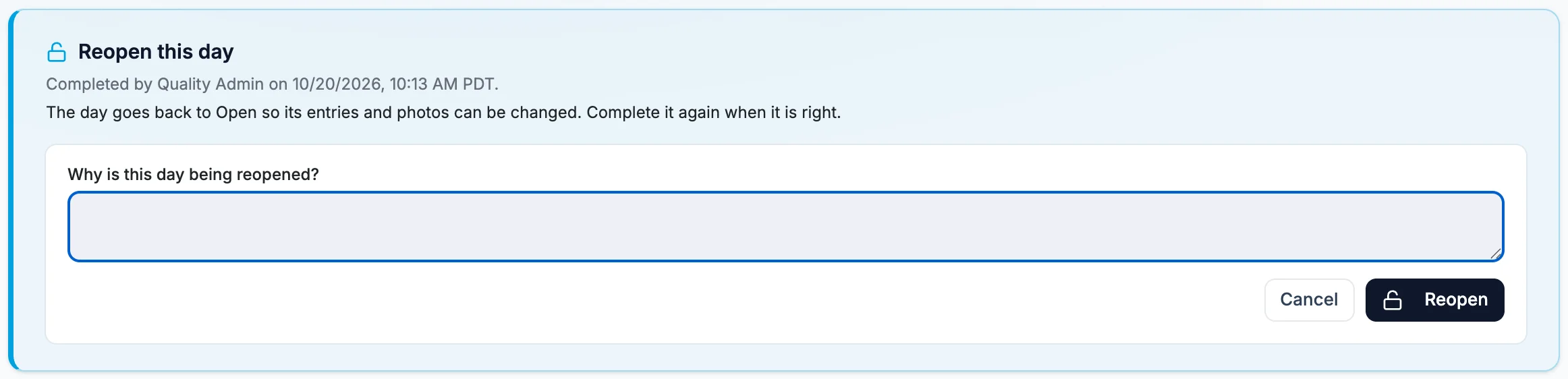
The message says Reopened. The day is Open again; its next send will be marked Revised. The completion or approval is cleared, and the reason is kept on the day's History.
Correct it and finish it again
- Change the entries or photos that were wrong.
- Finish the day again with Complete Day or Submit for Approval.
- If the day had already been emailed, the dialog has Send the revised report ticked. The email is marked Revised. Untick it to finish the day without sending it again.
If people received download links for the earlier version, those links now say the report was replaced by a revised one.