
A daily report is the project's record of one day on site: the weather, who was there and what they did, the equipment used, deliveries, visitors, delays, inspections, and photos. Each project has one report for each day. Open it from Daily Reports under Field Management in the project sidebar.
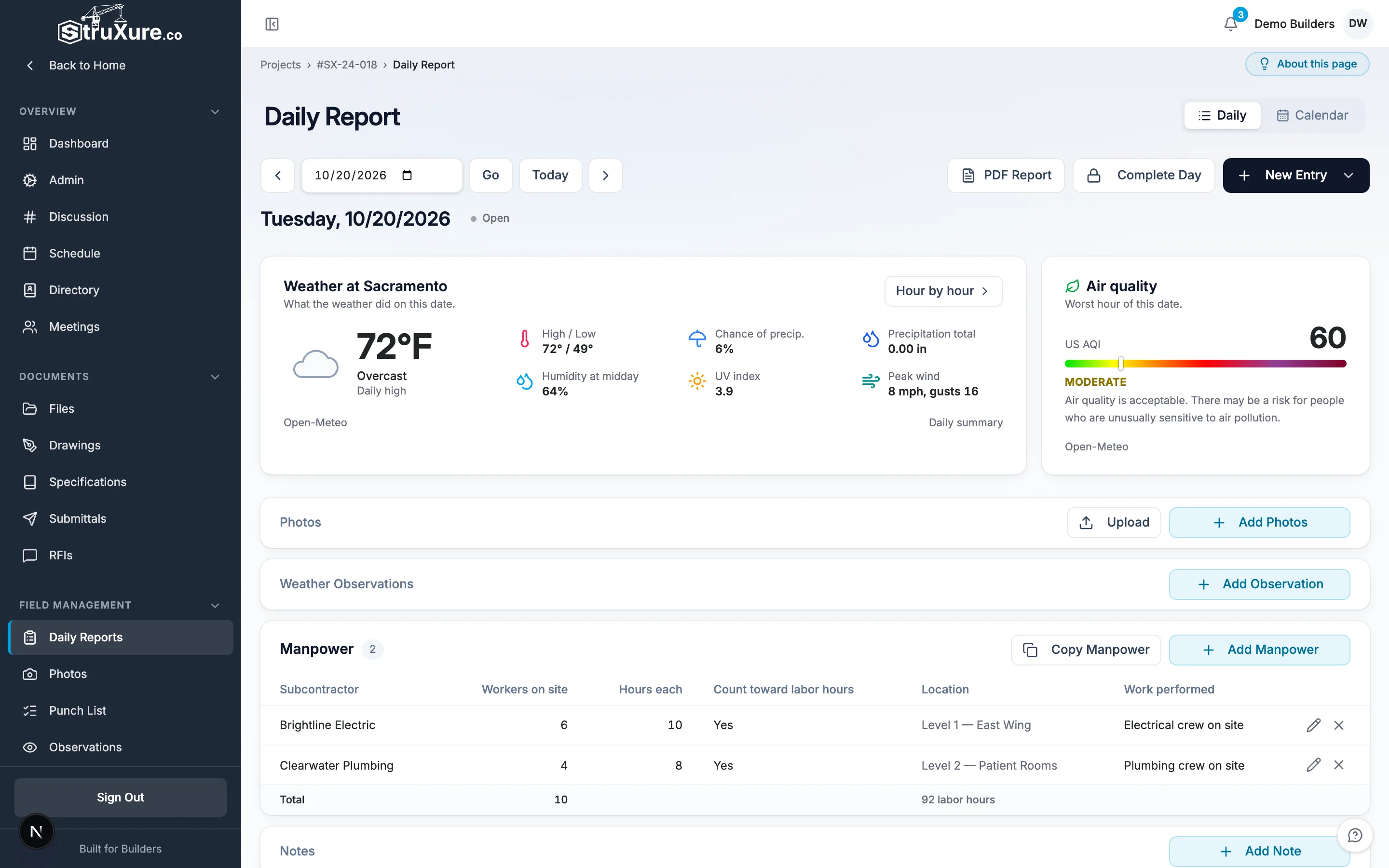
One page per day
The Daily tab shows one day at a time, starting on today. There is no "new report" step: the day's report starts the moment someone adds the first entry or photo to it. You can go back to any earlier day, but not forward to a day that hasn't happened yet.
The Calendar tab shows a month at a time, with each reported day's status and number of entries. See See which days have reports.
What goes on a report
Every section is always on the page, empty or not, so the report works as a checklist of what might have happened on site:
Photos, Weather Observations, Manpower, Notes, Delays, Waste, Extra Work, Equipment Logs, Dumpsters, Visitors, Time Cards, Purchases, Accidents, Inspections, Safety Violations, Phone Calls and Deliveries.
Below them, Forms lists the forms submitted that day, each linking to the form. Forms are filled in under Forms, not on the day; one shows up here once it's submitted, and a private one only for the people who can see it. See Fill in and submit a form.
An empty section is a single line with its own Add button. A section with entries shows them as a table, with totals where they make sense (for example, workers and labor hours on Manpower). See What each section records.
Statuses
| Status | What it means |
|---|---|
| Open | Being filled in. Anyone with access to write daily reports can add, change and remove entries. |
| Submitted | Finished and waiting for an Approver. Locked. Only used when the project's daily reports need approval. |
| Sent Back | An Approver returned it with a note saying what to fix. It can be changed again. |
| Approved | An Approver signed it off. Locked and final. |
| Complete | Finished with Complete Day on a project that doesn't need approval. Locked and final. |
Finishing the day
When the day is written up, you finish it. What happens depends on whether the project's daily reports need approval:
- No approval needed: click Complete Day. The day becomes Complete, is locked, and its PDF is emailed to the people you choose. See Complete the day.
- Approval needed: click Submit for Approval. The day is locked and goes to an Approver. When they approve it, the PDF is emailed. If they send it back, you fix it and submit it again. See Submit a day for approval.
A locked day can be reopened if something needs correcting. The next email about it is marked Revised. See Reopen a finished day.
Times and dates
Times on this page show in the project's time zone. If you're in a different time zone, each time shows the project's zone after it, for example 2:00 PM MST; point at it to see the time where you are. The calendar's today, and the latest day you can report on, are the project's today.
Who can do what
- Read lets you open any day, see the calendar and download the PDF.
- Create / Edit / Delete / Complete also lets you add and change entries and photos, copy entries forward, finish the day, and distribute a finished day.
- Create / Edit / Delete / Complete / Approve / Settings also lets you approve or send back other people's reports, reopen finished ones, and see each day's History.