
When someone submits a day for approval, it's locked and waits for an Approver. If you're one, the card at the top of the day has a note box with Send Back and Approve buttons.
Who can approve a day
You can approve or send back a day if you have the top level of daily report access on the project, you didn't submit the day yourself, and either:
- you're one of the project's named Approvers (or the workspace's, if the project hasn't named its own), or
- nobody who can approve on this project is named, in which case anyone with that access may.
Approval always means a second person checked it: nobody approves their own report. See Turn on approvals and choose Approvers.
Approve a day
- Open the day. You can get there from the email, from My Work on your Home page, or from the project's Daily Reports.
- Read the day's entries and photos. The card at the top says who submitted it and when. If they left a note, it's there too. On a resubmitted day you see their reply, with the note you sent it back with quoted under it, and which round this is.
- Under the note box, a line says who the PDF will go to. To copy in more people, click Add recipients (CC) and pick them from the list.
- Optionally type a note to the author.
- Click Approve.
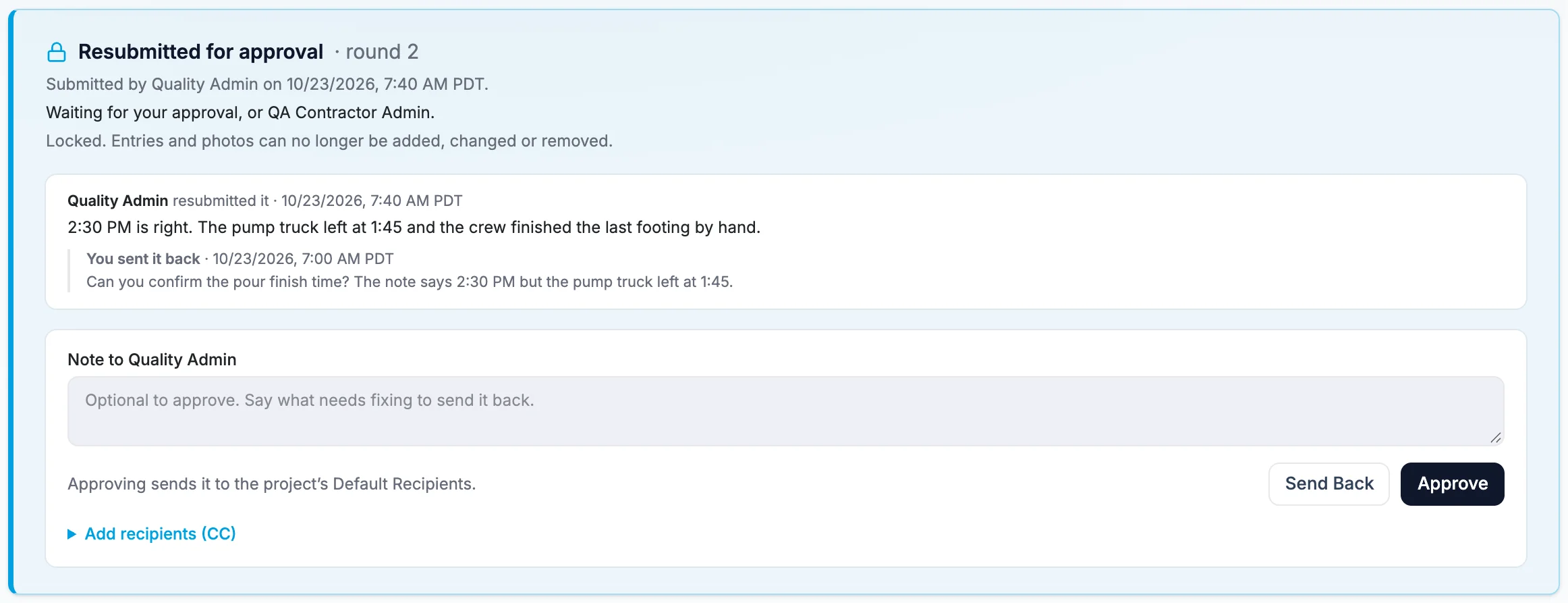
If the day has been back and forth more than once, Earlier in the conversation opens the notes before the latest round.
The day becomes Approved and locked. Its PDF is emailed to the people the author chose plus anyone you added, and the message on the day says how many people it went to. The author is told that it's approved, with your note: in their Inbox at once, and by email as their Email Level says.
Send a day back
- In the note box, say what needs fixing. Sending back needs a note.
- Click Send Back.
The day becomes Sent Back and unlocks so the author can change it. They're told it's their turn, with your note: in their Inbox at once, and by email as their Email Level says. The note is at the top of the day when they open it. When they resubmit, it comes back to you with their reply at the top. If they resubmit within a couple of minutes, they get no email about the send-back, and you get one email with their reply.
If the buttons aren't there
You see Waiting for approval from … but no note box or buttons when you can't approve this day: you submitted it yourself, you're not one of its Approvers, or you don't have approval access on the project.
If you can change the project's settings and no Approver is named, the day shows a note saying anyone who can approve may approve, with a link to name one under Project Admin.