
Most sections come from an uploaded spec book. When one doesn't (a section issued on its own, a book you only have on paper, or a section the review listed as In the table of contents but not found in the book), add it yourself.
Add a section
On the register, click Create Section in the toolbar. On a project with no spec book yet, it's the Create Section link at the bottom left of the page.
Fill in the form. Fields marked with an asterisk (*) are needed to save: Section Code, Section Name, Spec Book and Division.
Field What to enter Section Code The section number, such as 09 21 16. Section Name Its title, such as Gypsum Board Assemblies. Spec Book The book it belongs to. On a project with no book yet, choose the one offered, named after the project; it's created when you save. Division The division it files under. To add a new one, choose Add a division… and type the New division code and New division name. Revision # Starts at 0. Issued Date and Received Date Both start as today. Click Save.
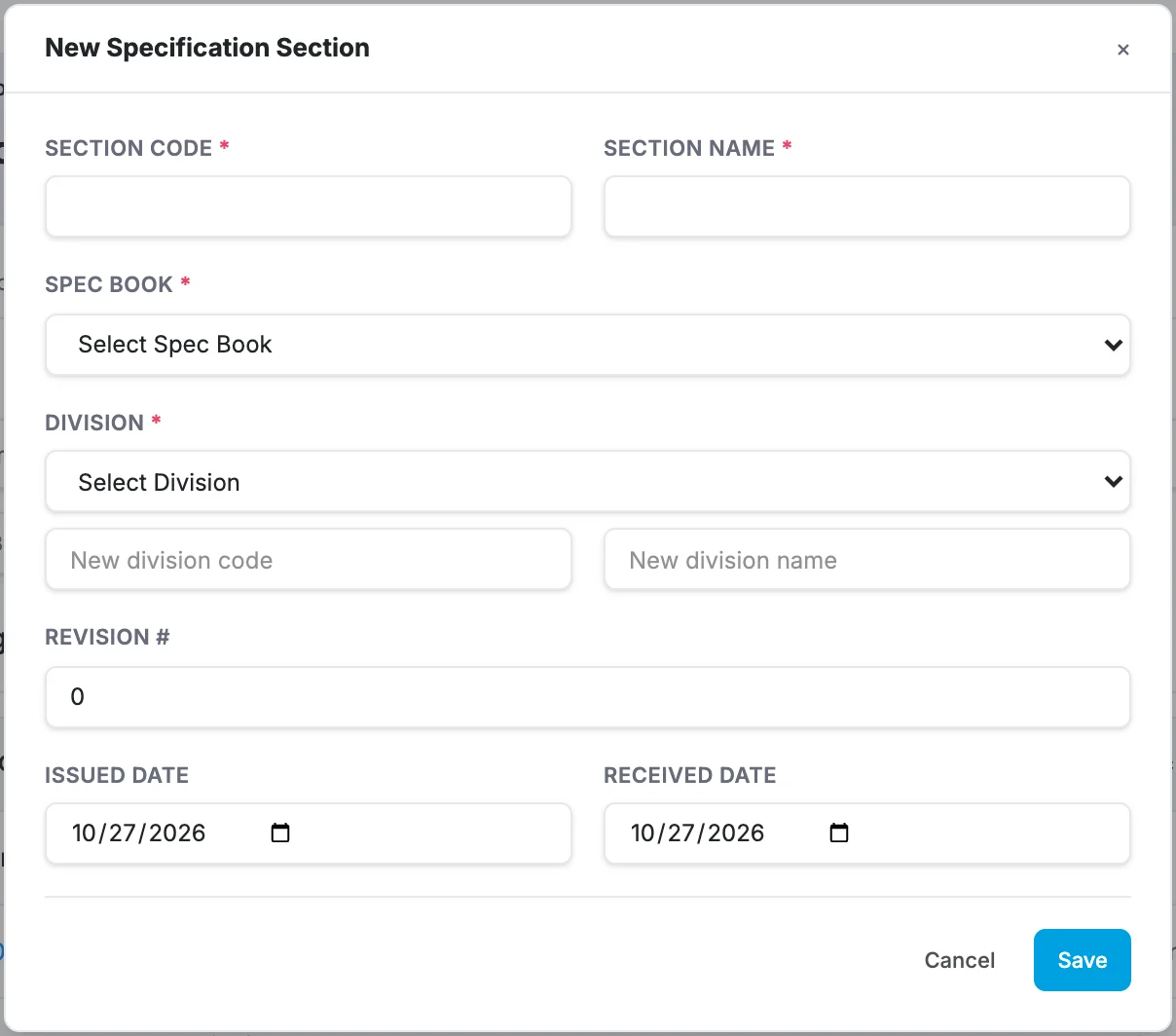
The new section opens on its Attachments tab, so you can add its PDF straight away.
Messages you might see
| Message | What to do |
|---|---|
| Section code required., Section name required., Spec book required. or Division required. | Fill in that field. What you typed is kept. |
| A section code needs its number, e.g. 09 21 16. | The code must contain digits. |
| This spec book already has section … Spaces and punctuation don’t count, so 26 24 16 and 262416 are the same section. | The section is already in that book. Open it and add a revision instead, or choose a different book. |