
The buttons on the register's toolbar act on the sections you tick. The number in brackets on each is how many are ticked; with none ticked they're greyed out.

Tick sections
- Tick the box beside a section.
- Tick a division's box to tick every section in it.
- Tick the box in the heading row to tick everything showing.
Filter or search first to narrow the list. See Find a section.
PDF report
- Tick the sections and click PDF Report (…).
- The Spec Log opens in a new tab: the ticked sections grouped by division, with each one's code, name, revision, spec book, set and dates. Each section code is a link back to the section in StruXure.
Print it or save it from your browser.
Download the section PDFs
- Tick the sections and click Download (…).
- With one section, its PDF downloads. With several, you get one zip file with a PDF per section, each named with the section's code and name.
The download is each section's current revision. Sections whose current revision has no file are left out; if none of them has a file, the page says No file on the current revision of … instead.
Email sections
You need write access for this.
- Tick the sections and click Email (…).
- In To, pick people or groups from the project directory, or type other addresses separated by commas. At least one recipient is needed.
- Add anyone to CC the same way, and type a Message if you want one.
- Check the list of sections under Specs, then click Send Email.
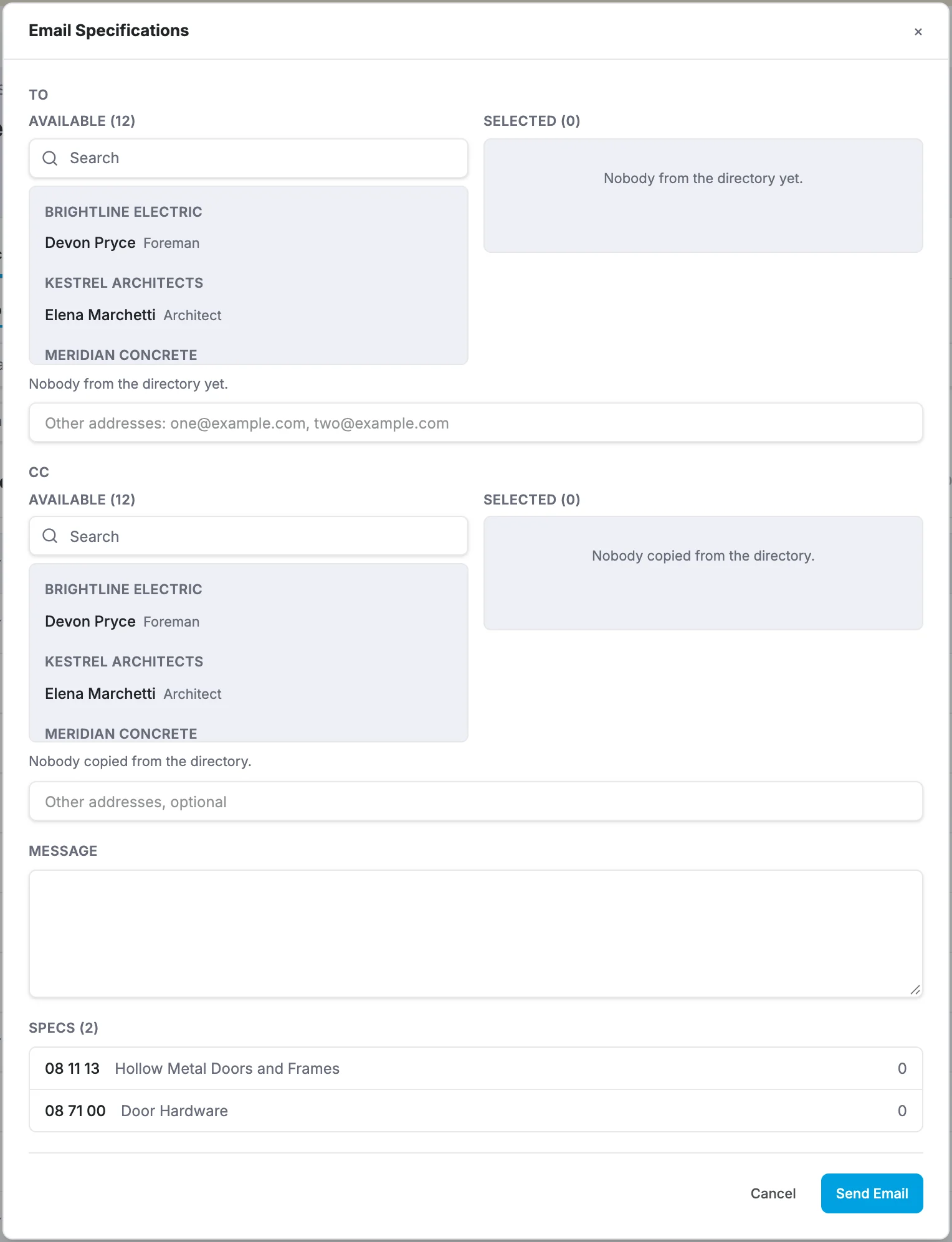
The register says Queued for N sections. StruXure sets the subject. Each section's Emails tab lists what was sent about it.
| Message | What it means |
|---|---|
| An email needs at least one recipient. | Choose or type someone in To. |
| Nobody chosen for To has an email address on file, so there is nobody to write to. | The people you picked have no email address in the directory. Type an address, or add one to their directory entry. |