
Each section has its own page, titled with its code, for example 09 21 16 Info.
Read a section's PDF
On the register, click the section code. The section's current PDF slides out beside the register, so you can keep the list in view while you read. Click another code to switch to that section, or click the same code again to close the PDF.
To give the PDF or the register more room, drag the line between them. Double-click the line to put it back. The PDF opens at the same width next time. On a phone the PDF fills the screen, and closing it takes you back to the register.
At the top of the PDF:
- ⓘ opens the section's page.
- The download icon downloads the PDF.
- The full-screen icon fills the window with the PDF. Choose another section from the list at the top, or use the arrows beside it to go to the previous or next section. Click the icon again, or press Esc, to go back to the register.
- × closes the PDF.
Above the page, the arrows beside Page 1 of … move between pages, and Fit width fits the page to the pane again. You can also highlight, comment and draw on the PDF. See Mark up a section's PDF.
A section with no file yet has no PDF to show, so its code opens the section's page instead, where a file can be added.
Open a section
On the register, click the ⓘ icon in the Actions column.
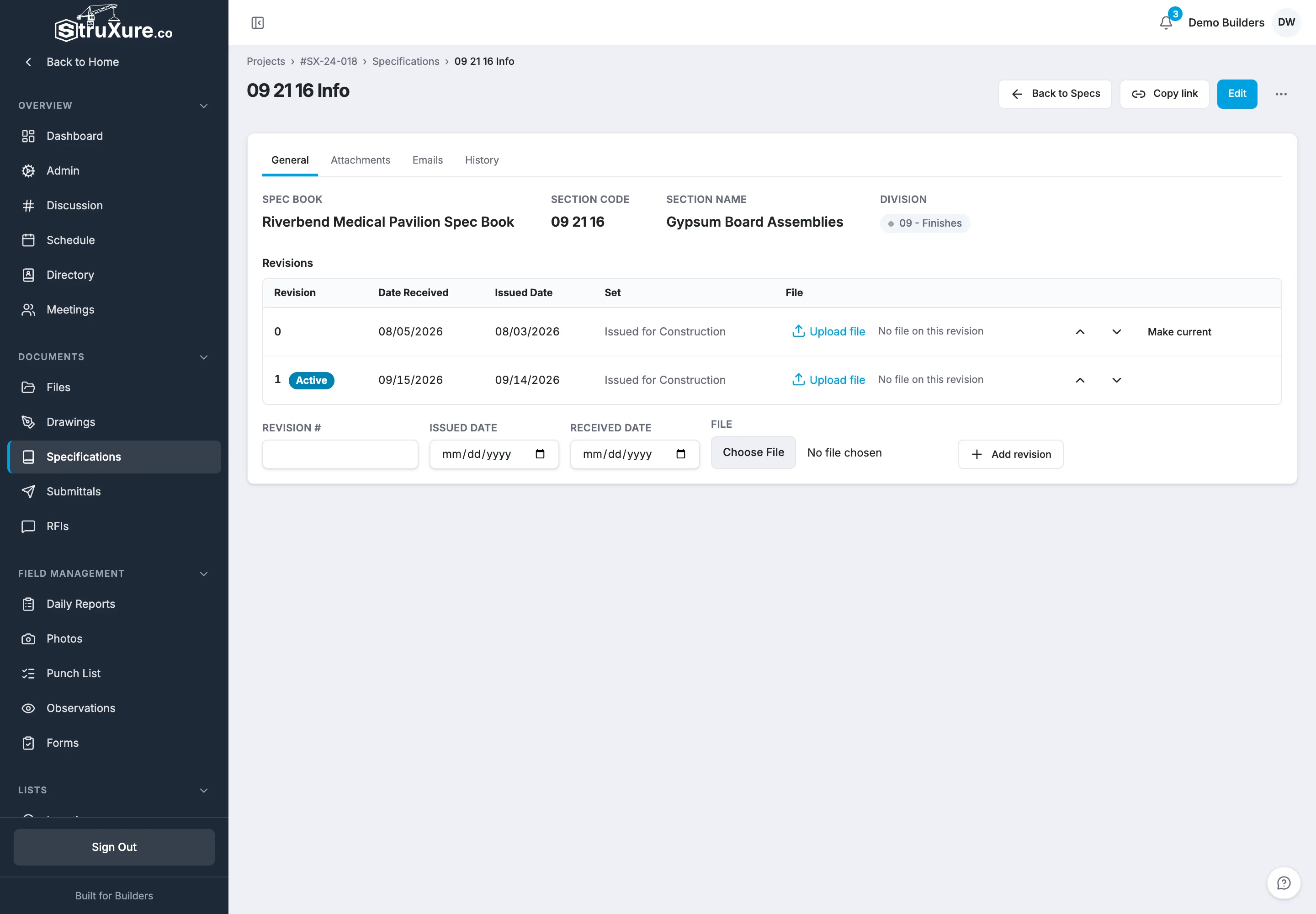
At the top right:
- Back to Specs returns to the register just as you left it, with the same filters and collapsed divisions.
- Copy link copies a link to this section that you can paste into an email or a message. Anyone who opens it needs access to the project's specifications.
- Edit changes the code, name or division (write access only). See Edit a section.
- ⋯ holds Delete (write access only). See Delete and restore sections and spec books.
General
The General tab shows the SPEC BOOK, SECTION CODE, SECTION NAME and DIVISION. Under them are any fields your company has added to spec sections, in the order they're listed in Settings under Custom fields. People with write access click a value to change it: a dropdown or a date saves as soon as you pick, and text and numbers show Save and Cancel. See Add your own fields.
Then comes the Revisions table:
| Column | What it shows |
|---|---|
| Revision | The revision number. The current one is marked Active. |
| Date Received and Issued Date | The dates of that issue. |
| Set | The set the book belongs to. |
| File | The revision's PDF. Click the file name to download it. No file on this revision means none has been uploaded yet. |
Under the table, a line such as 2 submittals reference this section. tells you how many submittals are linked to it.
Attachments
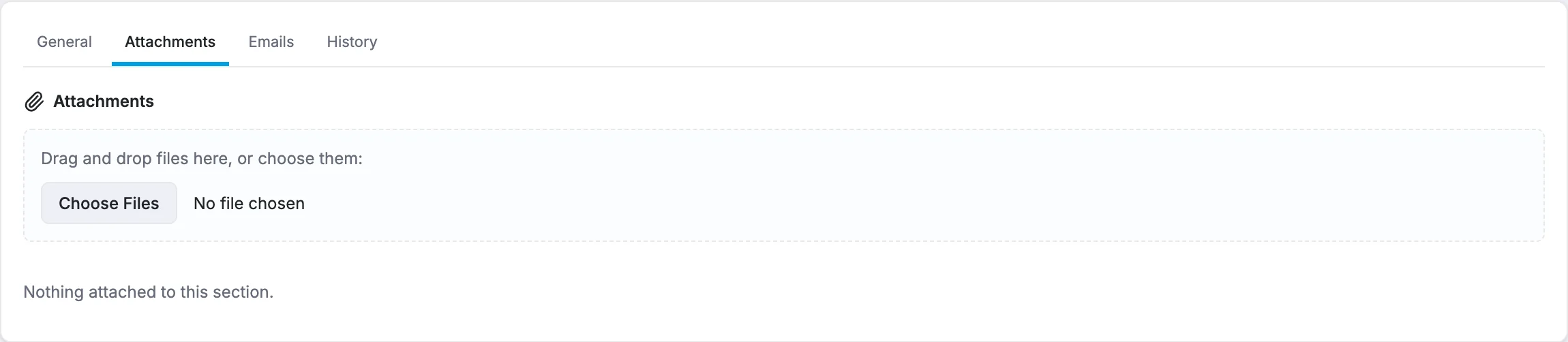
The Attachments tab lists every file on the section, with its Revision, Type, Size and when it was Added. Click a file name to download it. A file that's still being checked for malware, or failed the check, shows a label instead of a link: see While a file is being checked. People with write access can add a file to the current revision here.
Emails and History
People with write access also see two more tabs:
- Emails lists every email sent about the section, with who it went to, the subject, its status and when it was queued.
- History lists every change, newest first: when the section was created, edited, given a new revision or a new current revision, files added or removed, custom fields changed, emails, markup published or deleted, and deletes and restores, each with who did it and when. Several edits to the section made by one person within a minute of each other show as one Field updates row, such as "6 field updates"; click it to see each change, and click it again to hide them.
