
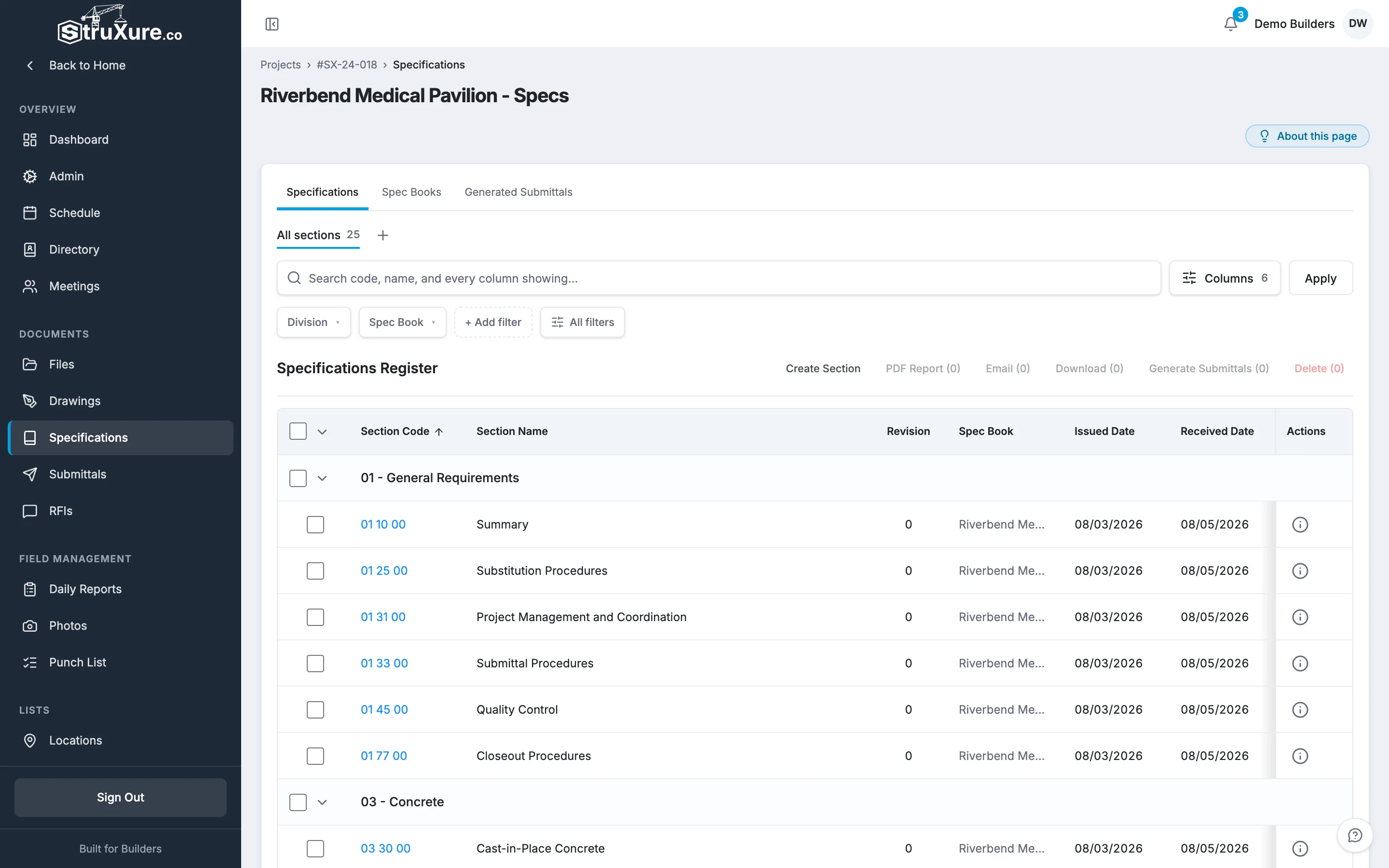
Specifications holds the project's spec book (the project manual) split into its sections, so anyone on the job can find 09 21 16 Gypsum Board Assemblies in a few keystrokes instead of scrolling a 600-page PDF. Open it from Specifications under Documents in the project sidebar.
The words used here
| Term | What it means |
|---|---|
| Spec book | One specification book for the project, such as "Cedar Ridge Elementary School Spec Book". You upload it as a single PDF. A project can have more than one book. |
| Set | The issue a PDF belongs to, such as "Issued for Construction" or "Addendum 2". |
| Section | One numbered section of the book, such as 03 30 00 Cast-in-Place Concrete. Each section has its own page in StruXure. |
| Division | The two-digit group a section belongs to, such as 03 - Concrete. The register groups sections by division. |
| Revision | Each issue of a section. A section can have several revisions; one of them is the current one, marked Active. |
From PDF to register
- Upload the spec book. Someone with write access uploads the PDF and says which book and set it belongs to. See Upload a spec book.
- StruXure finds the sections. It reads the section numbers and titles printed in the book and works out where each section starts and ends. You can leave the page while it works.
- Someone reviews the split. On the review screen you check each section StruXure found, correct a number or title, start or join sections, and confirm them. See Review and publish the sections.
- Publish. Confirmed sections go into the register, and StruXure makes a separate PDF for each one.
Sections only appear in the register once they're published. Until then, the register shows Review your spec book to fill this register with a Complete Review button.
Finding the sections uses the text in the PDF itself. It doesn't use AI, so it works the same whether or not your workspace has AI features turned on. Pages that are scanned images, with no text in them, aren't recognised; you mark those sections by hand on the review screen.
You can also add a section by hand without uploading anything. See Add a section by hand.
The three tabs
| Tab | What it shows |
|---|---|
| Specifications | The register: every published section, with its revision, book and dates. |
| Spec Books | Each book and the PDFs uploaded to it, with how many sections each has and how many are still waiting for review. |
| Generated Submittals | Each time someone generated submittals from the spec sections. Shown only to people who can change specifications and see submittals. |
Times and dates
Times on specifications show in the project's time zone. If you're in a different time zone, each time shows the project's zone after it, for example 2:00 PM MST; point at it to see the time where you are. A new section or spec book starts on the project's today.
Who can do what
- Read access lets you see the register, open sections, mark up their PDFs in a private scratch pad, download them, and make the PDF report.
- The higher level, shown on the roles screen as Markups / Publish / Edit / Delete, also lets you publish markup, upload spec books, review and publish sections, add and edit sections and revisions, email sections, and delete and restore them.