
Upload the spec book as a single PDF. StruXure stores it, finds the sections in it, and opens the review when it's done.
Upload the PDF
Open the project and choose Specifications in the sidebar.
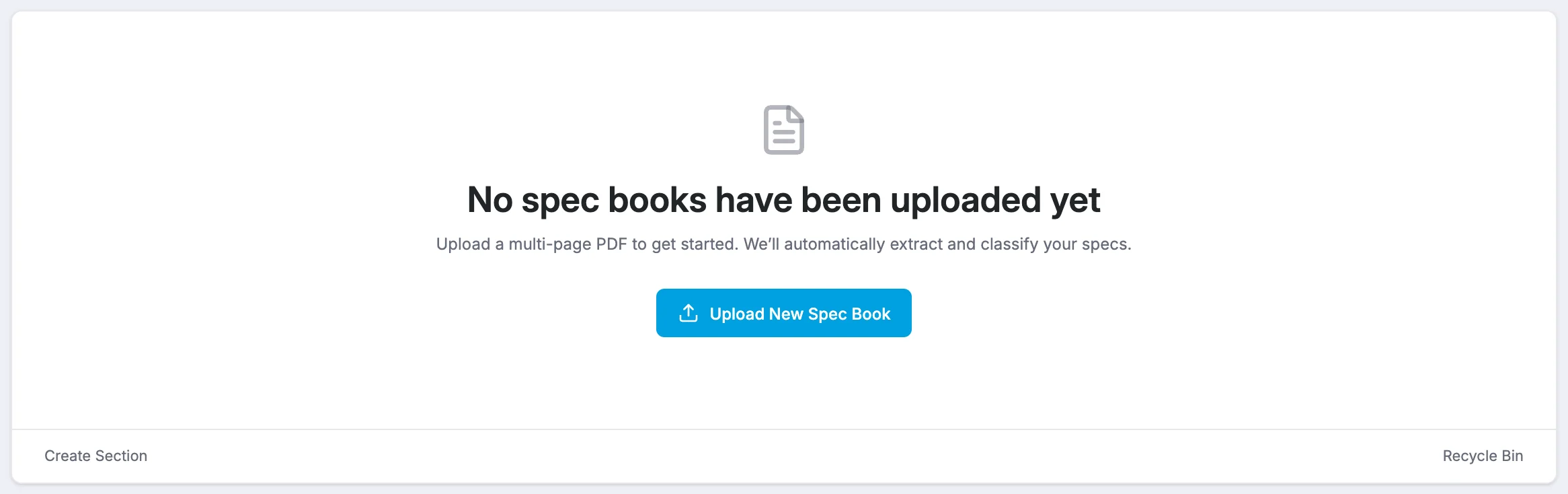
Click Upload New Spec Book.
- On a project with no spec book yet, the button is in the middle of the page, under No spec books have been uploaded yet.
- Otherwise, open the Spec Books tab; the button is at the top right.
Drag the PDF onto the box, or click Choose File and pick it.
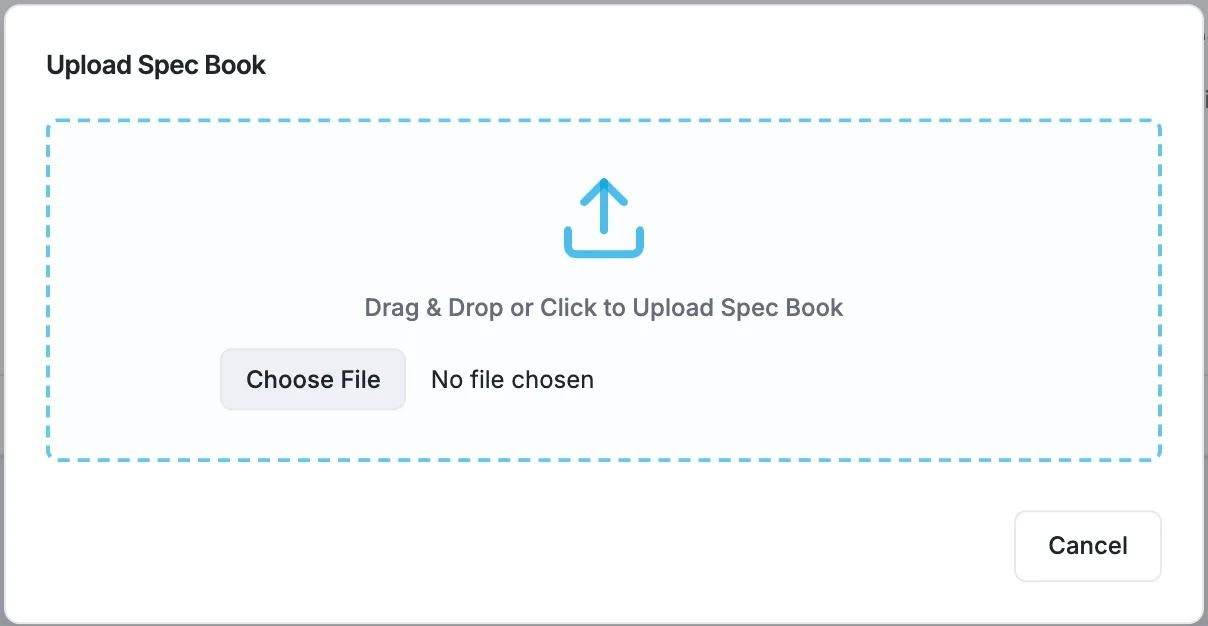
Fill in the details that appear under the file:
Field What to enter Specification Book The book this PDF belongs to. Choose + New specification book… for a new one, and type its name in New Specification Book Name. On a project's first upload there is no book to choose: type the name in Specification Book Name, which starts as " Spec Book". Set The issue this PDF is, such as an earlier set of the same book. Choose + New set… to start one, and enter a New Set Name (for example "Issued for Construction") and a New Set Date. A new book has no sets to choose, so you enter its Set Name and Set Date straight away. Issued Date The date the book was issued. Optional; it starts blank. Received Date The date you received it. Starts as today. Revision Number The revision the sections get from this upload. It starts at 0 for a new book, or one more than the highest revision in the book. You can change it, and you can correct it on the review until the first section is published. Click Create & Upload.
A bar shows how much of the file has gone and the percentage, then Saving… while StruXure checks the file and creates the book. Keep the dialog open until it moves on.
You can also skip the button. Drag the PDF from your computer onto the Specifications register or the Spec Books tab. When Drop the PDF to upload a spec book appears, let go: the Upload Spec Book dialog opens with the file already chosen. Carry on from step 4.
Spec books can be up to 5 GB. If the connection drops part way through, the upload waits and picks up where it left off; nothing is saved until the whole file has arrived. If the connection stays down too long, the dialog shows Stopped at and how far it got, with a Resume button. Click Resume once you're back online and the upload continues from where it stopped, rather than starting again. An upload that has been stopped for more than a day has to start again with Create & Upload.
While StruXure finds the sections
StruXure first checks the file for malware, which takes a few seconds: the progress shows Checking the file. If malware is found, or the file can't be checked, the page says so and the book isn't read.
What you see next depends on the size of the file:
- Smaller files open straight on the review page, which shows Scanning specification pages…, a progress bar and Page N of N. It refreshes itself and turns into the review when the scan is done.
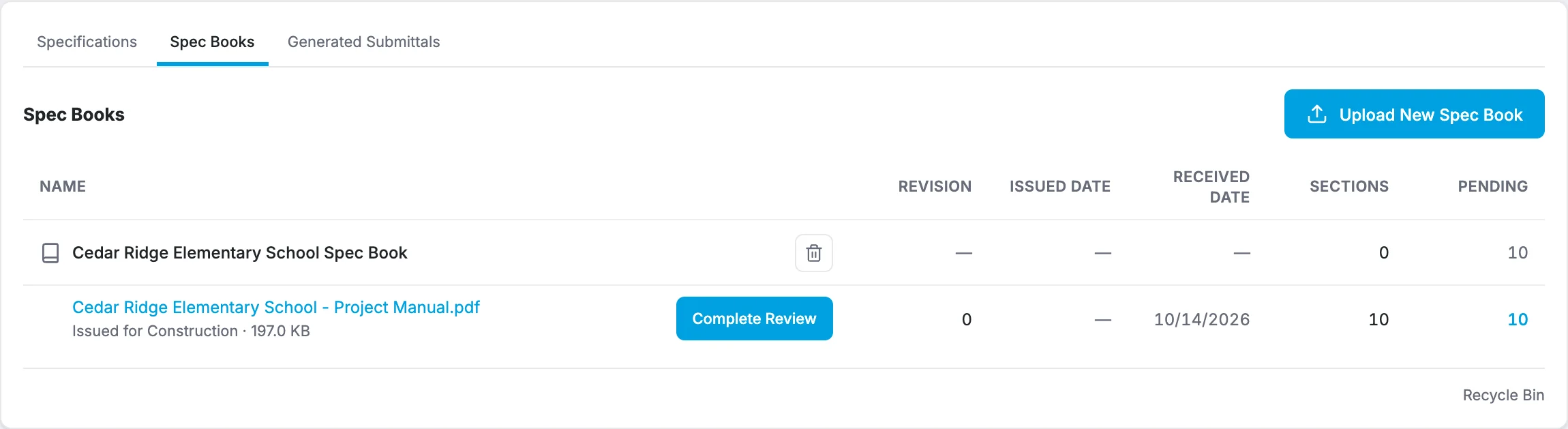
- Files of 10 MB or more take you to the Spec Books tab. The file's Pending column shows Waiting to scan, then Scanning… N%. Click it to open the progress page.
You don't have to wait on the page. The scan carries on if you leave, and the register shows We're reading your spec book until it's done.
When it's finished, the file's row on Spec Books shows how many sections were found and a Complete Review button.
Next: Review and publish the sections.
If something goes wrong
| What you see | What to do |
|---|---|
| Choose a PDF to upload. | No file was chosen. Choose one and try again. |
| A spec book must be a PDF. | The file isn't a PDF. Save or export it as a PDF first. |
| That file is … The limit is … | The file is over the size limit of 5 GB. Split the book into two PDFs and upload each one. |
| The connection kept dropping before the file finished. | Check your connection, then click Resume. |
| Required under a field | Name the new book or set, or give the new set a date. |
| Could not read on Spec Books, or We couldn't read … on the register | Click it to open the review page, which says This book could not be read., and click Try again. If it still fails, upload the PDF again, or add the sections by hand with Create Section. |
Your file stays chosen when one of these messages appears, so you don't have to pick it again.
Good to know
- Upload the whole book as one PDF. StruXure splits it; you don't need to split it first.
- Pages that are scanned images, with no text in them, can't be read for section numbers. They show on the review as unassigned pages, and you mark the sections on them by hand.
- Click the file name on Spec Books to open the whole PDF beside the list. Drag the line between them to resize, or click Full screen. To open the PDF in its own tab, right-click the file name and open it in a new tab.