
When one section is reissued (by addendum or bulletin, for example), add it as a revision of that section. The register always shows the section's current revision.
To reissue many sections at once from a new spec book PDF, see Upload a new issue of the spec book.
Add a revision
- Open the section.
- Under the Revisions table, fill in:
- REVISION #: required, for example 1 or 1A.
- ISSUED DATE and RECEIVED DATE: optional.
- FILE: optional. Click Choose File and pick the revision's PDF.
- Click Add revision. With a file, the form says Uploading the file… and how far it has got, then opens the section again once the file is there.
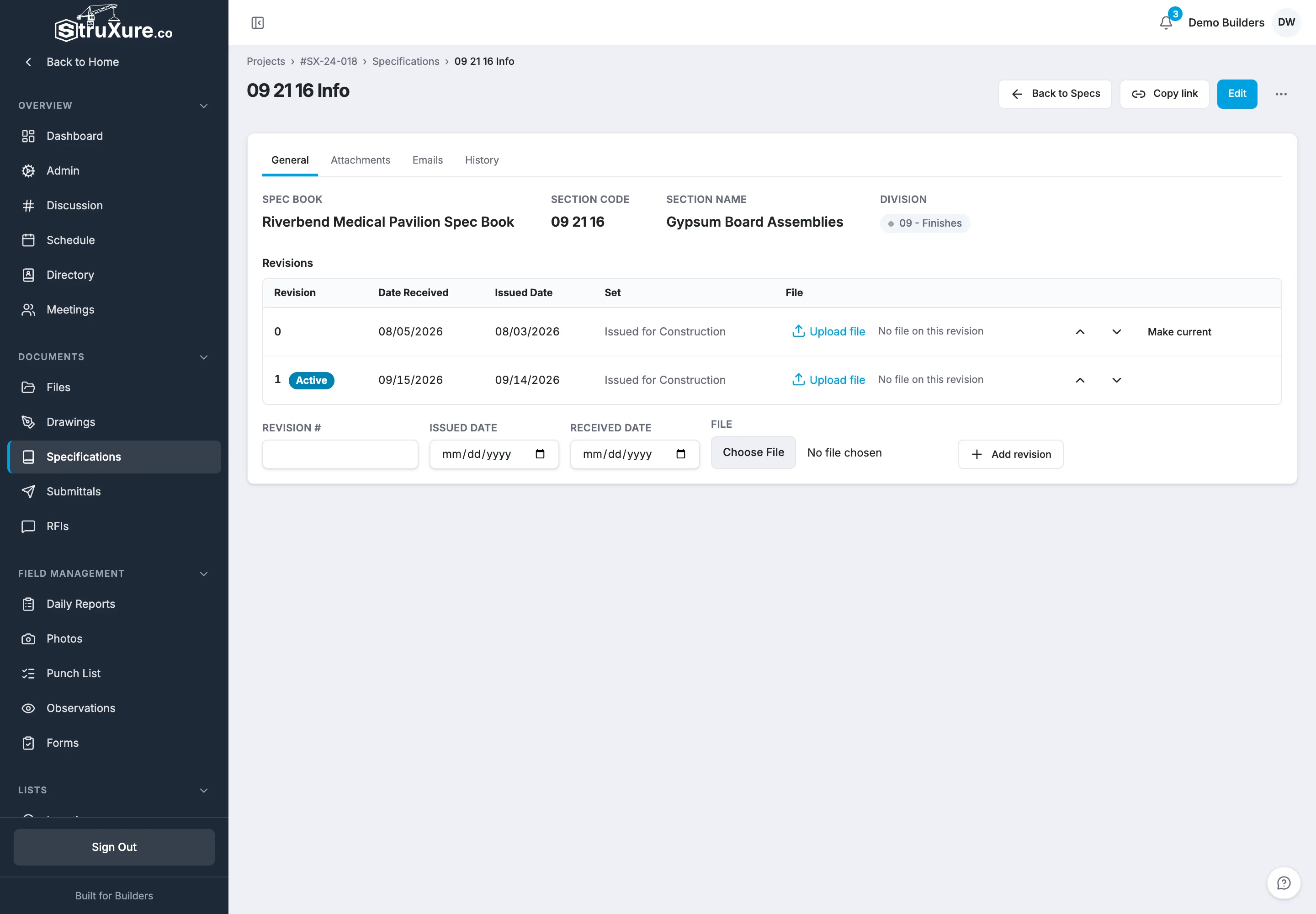
Make it the current revision
Adding a revision doesn't make it current, so nobody reads an issue before it's meant to be used.
- Click Make current on the revision's row. It's marked Active, and the register, downloads and the PDF report now use it.
Other changes
- Add a file to a revision that doesn't have one: click Upload file in its File column and pick the PDF.
- Reorder the list: use the up and down arrows on a row. This only changes the order of the list, not which revision is current.
Messages you might see
| Message | What it means |
|---|---|
| A revision needs a number. | Fill in REVISION #. |
| This section already has a revision … | Use a different number. |
| The revision was added, but its file was not: … | The revision is saved without a file. Use Upload file on its row to try again. |
| That file is … The limit is 5.0 GB. | The PDF is too large to upload. Choose a smaller file. |