
After StruXure has found the sections in a spec book, someone checks them before they go into the register. You confirm each one, fix anything it got wrong, and publish.
Open the review
Any of these opens it:
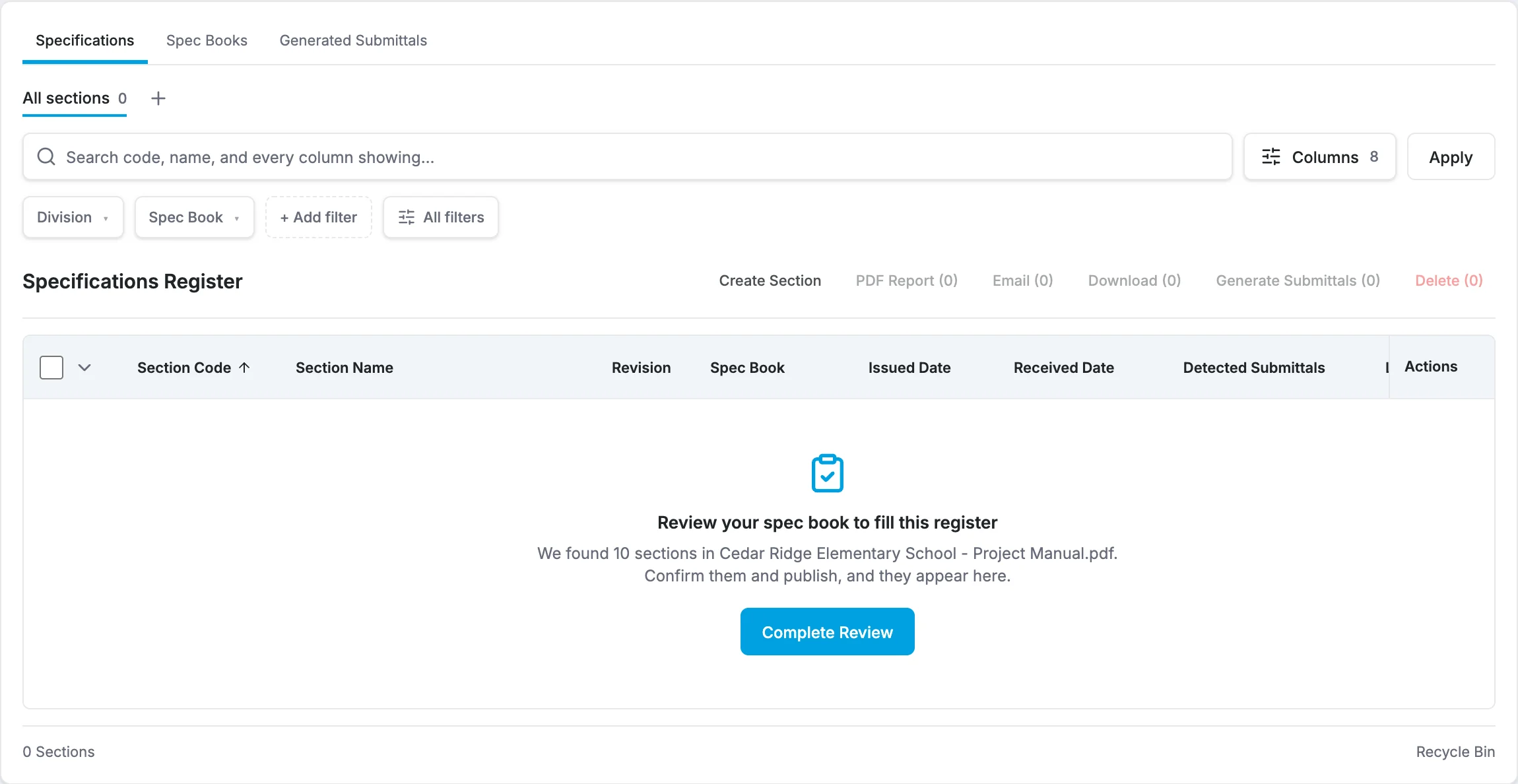
- On the register, click Complete Review under Review your spec book to fill this register.
- On the Spec Books tab, click Complete Review on the file's row, or the number in its Pending column. Pending counts every section that isn't in the register yet: those still to review and those confirmed but not published.
- Once nothing is waiting, the file's row shows Open Review instead, so you can always go back to the review.
The review screen
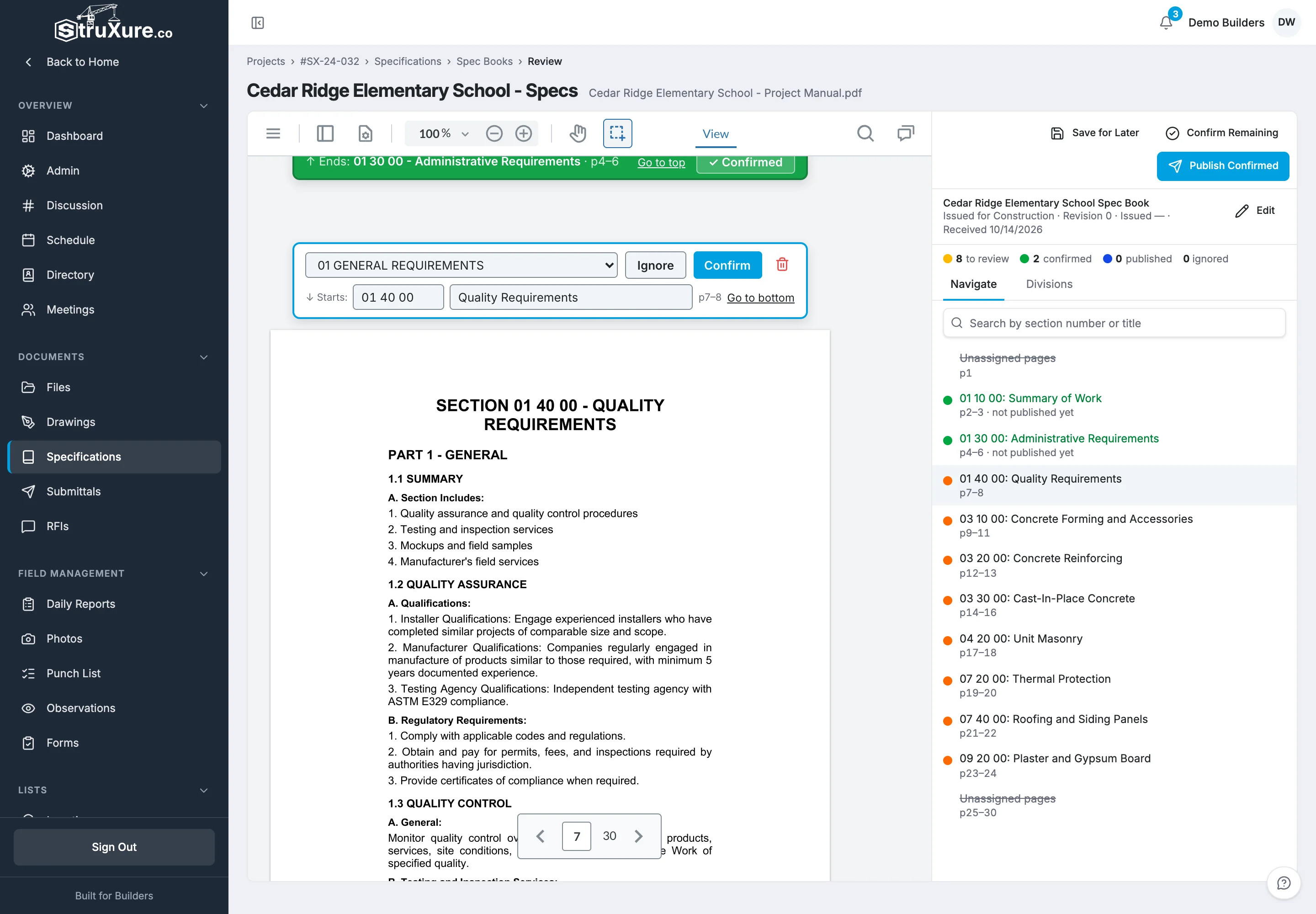
- On the left is the whole book. Above the first page of each section is a card with its division, section code, title and page range (for example p7–8). Below its last page is a slimmer ↑ Ends: card naming the section that ends there.
- In a long section, click Go to bottom on its card to jump to the ↑ Ends: card, and Go to top on the ↑ Ends: card to jump back.
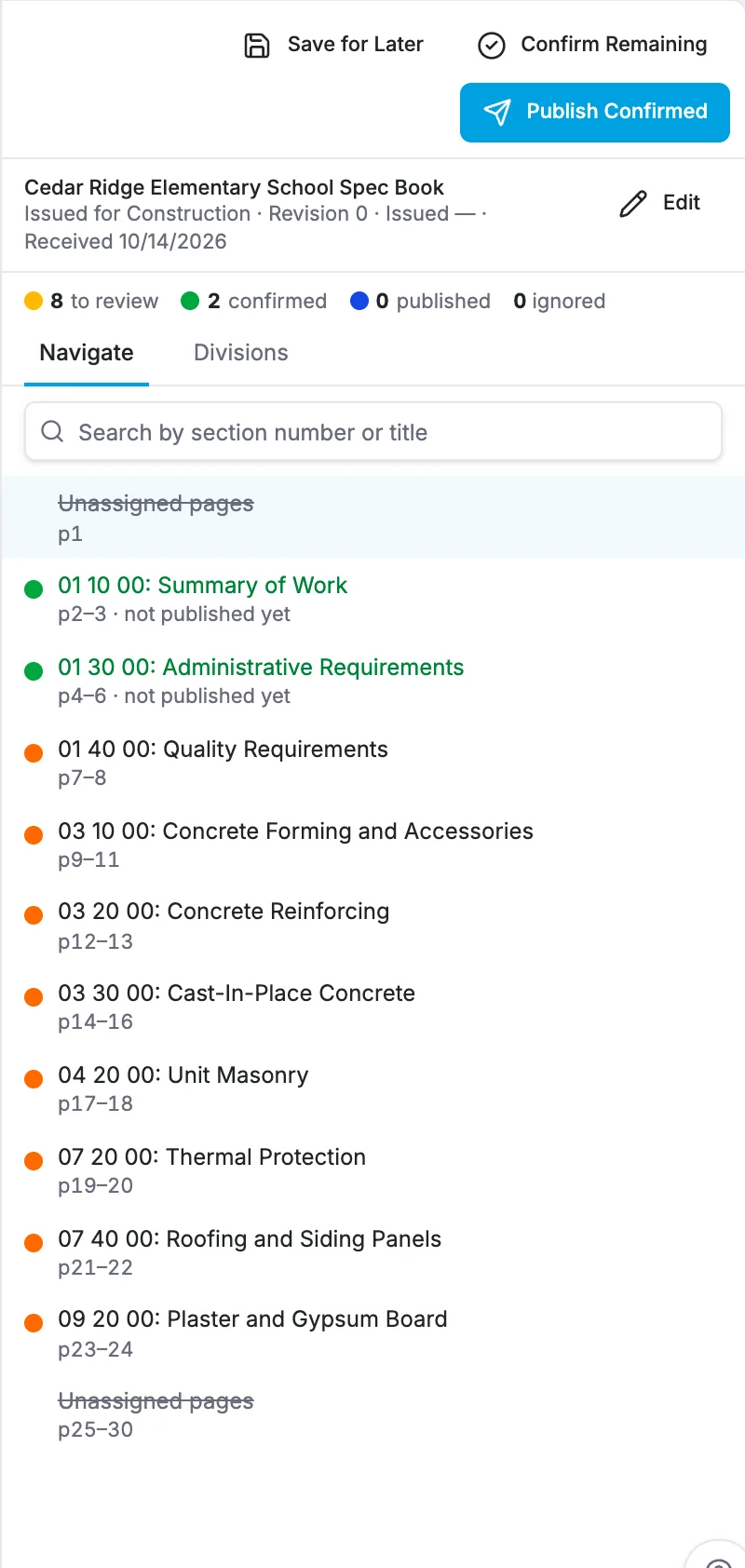
- At the top of the right-hand panel are the book's details: its name, set, revision, issued date and received date.
- On the right, the Navigate tab lists every section in page order. Click one to jump to it. An orange or amber dot marks a section still to review. Confirmed sections that aren't published yet are green and say not published yet; published sections are blue and say published. Ignored ones are struck through.
- To find a section, type its number or part of its title in Search by section number or title at the top of the list. The list shows only the sections that match, including any in the table of contents that weren't found in the book. Clear the box, or press Esc, to see them all again.
- Above the list, the counts show how many are to review, confirmed, published and ignored, with the same coloured dots.
- In the book, the cards and pages follow the same colours: green for confirmed, blue with Published and a paper plane once published.
Some cards carry a short note in amber, such as No END OF SECTION found, No title found, Footer page numbers skip or repeat or Not listed in the table of contents. These are the things worth checking on that section.
Correct the book details
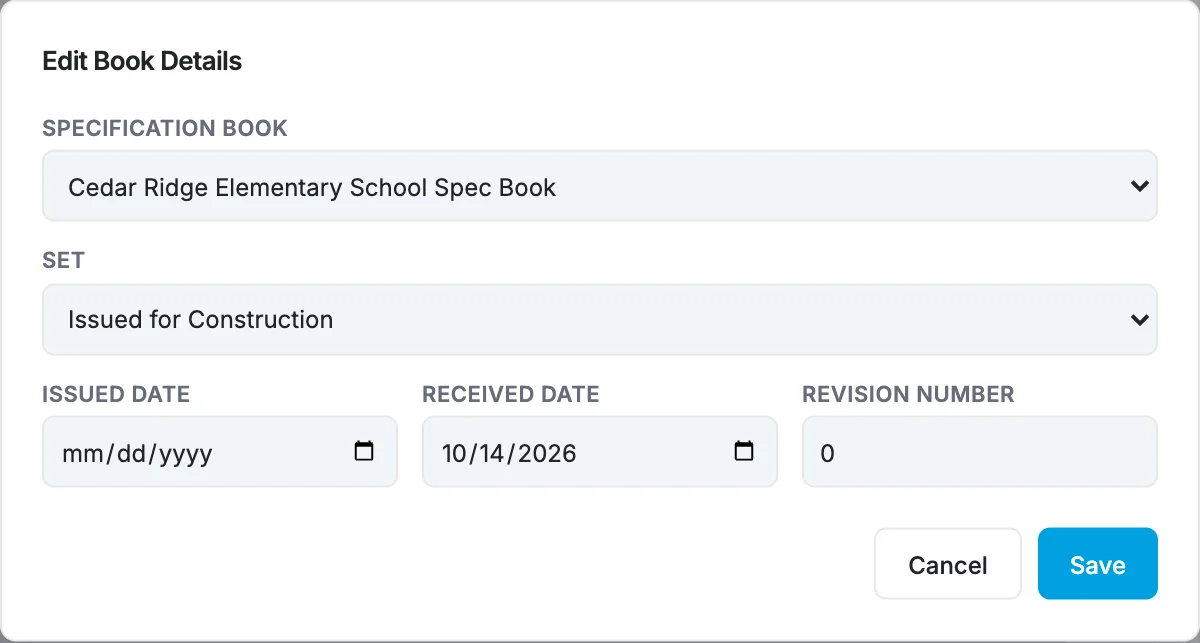
If you chose the wrong book or set, or entered the wrong dates or revision when you uploaded, you can correct them here until the first section is published.
- In the book's details at the top of the right-hand panel, click Edit.
- Change the Specification Book, Set, Issued Date, Received Date or Revision Number. These are the same fields as the upload dialog.
- Click Save.
Once a section has been published, Edit goes away and the details stay as they are, so every section from this file has the same revision.
Check each section
For each card:
- Check the Division, the section code and the title against the page below the card. Correct any of them by typing in the box; the change saves when you click away or press Enter.
- Click Confirm if it's right, or Ignore if it isn't a section you want in the register (a cover page, for example). The ↑ Ends: card below the section's last page has the same two buttons, so you can decide once you've read to the end.
After Confirm or Ignore, the book moves on to the next section still to review. To change your mind, click ✓ Confirmed or Ignored · Undo on the card.
If the split itself is wrong (two sections run together, or one is cut in two), see Fix how the book is split.
If the list looks right, click Confirm Remaining to confirm every section still to review in one go. It skips any section with no code or no division, and any whose code is already confirmed elsewhere in the book; those stay for you to settle.
Publish
If this book already has any of these sections at the same revision, the panel says so, those sections show revision already in this book, and Publish Confirmed stays greyed out. Change the Revision Number under Correct the book details, or ignore those sections.
- Click Publish Confirmed.
- StruXure puts the confirmed sections into the register, then cuts each section's pages into its own PDF. A Publishing Specs… card in the bottom-right corner shows how far it has got, and the panel says Putting N sections into the register…, then Making each section's PDF: N of N done.
- You can leave the page, or go anywhere else in the project. Publishing carries on, and the card follows you.
- When it's finished, the card says Publish complete with a link to Open the register, and the panel says Done.
The card collapses to one line with the arrow in its corner, and Dismiss closes it. A card you dismiss while it's running comes back once, when publishing finishes.
You don't have to review the whole book at once. Click Save for Later to go back to Spec Books; everything you've confirmed is kept, and you can publish in batches.
Messages you might see
| Message | What it means |
|---|---|
| Give the section a code before confirming it. | Type the section code first. Confirm stays greyed out until there is one. |
| A section code needs its number, e.g. 09 21 16. | The code has no digits in it. |
| Assign a division before confirming. | Choose a Division on the card. |
| … is already confirmed on page N. Section codes must be unique. | Another section in this book already has that code. Fix one of them. |
| This book already has … at revision … | Sections in this file clash with a revision the book already holds, and nothing can be published yet. Click Edit in the book's details and change the Revision Number, or ignore those sections. |
| Not published: This book already has … at revision … | Publishing had already started when this section's revision clashed, so the Revision Number can't change. Ignore the section, or add the revision from the register. |
| Publish finished with problems | The card's way of saying some sections weren't published or some PDFs couldn't be made. Click Open the review to see which. |
| N PDFs could not be made | Those sections are in the register without a file. Click Try Again; if one still fails, open it in the register and upload its PDF on the revision. |
Good to know
- Once a section is in the register, its card is locked. Change it from the register instead.
- If the code matches a section already in this book, the list shows adds a revision: publishing adds this issue as a new revision of that section rather than a second copy. A section another book has with the same code doesn't count: publishing adds this book's own section. See Upload a new issue of the spec book.
- People with read access can open the review to look, but can't change anything.