
The Specifications tab is the register: every published section on the project, grouped by division and listed in section-code order.
Search
Type in the search box, for example a section number (09 21 16) or part of a title (door). The register updates when you pause typing; you don't need to press Enter.
The search looks at the section code and the name, and the text in the other columns showing. It doesn't search dates or counts: use the filters for those. The count at the bottom shows how many match, for example 2 of 25 Sections. If nothing matches, the register says No sections match that filter. Click Clear to remove the search.
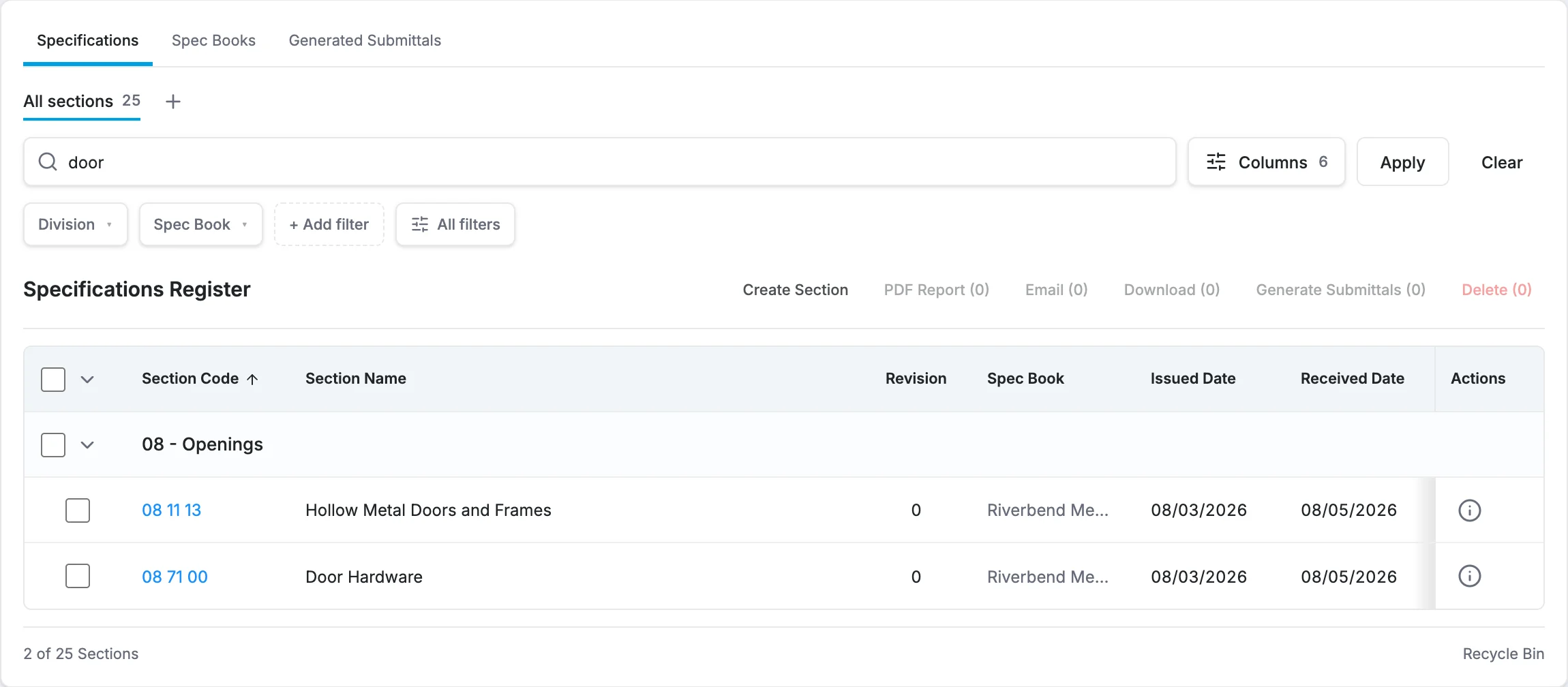
Filter
- Division and Spec Book are always on the filter row. Click one and tick the values you want.
- + Add filter adds another: Set, Revision, File on current revision, Submittals to generate, Issued Date, Received Date or Created, and any dropdown or date field your company has added to spec sections.
- All filters opens every filter at once.
Columns and sort
- Click Columns, tick the columns you want and drag them into order. Each change shows on the register straight away, with the menu still open. Section Code is always shown. The other columns are Section Name, Revision, Spec Book, Issued Date, Received Date, Detected Submittals, Linked Submittals, Division, Set, Files, Attachments and Created, then any fields your company has added to spec sections (see Add your own fields). Reset to the default columns puts them back.
- Drag the right edge of a heading to make a column wider or narrower, and double-click the edge to fit it. To go back, click Columns, then Reset column widths.
- Click a column heading to sort by it; click again to reverse.
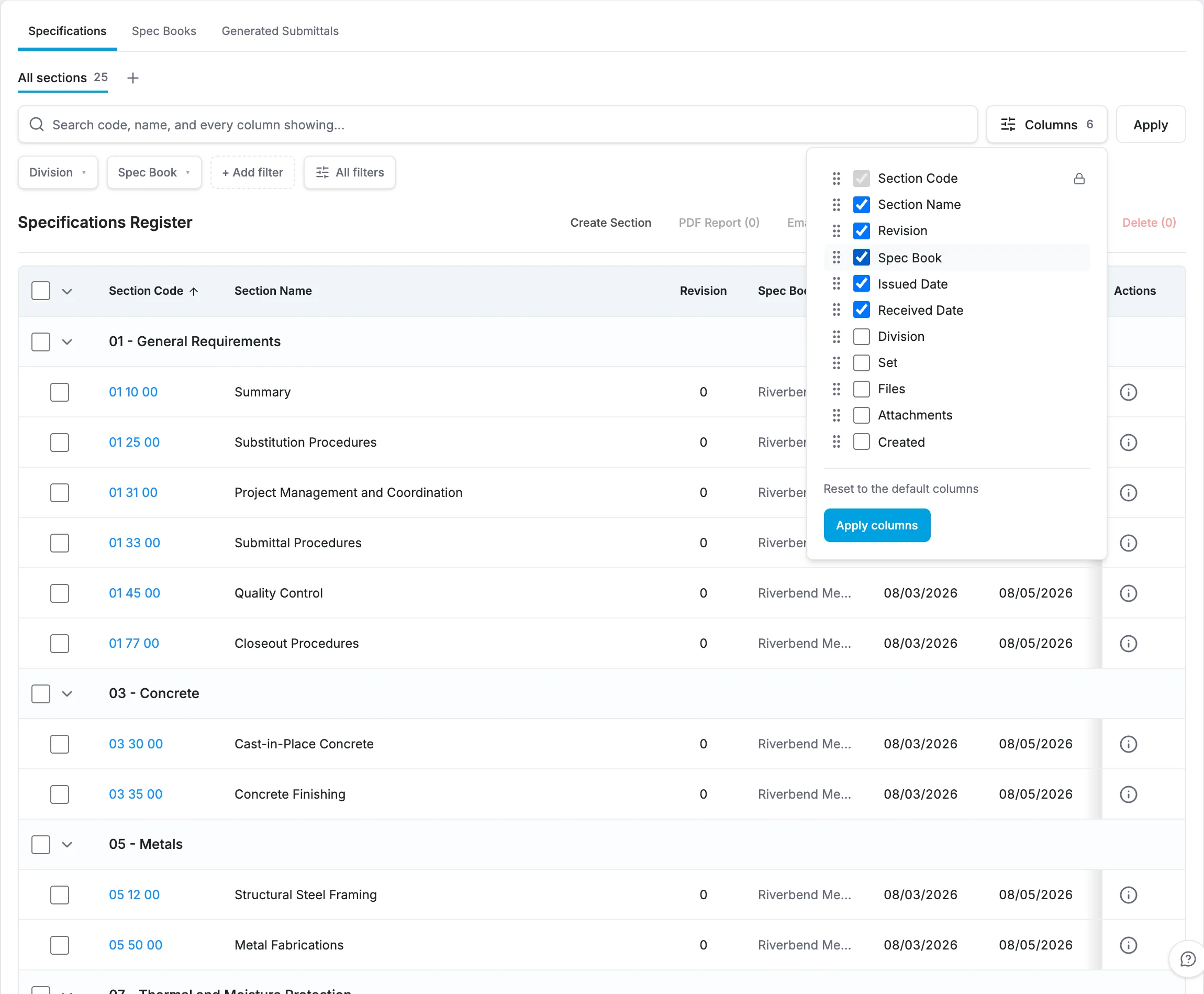
Whatever you sort by, sections stay grouped under their divisions.
Collapse divisions
Click the arrow beside a division to hide its sections, and again to show them. The arrow in the heading row collapses or expands every division at once. The register remembers what's collapsed while you open sections and come back.
Save a view
A saved view is your own tab that remembers the search, filters, columns and sort.
- Set up the register the way you want it.
- Click + beside All sections, name the view, and save it.
If you change the register while a view is open, a bar offers to save the changes to the view, save them as a new view, or reset. Only you see your views.
Good to know
- Click a section code to read its PDF beside the register, or the ⓘ icon in Actions to open the section. See Open a section.