
StruXure splits the book where the section numbers printed in it change. When a book is laid out unusually, the split can be off. You fix it on the review screen, before you publish.
Every page of the book belongs to exactly one row in the list, so a section always runs from its first page to the page before the next one starts.
Start a new section on a page
Between pages, where the next page doesn't already start a section, there's a round + button.
- Scroll to the page the section starts on.
- Click the + just above it.
- A new card appears above that page, with no code yet. Type the section code and title, choose the division, and click Confirm.
The section before it now ends on the page above.
Join a section to the one before
- On the card of the section that shouldn't be separate, click the bin icon (Remove this break).
- Its pages join the section before.
The first page of the book always starts a section, so its card has no bin icon.
Unassigned pages
Pages that StruXure couldn't match to a section number appear as Unassigned pages, already ignored. Typically they are the cover, the table of contents, or pages that are scanned images with no text.
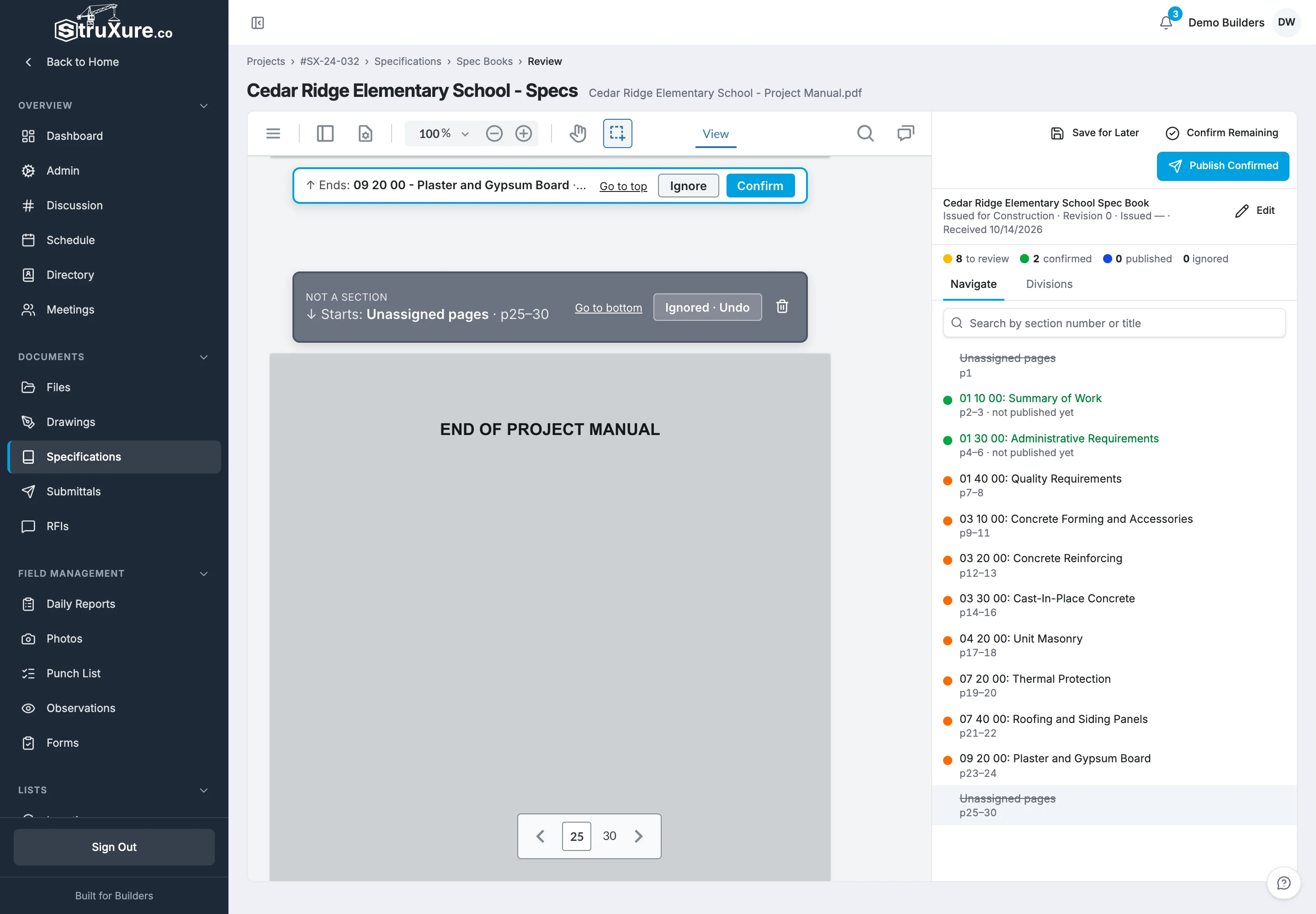
- If they hold no section you need, leave them ignored.
- If a section starts on them, use + to start it on the right page.
- If the whole run is one section, click Ignored · Undo on the card, then give it a code, title and division and click Confirm.
When the workspace assigns every page
If a company admin has turned on Assign every page to a section (in Settings > Module defaults > Specifications), there are no unassigned pages. Pages before the first section join the first section, blank pages join the section before them, and other pages without a section number join the next section, or the last section at the end of the book. The section that took them says No section number on pages …; added here on its card.
Check those sections before you confirm them. If the added pages don't belong, use + to start a new section on the first of them, then click Ignore on that new section.
Sections in the table of contents but not in the book
If the book has a table of contents, the bottom of the Navigate list shows In the table of contents but not found in the book. These are often forms or attachments bound inside another section, or documents issued on their own.
- If one is in this book, find its first page and use + to start it there.
- If it's a separate document, click Add beside it. It goes into the register with its code and title from the table of contents, and you stay where you were on the review page. It stays in the list marked Added · Open: click that to open the section and attach its file.
Divisions
The Divisions tab lists the project's divisions: the choices on each card and the names the register shows. Divisions marked from the book come from the spec book itself.
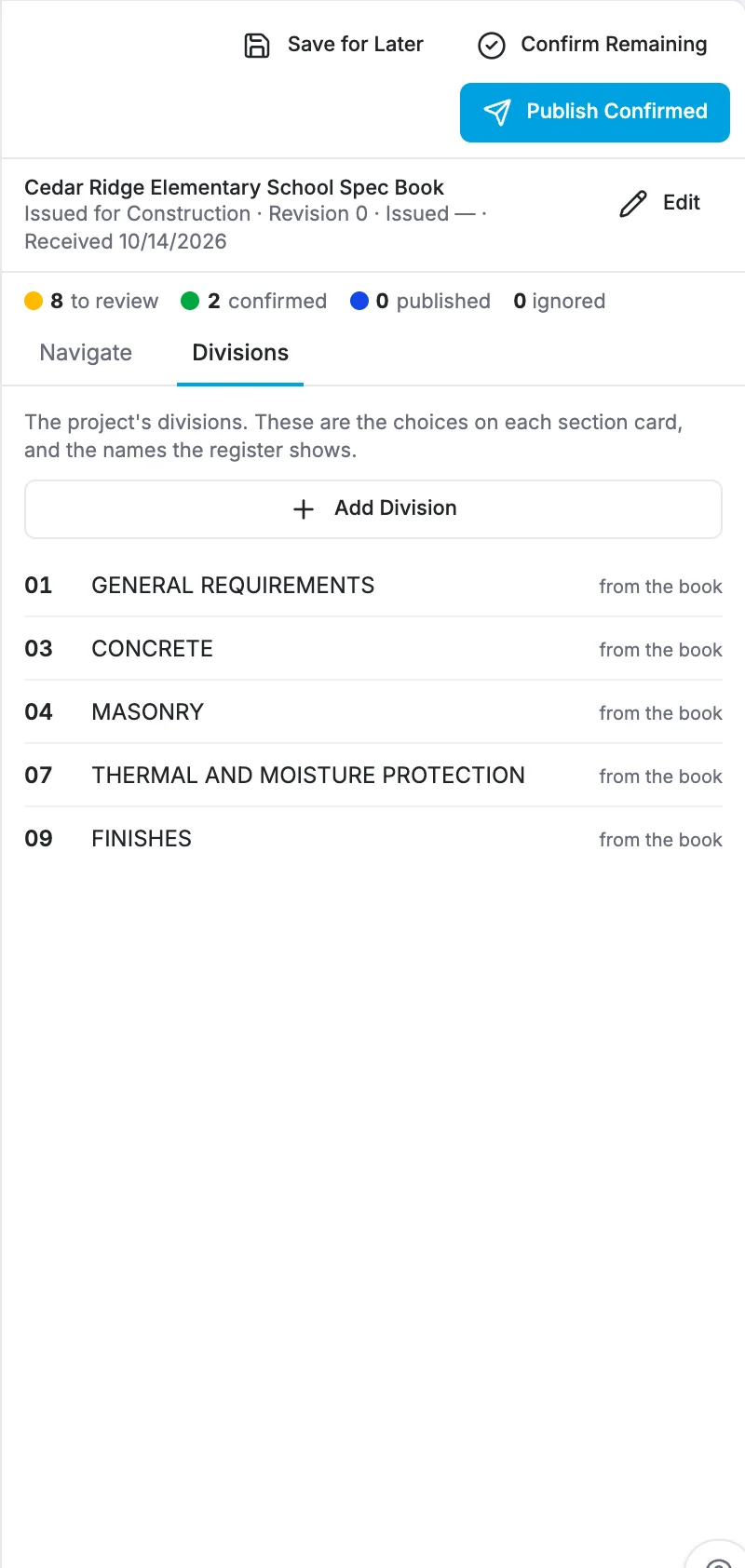
- To add one, click Add Division, type the two-digit code and the name, and click Save.
- To rename one, click it, change the name, and click Save.
Messages you might see
| Message | What it means |
|---|---|
| A new section has to start after the first page. | The first page always starts a section. |
| A section already starts on page N. | There's already a break there. |
| The first page always starts a section. | You can't join the first section to anything. |
| The section before this one is already in the register, so its pages cannot change. | Published sections are locked. |
| This section is already in the register; change it there. | Edit it from the register instead. |