
Files can go with an RFI in three places:
| Where | What it's for | Who can add one |
|---|---|---|
| The RFI itself | The marked-up drawing or photo that explains the question | RFI admins, when raising the RFI or afterwards |
| A response | The sketch or revised detail that comes back with an answer | Anyone who can respond, in the response form |
| A comment | Anything that goes with the discussion | Anyone who can comment |
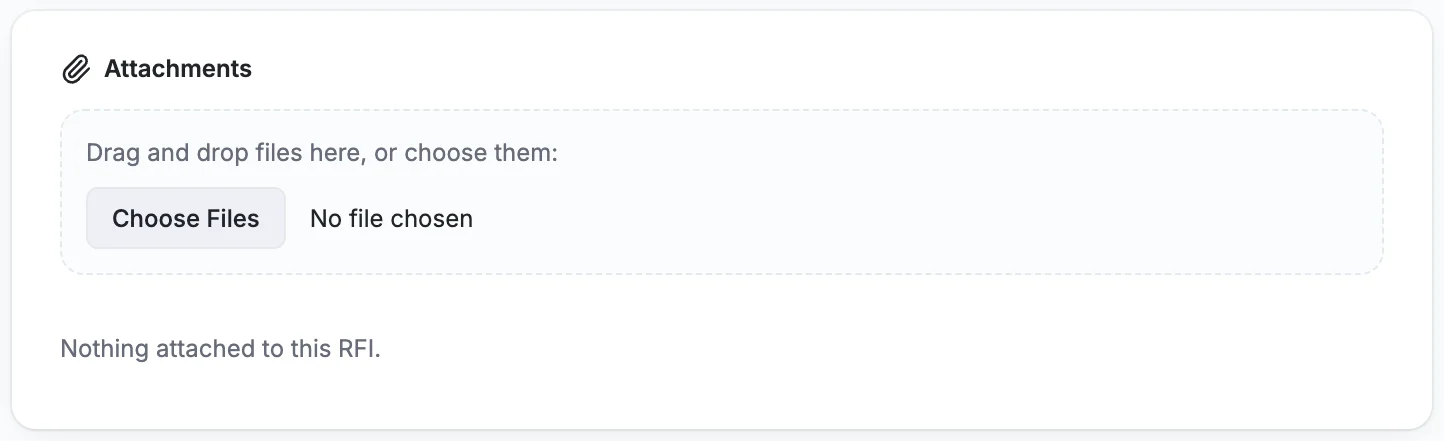
Every file on the RFI and its responses is listed in the Attachments card on the RFI's Details tab, under the question.
Add files to an RFI
- Open the RFI.
- In the Attachments card, drag files into the box, or click Choose Files and pick them.
- Each file shows its progress, then Stored. The list updates when the last one is done.
If a file has exactly the same content as one already there, it says so.
To attach files to a response, add them under Attachments in the response form. See Respond to an RFI. Files on a comment are added in the Comments card. See Comment on an RFI.
Open a file
Click its name, in the Attachments card or under the response it came with. Point at the name of a picture to see a preview of it without downloading it.
The Attachments card shows each file's Type, Size, when it was Added, and whether it's Attached to The RFI or A response.
While a file is being checked
Every file is checked for malware when it's added, and nobody can open it until the check comes back clean. That usually takes a few seconds. Until then the file's name isn't a link, and a label beside it says why:
| Label | What it means |
|---|---|
| Scanning for Malware | The check hasn't finished. The file opens as soon as it comes back clean. |
| Infected | Malware was found. The file can never be opened or downloaded. An RFI admin can Delete it. |
| Scan Failed | The file couldn't be checked. It stays closed unless an RFI admin chooses Allow Download Anyway. |
| Not scanned | The file was added before checking began. It opens as before, until it is checked. |
A clean file has no label. When a file is found Infected, whoever added it and the RFI admins are told in their Inbox.
Remove a file
- In the Attachments card, click Remove next to the file.
- Read the confirmation and click Delete attachment.
The page says … was removed, and its file was deleted from storage.
Files can be added and removed only while the RFI is a draft or open. Once it's closed or cancelled, its files can be opened but not changed. Files on a comment can still be added with the comment.
Removing a file deletes it for good. There's no recycle bin for RFI files, and it isn't recorded on the RFI's history.
RFI admins can remove any file. People with Respond access can remove files that came with a response. Files on comments can't be removed; an RFI admin can hide the comment instead.
Good to know
Programs and scripts, such as .exe, .bat, .js or .sh files, can't be added. The file shows Failed with That file is a program or script. StruXure doesn't accept those.
Files that came with the responses print in the RFI's PDF: photos and images under the response, PDFs as pages at the end. See Print RFIs as a PDF or export them to a spreadsheet.
Without Admin access, you won't see the box for adding files to the RFI itself.